Documentation for Cockpit 355.
Latest version available here.
Manual pages
cockpit(1)
Name
cockpit - Cockpit
Description
Cockpit is a web accessible interactive admin interface for Linux
machines. Cockpit can usually be accessed on port 9090 of the
machine it’s installed on. Cockpit starts on demand. Use your system
credentials to log in.
Components
The cockpit-ws web service listens on port 9090 and is started
on demand by systemd. The Cockpit web service authenticates the
user, loads Cockpit into the browser, and starts cockpit-bridge in a
Linux user session.
The cockpit-bridge provides Cockpit in the web browser with access to the system APIs. It does this over its standard in and standard out. The bridge is started like a shell once per Linux user session.
Bugs
Please send bug reports to either the distribution bug tracker or the upstream bug tracker.
Author
Cockpit has been written by many contributors.
See also
cockpit-tls(8) , cockpit.bridge(1) , systemd(1), Cockpit guide
cockpit.conf(5)
Name
cockpit.conf - Cockpit configuration file
Description
Cockpit can be configured via /etc/cockpit/cockpit.conf. If $XDG_CONFIG_DIRS is set, then the first path containing a ../cockpit/cockpit.conf is used instead. Other configuration files and directories are searched for in the same way.
This file is not required and may need to be created manually. The file has a INI file syntax and thus contains key / value pairs, grouped into topical groups. See the examples below for details.
Note: The port that cockpit listens on cannot be changed in this file. To change the port change the systemd cockpit.socket file.
WebService
- Origins
-
By default cockpit will not accept crossdomain websocket connections. Use this setting to allow access from alternate domains. Origins should include scheme, host and port, if necessary. Wildcards and glob expressions are permitted.
[WebService]
Origins = https://somedomain1.com https://somedomain2.com:9090 https://*.somedomain3.com- ProtocolHeader
-
Configure cockpit to look at the contents of this header to determine if a connection is using tls. This should only be used when cockpit is behind a reverse proxy, and care should be taken to make sure that incoming requests cannot set this header.
[WebService]
ProtocolHeader = X-Forwarded-Proto- ForwardedForHeader
-
Configure cockpit to look at the contents of this header to determine the real origin of a connection. This should only be used when cockpit is behind a reverse proxy, and care should be taken to make sure that incoming requests cannot set this header.
[WebService]
ForwardedForHeader = X-Forwarded-For- LoginTitle
-
Set the browser title for the login screen.
- LoginTo
-
When set to
truethe Connect to option on the login screen is visible and allows logging into another server. When set tofalse, direct remote logins are disallowed. If this option is not specified then it will be automatically detected based on whether the cockpit-bridge package is installed and the ssh program is available.
If cockpit-ws is exposed to the public internet, and also has access to a private internal network, it is recommended to explicitly set LoginTo=false. This prevents unauthenticated remote attackers from scanning the internal network for existing machines and open ports. - RequireHost
-
When set to
truecockpit will require users to use the Connect to option to specify the host to log into. - AllowMultiHost
-
When set to
true, cockpit will allow users to connect to multiple hosts in one session. The default is OS specific.
When connecting to multiple servers, JavaScript runs without isolation. All systems will be vulnerable to potential attacks from other connected hosts. Enable this option only when all hosts are trusted. - MaxStartups
-
Same as the sshd configuration option by the same name. Specifies the maximum number of concurrent login attempts allowed. Additional connections will be dropped until authentication succeeds or the connections are closed. Defaults to 10.
Alternatively, random early drop can be enabled by specifying the three colon separated values start:rate:full (e.g. "10:30:60"). Cockpit will start refusing authentication attempts with a probability of rate/100 (30%) if there are currently start (10) unauthenticated connections. The probability increases linearly and all connection attempts are refused if the number of unauthenticated connections reaches full (60). - AllowUnencrypted
-
If true, cockpit will accept unencrypted HTTP connections. Otherwise, it redirects all HTTP connections to HTTPS. Exceptions are connections from localhost and for certain URLs (like /ping). Defaults to false.
- UrlRoot
-
The root URL where you will be serving cockpit. When provided cockpit will expect all requests to be prefixed with the given url. This is mostly useful when you are using cockpit behind a reverse proxy, such as nginx.
/cockpit/and/cockpit+are reserved and should not be used. For example/cockpit-new/is ok./cockpit/and/cockpit+new/are not. - ClientCertAuthentication
-
If true, enable TLS client certificates for authenticating users. Commonly these are provided by a smart card, but it’s equally possible to import certificates directly into the web browser. Please see the Certificate/smart card authentication section in the Cockpit guide for details.
- Shell
-
The relative URL to top level component to display in Cockpit once logged in. Defaults to
/shell/index.html
Log
- Fatal
-
The kind of log messages in the bridge to treat as fatal. Separate multiple values with spaces. Relevant values are: criticals and warnings.
OAuth
Cockpit can be configured to support the implicit grant OAuth authorization flow. When successful the resulting oauth token will be passed to cockpit-ws using the Bearer auth-scheme. For a login to be successful, cockpit will also need a to be configured to verify and allow Bearer tokens.
- URL
-
This is the url that cockpit will redirect the users browser to when it needs to obtain an oauth token. Cockpit will add a redirect_uri parameter to the url with the location of where the oauth provider should redirect to once a token has been obtained.
- ErrorParam
-
When a oauth provider redirects a user back to cockpit, look for this parameter in the querystring or fragment portion of the url to find a error message. When not provided it will default to error_description
- TokenParam
-
When a oauth provider redirects a user back to cockpit, look for this parameter in the querystring or fragment portion of the url to find the access token. When not provided it will default to access_token
Session
- Banner
-
The contents of the specified file (commonly /etc/issue) are shown on the login page. By default, no banner is displayed.
- IdleTimeout
-
Time in minutes after which session expires and user is logged out if no user action has been performed in the given time. This idle timeout only applies to interactive password logins. With non-interactive authentication methods like Kerberos, OAuth, or certificate login, the browser cannot forget credentials, and thus automatic logouts are not useful for protecting credentials of forgotten sessions. Set to 0 to disable session timeout.
[Session]
IdleTimeout=15-
When not specified, there is no idle timeout by default.
- WarnBeforeConnecting
-
Whether to warn before connecting to remote hosts from the Shell. Defaults to true.
[Session]
WarnBeforeConnecting=false
Bugs
Please send bug reports to either the distribution bug tracker or the upstream bug tracker.
Author
Cockpit has been written by many contributors.
See also
cockpit-ws(8), cockpit-tls(8)
cockpit-ws(8)
Name
cockpit-ws - Cockpit web service
Synopsis
cockpit-ws [--help] [--port PORT] [--address ADDRESS] [--no-tls] [--for-tls-proxy] [--local-ssh] [--local-session BRIDGE]
Description
The cockpit-ws program is the web service component used for communication between the browser application and various configuration tools and services like cockpit-bridge(1).
Users or administrators should never need to start this program as it automatically started by systemd(1) on bootup, through cockpit-tls(8).
Transport security
cockpit-ws is normally run behind the cockpit-tls TLS terminating proxy, and only deals with unencrypted HTTP by itself. But for backwards compatibility it can also handle TLS connections by itself when being run directly. For details how to configure certificates, please refer to the cockpit-tls(8) documentation.
Timeout
When started via systemd(1) then cockpit-ws will exit after 90 seconds if nobody logs in, or after the last user is disconnected.
Options
- --help
-
Show help options.
- --port PORT
-
Serve HTTP requests PORT instead of port 9090. Usually Cockpit is started on demand by systemd socket activation, and this option has no effect. Update the ListenStream directive cockpit.socket file in the usual systemd manner.
- --address ADDRESS
-
Bind to address ADDRESS instead of binding to all available addresses. Usually Cockpit is started on demand by systemd socket activation, and this option has no effect. In that case, update the ListenStream directive in the cockpit.socket file in the usual systemd manner.
- --no-tls
-
Disable http to https redirection.
- --for-tls-proxy
-
Tell cockpit-ws that it is running behind a local reverse proxy that does the TLS termination. Then Cockpit puts https:// URLs into the default Content-Security-Policy, and accepts only https:// origins, instead of http: ones by default. However, if Origins is set in the cockpit.conf(5) configuration file, it will override this default.
- --local-ssh
-
Normally cockpit-ws uses cockpit-session and PAM to authenticate the user and start a user session. With this option enabled, it will instead authenticate via SSH at 127.0.0.1 port 22.
- --local-session BRIDGE
-
Skip all authentication and cockpit-session, and launch the cockpit-bridge specified in BRIDGE in the local session. If the BRIDGE is specified as
-then expect an already running bridge that is connected to stdin and stdout of this cockpit-ws process. This allows the web server to run as any unprivileged user in an already running session.
This mode implies --no-tls, thus you need to use http:// URLs with this.
|
Warning
|
With --local-session BRIDGE, you have to isolate the opened TCP port somehow (for example in a network namespace), otherwise all other users (or even remote machines if the port is not just listening on localhost) can access the session! |
Environment
The cockpit-ws process will use the XDG_CONFIG_DIRS environment variable from the XDG basedir spec to find its cockpit.conf(5) configuration file.
In addition the XDG_DATA_DIRS environment variable from the XDG basedir spec can be used to override the location to serve static files from. These are the files that are served to a non-logged in user.
Bugs
Please send bug reports to either the distribution bug tracker or the upstream bug tracker.
Author
Cockpit has been written by many contributors.
See also
cockpit-tls(8) , cockpit.conf(5) , systemd(1)
cockpit-tls(8)
Name
cockpit-tls - TLS proxy for Cockpit web service
Synopsis
cockpit-tls [--help] [--port PORT] [--no-tls] [--idle-timeout SECONDS]
Description
The cockpit-tls program is a TLS terminating HTTP proxy for cockpit-ws(8). It manages a set of isolated cockpit-ws instances, one per TLS client certificate, plus one for TLS without a client certificate, and one for unencrypted HTTP. With that, one session cannot tamper with another one through possible security vulnerability exploits.
Users or administrators should never need to start this program as it automatically started by systemd(1) via socket activation.
Transport security
To specify the TLS certificate the web service should use, simply drop a file with the extension .cert in the /etc/cockpit/ws-certs.d directory, or below $XDG_CONFIG_DIRS if set (see cockpit.conf). If there are multiple files in this directory, then the highest priority one is chosen after sorting.
The .cert file should contain at least two OpenSSL style PEM blocks.
First one or more BEGIN CERTIFICATE blocks for the server
certificate and intermediate certificate authorities and a second one
containing a BEGIN PRIVATE KEY or similar. The key must not be
encrypted.
If there is no TLS certificate, a self-signed certificate is automatically generated using sscg (if available) or openssl and stored in the 0-self-signed.cert file.
When enrolling into a FreeIPA domain, an SSL certificate is requested from the IPA server and stored in 10-ipa.cert.
To check which certificate cockpit-ws will use, run the following command.
$ sudo /usr/libexec/cockpit-certificate-ensure --check
Or, on Debian-based systems:
$ sudo /usr/lib/cockpit/cockpit-certificate-ensure --check
If using certmonger to manage certificates, following command can be used to generate a certificate/key pair:
CERT_FILE=/etc/cockpit/ws-certs.d/50-certmonger.crt
KEY_FILE=/etc/cockpit/ws-certs.d/50-certmonger.key

getcert request -f ${CERT_FILE} -k ${KEY_FILE} -D $(hostname --fqdn)
Options
- --help
-
Show help options.
- --port PORT
-
Serve HTTP requests on PORT instead of port 9090. Usually Cockpit is started on demand by systemd socket activation, and this option has no effect. Update the ListenStream directive cockpit.socket file in the usual systemd manner.
- --no-tls
-
Don’t use TLS. Certificates will not be read, and https connections denied. Then cockpit-tls will only manage a single cockpit-ws instance, and thus not do anything different than running cockpit-ws --no-tls directly. Only use this for debugging or testing.
- --idle-timeout SECONDS
-
If greater than 0, exit if no connections have happened for the given number of seconds, i. e. the server is idle. If not given, the default is 90.
Environment
The cockpit-tls program expects the RUNTIME_DIRECTORY environment variable to be set to an empty directory (preferably in /run/) that is only accessible by the system user under which it is running. This contains the Unix sockets for communicating with the cockpit-ws instances, and in the future, state information about client certificates. This variable is normally set by the cockpit.service systemd unit.
In addition, cockpit-tls will use the XDG_CONFIG_DIRS environment variable from the XDG basedir spec to find its certificates and the cockpit.conf(5) configuration file.
Bugs
Please send bug reports to either the distribution bug tracker or the upstream bug tracker.
Author
Cockpit has been written by many contributors.
See also
cockpit-ws(8) , cockpit.conf(5) , systemd(1)
cockpit-desktop(1)
Name
cockpit-desktop - Cockpit Desktop integration
Synopsis
cockpit-desktop URLPATH [SSH_HOST]
Description
The cockpit-desktop program provides secure access to Cockpit pages in an already running desktop session. It starts a web server (cockpit-ws) and a web browser in an isolated network namespace, and a cockpit-bridge(8) in the running user session.
This avoids having to log into Cockpit, and having to enable cockpit.socket system-wide. The network isolation ensures that no other user, and not even other processes in the user’s session, can access this local web server.
URLPATH is the Cockpit page to open, i. e. the path component of
Cockpit URLs. It is highly recommended to only open a
particular page frame, not the entire Cockpit navigation and menu. For example, the
path /cockpit/@localhost/storage/index.html will open the Storage
page. It is also possible to give abbreviated forms of urls, such as
“/storage” or “/network/firewall”.
SSH_HOST is an optional SSH remote host specification (hostname or username@hostname). If given, cockpit-bridge will be started on the remote host through ssh(1) instead, i. e. the Cockpit web browser will show that remote host. Note that this is more of an experimental/demo feature.
Environment
The BROWSER environment variable specifies the browser command (and possibly options) that will be used to open the requested Cockpit page. If not set, cockpit-desktop attempts to use an internal minimalistic WebKit browser, and failing that, will attempt to detect some reasonable alternatives.
Bugs
Please send bug reports to either the distribution bug tracker or the upstream bug tracker.
Author
Cockpit has been written by many contributors.
See also
cockpit-ws(8), cockpit-bridge(1)
cockpit-bridge(1)
Name
cockpit-bridge - Cockpit Host Bridge
Synopsis
cockpit-bridge [--help] [--packages]
Description
The cockpit-bridge program is used by Cockpit to relay messages and commands from the Web front end to the server. Among other things it relays DBus, and spawns processes on behalf of the Web user interface.
This program is not routinely run by users or administrators. It is in the $PATH so that Cockpit can find it when connecting between hosts. However there are some diagnostics available when running from the command line.
Options
- --help
-
Show help options.
- --interact=boundary
-
Interact with the raw cockpit1 protocol. Useful for debugging and testing. Specify a boundary which should be on an empty line between messages.
- --packages
-
List all available Cockpit packages and exit. Note this includes packages available to the user running this command.
- --version
-
Show Cockpit version information.
Bugs
Please send bug reports to either the distribution bug tracker or the upstream bug tracker.
Author
Cockpit has been written by many contributors.
See also
cockpit-ws(8)
pam_ssh_add(8)
Name
pam_ssh_add - PAM module to auto load ssh keys into an agent
Description
pam_ssh_add provides authentication and session modules that allow users to start their session with a running ssh-agent with as many ssh keys loaded as possible.
If used, the authentication module simply stores the authentication token for later use by the session module. Because this module performs no actual authentication it returns PAM_CRED_INSUFFICIENT on success and should always be accompanied by an actual authentication module in your pam configuration.
By default the session module will start a new ssh-agent and run ssh-add, loading any keys that exist in the default path for the newly logged in user. If any keys prompt for a password, and a authentication token was successfully stored, that token will be provided as the password.
Options
- debug
-
This option will turn on debug logging to syslog.
Examples
        auth     required  pam_unix.so
        auth     optional  pam_ssh_add.so
        session  optional  pam_ssh_add.so
Bugs
Please send bug reports to either the distribution bug tracker or the upstream bug tracker.
Author
Cockpit has been written by many contributors.
SSL/TLS Usage
Cockpit usually requires that web browsers communicate with it using HTTPS, for security reasons.
HTTPS Requirement
Cockpit listens for both HTTP and HTTPS connections on the same port, by default 9090. If an HTTP connection is made, Cockpit will redirect that connection to HTTPS. There are some exceptions:
-
If an HTTP connection comes from
localhost(127.0.0.1or::1, then Cockpit will allow communication without redirecting to HTTPS. -
Certain URLs, like
/pingare not required to use HTTPS.
This behavior can be overridden by setting the AllowUnencrypted
option in cockpit.conf.
Certificates
Cockpit will load a certificate from the /etc/cockpit/ws-certs.d,
directory, or below $XDG_CONFIG_DIRS if set (see
cockpit.conf). It will use the last file
with a .cert or .crt extension in alphabetical order. The file
should contain one or more OpenSSL style BEGIN CERTIFICATE blocks
for the server certificate and the intermediate certificate authorities.
The private key must be contained in a separate file with the same name
as the certificate, but with a .key suffix instead. The key must not
be encrypted.
If no certificate is found, a self-signed certificate is created and
stored in the 0-self-signed.cert file. On some platforms, Cockpit
will also generate a ca.crt in that directory, which may be safely
imported into client browsers.
Cockpit will read the files as root, so they can have tight permissions.
To check which certificate cockpit-ws will use run the following
command.
$ sudo /usr/libexec/cockpit-certificate-ensure --check
Or, on Debian-based systems:
$ sudo /usr/lib/cockpit/cockpit-certificate-ensure --check
If using certmonger to manage certificates, following command can be
used to automatically prepare a certificate/key file pair:
getcert request -f /etc/cockpit/ws-certs.d/50-certmonger.cert \
                -k /etc/cockpit/ws-certs.d/50-certmonger.key \
                -D myhostname.example.com \
                [--ca=...]
This will not work on Red Hat Enterprise Linux 8 by default. Adjust the
SELinux type of the certificate directory to cert_t to allow
certmonger to write its certificates there:
semanage fcontext -a -t cert_t '/etc/cockpit/ws-certs\.d(/.*)?'
restorecon -v /etc/cockpit/ws-certs.d
TCP Port and Address
Cockpit’s cockpit-ws component is configured by default to accept
connections on port 9090. This is the port that is documented for a
"Web-based System Manager" to listen on. It is also relatively
memorable.
However there are many reasons you may wish to change the default port.
For example other software may use port 9090 or you may wish to
setup Cockpit to listen on 443 instead. It is also possible to have
Cockpit only listen on one specific IP address.
Note that it is only required to have Cockpit listening on a TCP port on
the server that you access with your web browser. If you add multiple
servers with host switcher, Cockpit will connect to those servers via
ssh.
The systems that Cockpit runs on are typically locked down with firewalls, SELinux, so changing the default port is not as easy as editing a configuration file.
Cockpit systemd Socket
On servers with
systemd Cockpit
starts on demand via socket activation. To change its port and/or
address you should place the following content in the
/etc/systemd/system/cockpit.socket.d/listen.conf file. Create the
file and directories in that path which not already exist. The
ListenStream option specifies the desired address and TCP port.
[Socket]
ListenStream=
ListenStream=443
[Socket]
ListenStream=
ListenStream=7777
ListenStream=192.168.1.1:443
FreeBind=yes
|
Note
|
The first line with an empty value is intentional. systemd
allows multiple Listen directives to be declared in a single socket
unit; an empty value in a drop-in file resets the list and thus disables
the default port 9090 from the original unit.
|
The FreeBind option is highly recommended when defining specific IP
addresses. See the
systemd.socket
manpage for details.
In order for the changes to take effect, run the following commands:
$ sudo systemctl daemon-reload
$ sudo systemctl restart cockpit.socket
SELinux Port
If SELinux is protecting your server, then you will need to tell it to allow Cockpit to listen on the new port. Run the following command to do so. The last argument specifies the desired TCP port.
$ sudo semanage port -a -t websm_port_t -p tcp 9999
If the port is already defined by some other part of the SELinux policy,
then you will need to use the -m argument to modify the definition.
That’s the case with the 443 SSL port, which is typically defined as
an http_port_t port.
$ sudo semanage port -m -t websm_port_t -p tcp 443
The changes should take effect immediately.
Firewalld Port
If Firewalld is configured as your firewall, then you will need to tell it to allow Cockpit to receive connections on the new port. Run the following commands to do so. The last options specify the desired TCP port.
$ sudo firewall-cmd [--zone=ZONE] --add-port=443/tcp
$ sudo firewall-cmd --permanent [--zone=ZONE] --add-port=443/tcp
Start up
Cockpit’s cockpit-ws component is what the browser connects to and
it typically starts on demand via
systemd socket
activation.
The actual cockpit.service and cockpit-ws process will start on
demand when a browser accesses the cockpit.socket,
usually on port 9090. Once a user logs in then a
cockpit-bridge process will be started in a Linux user login
session.
Only systems that you connect to with your browser need to have the
cockpit.socket enabled. For systems that you add through host
switcher the bridge is started via SSH on demand.
Process exit
The cockpit-bridge process will exit when the user logs out. In
addition, after 10 minutes of inactivity, the cockpit-ws process
will exit on its own. The browser will automatically disconnect if it
fails to hear from the cockpit-ws process for 30 seconds.
Boot start up
To make Cockpit available by default after system boot the
cockpit.socket needs to be enabled:
$ sudo systemctl enable cockpit.socket
If you wish to not have Cockpit available by default via a browser, then
the cockpit.socket should be disabled:
$ sudo systemctl disable cockpit.socket
Managing multiple hosts at the same time
|
Warning
|
This feature is deprecated as of Cockpit 322. |
Cockpit allows you to access multiple hosts in a single session, by
establishing SSH connections to other hosts. This is quite similar to
logging into these other hosts using the ssh command on the command
line, with one very important difference:
Code from the local host and all the remote hosts run at the same time, in the same browser context. They are not isolated from each other in the browser. All code effectively has the same privileges as the primary session on the local host.
Thus, you should only only connect to remote hosts that you trust. You must be sure that none of the hosts that you connect to will cause Cockpit to load malicious JavaScript code into your browser.
Therefore, Cockpit will warn you before connecting to more than one host. It is also possible to disable multiple hosts entirely, and some operating systems do this already by default.
You can prevent loading of JavaScript, HTML, etc from more than one host
by adding this to cockpit.conf:
    [WebService]
    AllowMultiHost=false
When you allow multiple hosts in a single Cockpit session by setting
AllowMultiHost to true, then the user will be warned once per
session, before connecting to the second host. If that is still too
much, you can switch the warning off completely by adding the following
to cockpit.conf:
    [Session]
    WarnBeforeConnecting=false
Cockpit Authentication
While cockpit allows you to monitor and administer several servers at the same time, there is always a primary server your browser connects to that runs the Cockpit web service (cockpit-ws) through which connections to additional servers are established. See this diagram for how it works.
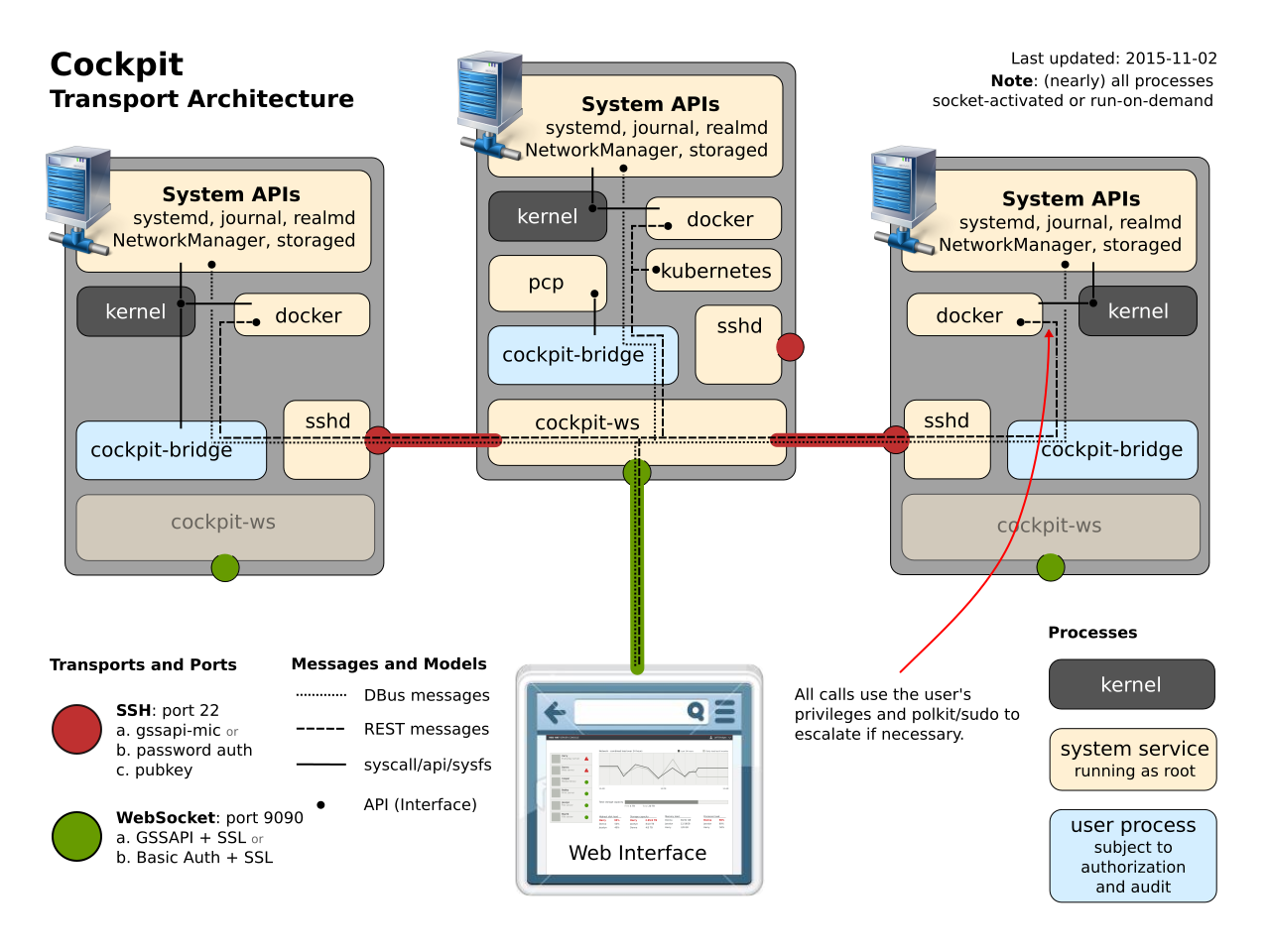
Normally, a session is established on the primary server, and you use the Shell UI of that session to connect to secondary servers.
However, it is also possible to instruct the cockpit-ws process on
the primary server to directly connect to a secondary server, without
opening a session on the primary server at all. This is done on the main
login page of Cockpit, by filling out the "Connect to" field.
Directly logging into the primary server
The most common way to use Cockpit is to just log directly into the server that you want to access. This can be done if you have direct network access to port 9090 on that server.
By default the cockpit web service is installed on the base system and
socket activated by systemd. In this setup access is
controlled by a cockpit specific pam stack, generally located at
/etc/pam.d/cockpit. By default this is configured to allow you to
login with the username and password of any local account on the system.
You can also setup a Kerberos based SSO solution or
certificate/smart card authentication.
You can also disable authentication schemes to enforce authentication policies, or to suppress undesired browser GSSAPI authentication dialogs.
The web server can also be run from the
cockpit/ws container. If you are
running cockpit on a container host operating system like
Fedora CoreOS this will be the only
supported mode. In this setup, cockpit establishes an SSH connection
from the container to the underlying host, meaning that it is up to your
SSH server to grant access. To login with a local account, sshd will
need to be configured to allow password based authentication.
Alternatively you can setup a Kerberos based SSO solution.
Like sshd, cockpit can be configured to limit the number of
concurrent login attempts allowed. This is done by adding a
MaxStartups option to the WebService section of your
cockpit.conf. Additional connections will be dropped until
authentication succeeds or the connections are closed.
Directly logging into a secondary server without a primary session
It is also possible to log into a secondary server without opening a session on the primary server. This is useful if you are not actually interested in the primary server and would only use it because you do not have direct network access to the secondary server.
In this case, cockpit-ws still runs on the primary server, but the
credentials from the login screen are directly used with SSH to log into
the secondary server given in the "Connect To" field of the login
screen.
Thus, the PAM configuration and accounts on the primary server don’t matter at all. Often, the only purpose of the primary server is to sit on the boundary of your network and forward connections to internal machines.
In this case, the login page will prompt you to verify unknown SSH keys. Accepted keys will be remembered in the local storage of your browser.
Logging into a secondary server from the primary session
Once you have a session on the primary server, it is possible connect to additional servers by using the host switching UI of the Cockpit Shell. This is useful if you have direct network access to the primary server, but not to the secondary server.
On the command line, you would log into the primary server and then use
SSH to log into the secondary one. Cockpit does just the same, and uses
SSH to log into the secondary server. Instead of running a interactive
shell there, however, it starts a cockpit-bridge process.
Warning: Unlike with SSH on the command line though, this will also load and use the Cockpit pages (i.e. JavaScript) from the remote machine, which means that the remote machine can execute arbitrary code on your primary and all other connected secondary machines. Hence, only connect to machines which you trust.
Due to this security risk, this host switcher functionality is disabled
by default, except on long-term stable Linux distributions (Red Hat
Enterprise Linux 9, Debian 12, and Ubuntu 22.04/24.04 LTS). If you are
comfortable with the security implications, you can enable it manually
with the AllowMultiHost option in cockpit.conf.
These servers will need to be running an SSH server and be configured to support one of the following authentication methods.
Password
The target server will need to have password based authentication
enabled in sshd.
Kerberos
The target server will need to be a member of the same domain as the primary server and your domain must be whitelisted in your browser. See the SSO documentation for how to set this up.
Public key
When you successfully log into the primary server, a ssh-agent is
started and keys are loaded into it by running ssh-add without any
arguments. Any passphrase prompt is answered with the password used to
log into the primary server.
Cockpit provides a user interface for loading other keys into the agent that could not be automatically loaded.
The target server will need to have public key authentication enabled in
sshd, and the public key you wish to use must be present in
~/.ssh/authorized_keys. Cockpit has a user interface for creating
SSH keys and for authorizing them.
SSH host keys
Cockpit will prompt the user to verify unknown SSH host keys, and will
write accepted host keys into ~/.ssh/known_hosts.
Single Sign On
Cockpit can use Kerberos for Single Sign On authentication, where users are automatically authenticated if they have a valid Kerberos ticket.
Server Requirements
To authenticate users, the server that Cockpit is running on must be
joined to a domain. This can usually be accomplished using the
realm join example.com
command.
The domain must be resolvable by DNS. For instance, the SRV records of the kerberos server should be resolvable:
$ host -t SRV  _kerberos._udp.example.com
_kerberos._udp.example.com has SRV record 0 100 88 dc.example.com
The server running Cockpit should have a fully qualified name that ends with the domain name.
There must be a valid Kerberos host key for the server in the
/etc/krb5.keytab file. Alternatively, if you would like to use a
different keytab, you can do so by placing it in
/etc/cockpit/krb5.keytab, or below $XDG_CONFIG_DIRS if set (see
cockpit.conf). It may be necessary to create
a kerberos service principal and update the keytab if it is not present.
Depending on your domain type different service names are required:
- Active Directory
-
HOST/server.example.com@EXAMPLE.COM - IPA and MIT
-
HTTP/server.example.com@EXAMPLE.COM
When joining an IPA domain with Cockpit and the ipa command line
tool is available, both the service principal name and a
/etc/cockpit/krb5.keytab get created automatically, so that Kerberos
based single sign on into Cockpit works out of the box. If you want/need
to do this by hand or in a script, first create or modify the HTTP/
service principal:
$ sudo ipa service-add --ok-as-delegate=true --ok-to-auth-as-delegate=true \
    HTTP/server.example.com@EXAMPLE.COM
# or, if it already exists, just enable delegation:
$ sudo ipa service-mod --ok-as-delegate=true --ok-to-auth-as-delegate=true \
    HTTP/server.example.com@EXAMPLE.COM
Then generate a key for that principal:
$ sudo ipa-getkeytab -p HTTP/server.example.com@EXAMPLE.COM -k /etc/cockpit/krb5.keytab
The following command can be used to list the
/etc/cockpit/krb5.keytab:
$ sudo klist -k /etc/cockpit/krb5.keytab
Lastly accounts from the domain must be resolvable to unix accounts on the server running Cockpit. For example:
$ getent passwd user@example.com
user@example.com:*:381001109:381000513:User Name:/home/user:/bin/sh
If you wish to delegate your kerberos credentials to Cockpit, and allow
Cockpit to then connect to other machines using those credentials, you
should enable delegation for the hosts running Cockpit, and in some
cases the HTTP service as well. When joining an IPA domain, this is
enabled by default.
Domain admins (usually the admins@example.com group) should normally
also be able to administer any joined machine. Enable sudo access for
that group with the following command on the IPA server, for version
4.7.1 and later:
ipa-advise enable-admins-sudo | sh -ex
On earlier FreeIPA versions, run these commands instead, as a domain admin on any joined machine:
ipa sudorule-add --hostcat=all --cmdcat=all All
ipa sudorule-add-user --groups=admins All
Note that this does not change security properties; domain admins can give this privilege to themselves, so it is safe to enable by default.
Client Requirements
The client side, where your web browser is running, should have a valid kerberos ticket in the current user session. A command like this will get one:
$ kinit user@EXAMPLE.COM
Password for user@EXAMPLE.COM:
In addition your browser must be usually be configured to allow kerberos authentication for the domain.
- Mozilla Firefox
-
Go to
about:configand set thenetwork.negotiate-auth.trusted-urissetting to your domain name preceded by a dot, ie:.example.com - Google Chrome
-
On Linux: create the file
/etc/opt/chrome/policies/managed/example-com.jsonwith the contents:
{
  "AuthServerWhitelist": "*example.com"
}
-
and restart the browser. On other platforms, exit your browser completely, and start it with a command line like this:
google-chrome --auth-server-whitelist=*example.com
Use a fully qualified server name (with the domain name at the end) to access Cockpit in your web browser.
If you wish to connect from one server to another in Cockpit using kerberos SSO, then you have to explicitly enable all sorts of things. For starters, make sure that delegated credentials are allowed by your domain (see above). Next when requesting your kerberos ticket make sure that forwardable tickets are requested:
$ kinit -f user@EXAMPLE.COM
Password for user@EXAMPLE.COM:
Make sure that the forwardable flag F is present in your ticket:
$ klist -f
Ticket cache: KEYRING:persistent:1000:1000
Default principal: user@EXAMPLE.COM

Valid starting       Expires              Service principal
18.03.2017 05:39:23  19.03.2017 05:39:20  krbtgt/EXAMPLE.COM@EXAMPLE.COM
    Flags: FIA
Lastly configure your browser to allow delegated, forwardable kerberos credentials to be sent to Cockpit:
- Mozilla Firefox
-
Go to
about:configand set thenetwork.negotiate-auth.delegation-urissetting to your domain name preceded by a dot, ie:.example.com - Google Chrome
-
On Linux: create the file
/etc/opt/chrome/policies/managed/example-com.jsonwith the contents:
{
  "AuthServerWhitelist": "*example.com",
  "AuthNegotiateDelegateWhitelist": "*example.com"
}
-
and restart the browser. On other platforms, exit your browser completely, and start it with a command line like this:
google-chrome --auth-server-whitelist=*example.com --auth-negotiate-delegate-whitelist=*example.com
Certificate/smart card authentication
Cockpit can use TLS client certificates for authenticating users. Commonly these are provided by a smart card, but it’s equally possible to import certificates directly into the web browser.
This requires the host to be in an Identity Management domain like FreeIPA or Active Directory, which can associate certificates to users.
To authenticate users from a Identity Management domain, the server that Cockpit is running on must be joined to that domain. See the SSO server requirements for details.
User certificate generation
Generating the certificates for users is usually done with a certificate management system like certmonger or FreeIPA, which are not documented here. This command generates a simple key and certificate request for the "alice" user:
openssl req -new -newkey rsa:2048 -days 365 \
    -keyout alice.key -out alice.csr -subj "/CN=alice"
Now get this certificate request signed by the Certificate Authority of your Identity Management domain, to get a PEM certificate. Browsers and smart cart utilities accept PKCS#12 format for importing/transfer, so convert the certificate/key pair; it will ask for and protect it with a transfer password:
openssl pkcs12 -export -in alice.pem -inkey alice.key -out alice.p12
Don’t forget to clean up the key file when you do not need it any more:
shred -u alice.key
You can now import alice.p12 directly into your browser, with giving
the transfer password set above. Or
put the certificate onto a smart
card:
pkcs15-init --store-private-key alice.p12 --format pkcs12 --auth-id 01
Certificate mapping with FreeIPA
The recommended method to sign a user certificate request and associate
it to a user is ipa cert-request:
ipa cert-request alice.csr --principal=alice --certificate-out=alice.pem
Alternatively, if you are using a different CA, you can use
ipa user-add-cert to associate the signed certificate to the user.
This expects PEM format, but without the -----BEGIN/-----END
markers:
ipa user-add-cert alice --certificate="$(grep -v ^---- alice.pem)"
See the FreeIPA User Certificates documentation for details.
Certificate mapping with Microsoft Active Directory
The domain user certificates get imported into the
userCertificate;binary LDAP attribute. The following commands
convert the PEM certificate into binary DER form, create an
LDIF file and
apply it to the LDAP server running on the domain controller
"dc.example.com":
openssl x509 -outform der -in alice.pem -out alice.der

cat <<EOF > alice.ldif
version: 1
dn: cn=alice,ou=users,ou=YOUR_NETBIOS_NAME,dc=example,dc=com
changetype: modify
add: userCertificate;binary
userCertificate;binary:< file://$(pwd)/alice.der
EOF

ldapmodify -H ldap://dc.example.com -f alice.ldif
Certificate mapping with Samba Active Directory
At least some versions of Samba do not support
the userCertificate;binary LDAP attribute, so the import has to
happen in base64 PEM form into the textual userCertificate attribute
instead. Also, Samba uses a slightly different user hierarchy:
cat <<EOF > alice.ldif
version: 1
dn: cn=alice,cn=users,dc=example,dc=com
changetype: modify
add: userCertificate
userCertificate: $(grep -v ^---- alice.pem | tr -d '\n')
EOF

ldapmodify -H ldap://dc.example.com  -f alice.ldif
As userCertificate is a text instead of binary field, you need to
set up a
certificate
mapping rule in sssd.conf(5) in a [certmap/domain/rulename]
section, for example:
[certmap/example.com/adcerts]
# we match full certificates, so it is not important to check anything here
matchrule = <KU>digitalSignature
maprule = LDAP:(userCertificate={cert!base64})
Cockpit web server configuration
Set the trusted Certificate Authority of your user certificates in
sssd, either by copying the CA PEM file to
/etc/sssd/pki/sssd_auth_ca_db.pem or setting the
pam_cert_db_path
configuration option to the path of the CA. If you use FreeIPA and its
CA:
cp /etc/ipa/ca.crt /etc/sssd/pki/sssd_auth_ca_db.pem
Certificate authentication needs to be enabled in cockpit.conf explicitly:
[WebService]
ClientCertAuthentication = yes
When enabling this mode,
other
authentication types commonly get disabled, so that only client
certificate authentication will be accepted. By default, after a failed
certificate authentication attempt, Cockpit’s normal login page will
appear and permit other login types such as basic (passwords) or
negotiate (Kerberos). For example, password authentication gets
disabled with:
[basic]
action = none
Cockpit web server resource limits
When using certificate authentication, all requests with a particular certificate will be handled by a separate and isolated instance of the cockpit-ws web server. This protects against possible vulnerabilities in the web server and prevents an attacker from impersonating another user. However, this introduces a potential Denial of Service: Some remote attacker could create a large number of certificates and send a large number of http requests to Cockpit with these.
To mitigate that, all cockpit-ws instances run in a
system-cockpithttps.slice
systemd
slice unit which
limits
the collective resources of these web server instances: by default,
this slice sets a limit of 200 threads (roughly 100 instances of
cockpit-ws — in other words, a maximum of 100 parallel user
sessions with different certificates) and a 75% (soft)/90% (hard) memory
limit.
You are welcome to adjust these limits to your need through a drop-in. For example:
# systemctl edit system-cockpithttps.slice

[Slice]
# change existing value
TasksMax=100
# add new restriction
CPUQuota=30%
Authentication to other services like sudo and ssh
Once you logged into Cockpit with a certificate, you likely need to switch to administrative mode (root privileges through sudo), or connect to remote machines through SSH. If your user account has a password, that can be used for authenticating to sudo or ssh as usual.
Supported with FreeIPA only: As an alternative to password authentication, you can also declare the initial Cockpit certificate authentication as trusted for authenticating to SSH, sudo, or other services. For that purpose, Cockpit automatically creates an S4U2Proxy Kerberos ticket in the user session:
$ klist
Ticket cache: FILE:/run/user/1894000001/cockpit-session-3692.ccache
Default principal: user@EXAMPLE.COM

Valid starting     Expires            Service principal
07/30/21 09:19:06  07/31/21 09:19:06  HTTP/myhost.example.com@EXAMPLE.COM
07/30/21 09:19:06  07/31/21 09:19:06  krbtgt/EXAMPLE.COM@EXAMPLE.COM
    for client HTTP/myhost.example.com@EXAMPLE.COM
You can set up
constrained
delegation rules to enumerate which hosts (including its own) that
ticket is trusted to access. For example, if the cockpit session runs on
host myhost.example.com and should be trusted to access its own host
(through sudo) and another host remote.example.com (through ssh),
create a delegation like this:
# a list of target machines which can be accessed by a particular rule
ipa servicedelegationtarget-add cockpit-target
ipa servicedelegationtarget-add-member cockpit-target \
  --principals=host/myhost.example.com@EXAMPLE.COM \
  --principals=host/remote.example.com@EXAMPLE.COM

# allow cockpit sessions (HTTP/ principal) to access that host list
ipa servicedelegationrule-add cockpit-delegation
ipa servicedelegationrule-add-member cockpit-delegation \
  --principals=HTTP/myhost.example.com@EXAMPLE.COM
ipa servicedelegationrule-add-target cockpit-delegation \
  --servicedelegationtargets=cockpit-target
In addition, you need to enable GSS (Kerberos) authentication in the corresponding services.
-
For SSH, enable
GSSAPIAuthentication yesin /etc/ssh/sshd_config. -
For sudo, enable
pam_sss_gssas described in the manpage: In/etc/sssd/sssd.conf: Add an entry for your domain:[domain/example.com] pam_gssapi_services = sudo, sudo-i
In
/etc/pam.d/sudo, enable the module in the first line:auth sufficient pam_sss_gss.so
Caveat: The delegated S4U ticket is not yet forwarded to remote SSH hosts when connecting to them from Cockpit, so authenticating to sudo on the remote host with that ticket does not work. This will be provided in a future version.
Privileges and Permissions
When a user is logged into Cockpit, they are logged into a normal session that has exactly the same privileges as if they logged in via SSH or on the console.
However, Cockpit will usually try to escalate the privileges of the user using Policy Kit or sudo. If the user is able to escalate privileges from the command line by typing in their password again (or without typing in any password), then Cockpit will be able to escalate the privileges of the session to "root" immediately upon login.
The user can change the privileges of a session from within that session, via the "Administrative access" indicator in the top bar. From that indicator, the user can drop "root" privileges and regain them. On the next login, Cockpit will give the session the same privileges.
Usually a user needs to be in the wheel Unix user group for the user
to be able to escalate privileges in this way. However both Policy Kit
and sudo may be configured to use other criteria.
Customizing Polkit Privileges
Services like
systemd and
NetworkManager use
Polkit to validate
and escalate privileges. It is possible to customize these rules with
files in /etc/polkit-1/rules.d.
Polkit rules files are
javascript
with specific methods and objects. For example, placing the following
polkit rule to /etc/polkit-1/rules.d/10-operators.rule allows all
users in the operators group to start, stop, restart and otherwise
manage systemd services:
polkit.addRule(function(action, subject) {
    if (action.id == "org.freedesktop.systemd1.manage-units") {
        if (subject.isInGroup("operators")) {
            return polkit.Result.YES;
        }
    }
});
In order to allow a certain group to perform any administrative action you could add a rule like this:
polkit.addAdminRule(function(action, subject) {
    return ["unix-group:operators"];
});