1
2
3
4
5
6
7
8
9
10
11
12
13
14
15
16
17
18
19
20
21
22
23
24
25
26
27
28
29
30
31
32
33
34
35
36
37
38
39
40
41
42
43
44
45
46
47
48
49
50
51
52
53
54
55
56
57
58
59
60
61
62
63
64
65
66
67
68
69
70
71
72
73
74
75
|
GitHub Codespace is a great option for developers who prefer to work in containerized cloud environments and avoid installing tools or dependencies locally.
## Create a codespace
1. In your browser, navigate to the [Official Repository of Azure CLI](https://github.com/Azure/azure-cli).
2. Above the file list, click **Code** > **Codespaces** > **Create codespace on dev**.
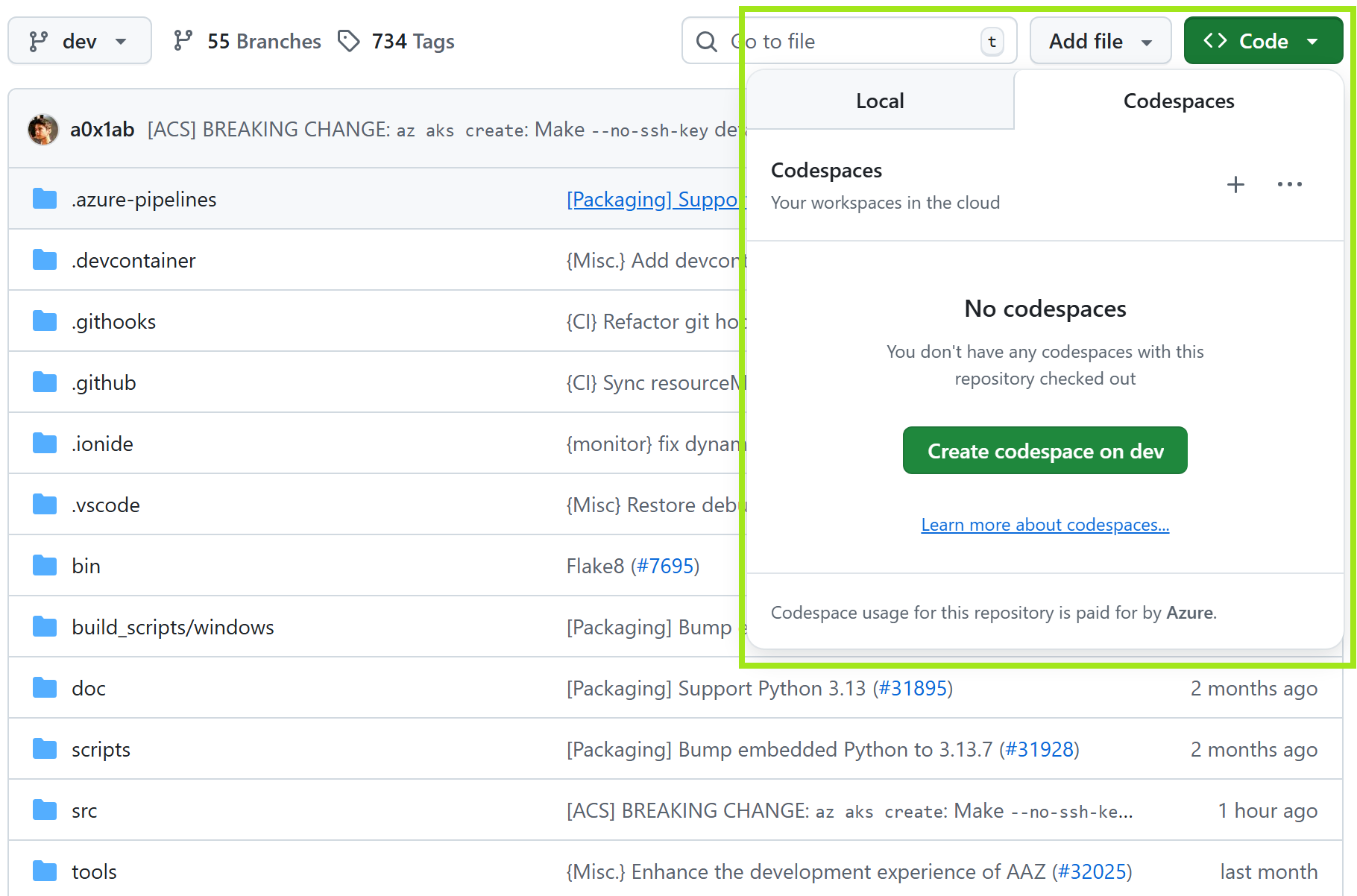
With Codespace, all pre-requisites are installed for you, including the [AAZ Flow MCP server](https://github.com/Azure/azure-cli/tree/dev/tools/aaz-flow).
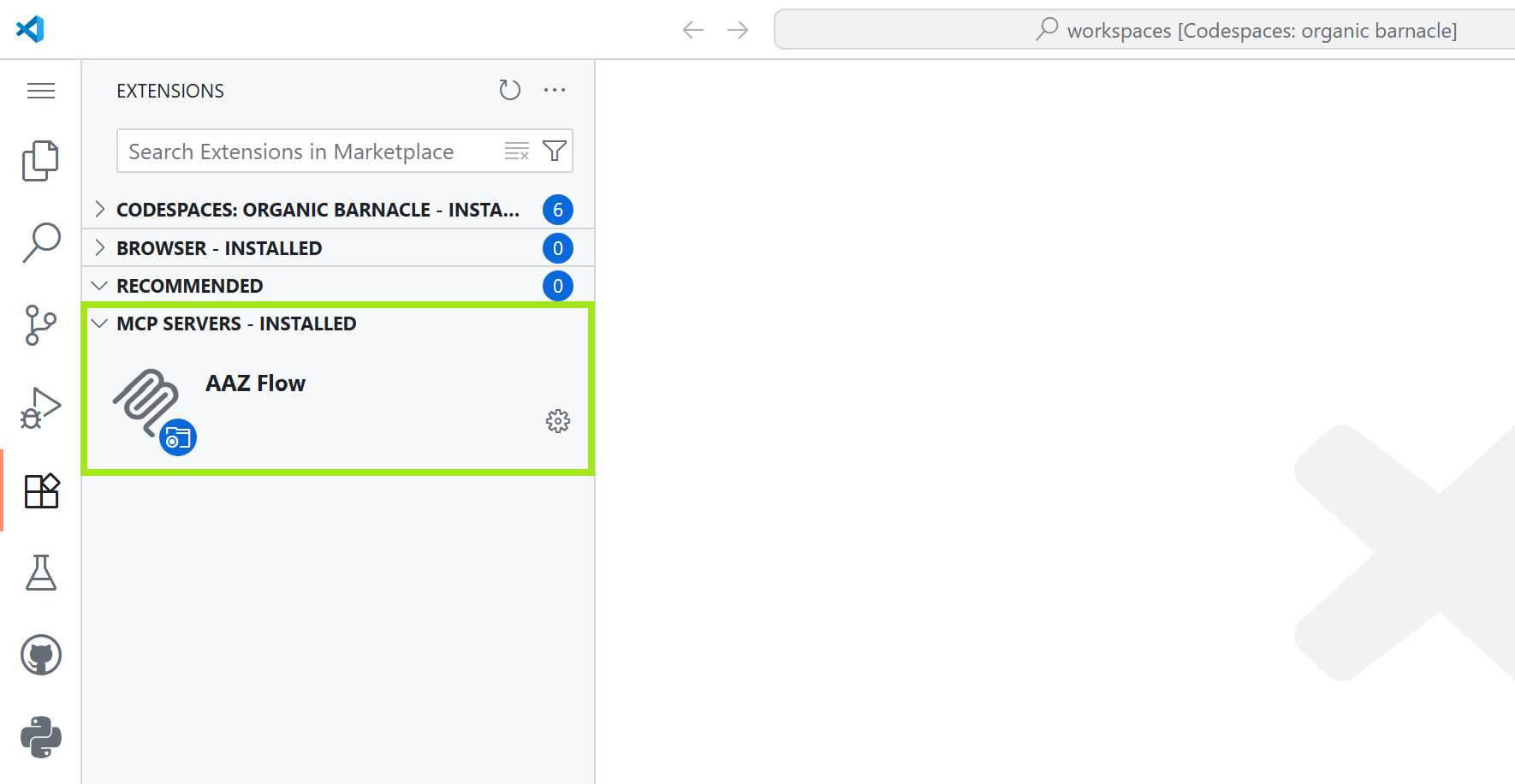
## Authenticate with GitHub
Once codespace is created (takes a while), you will see the following prompt in the integrated terminal:
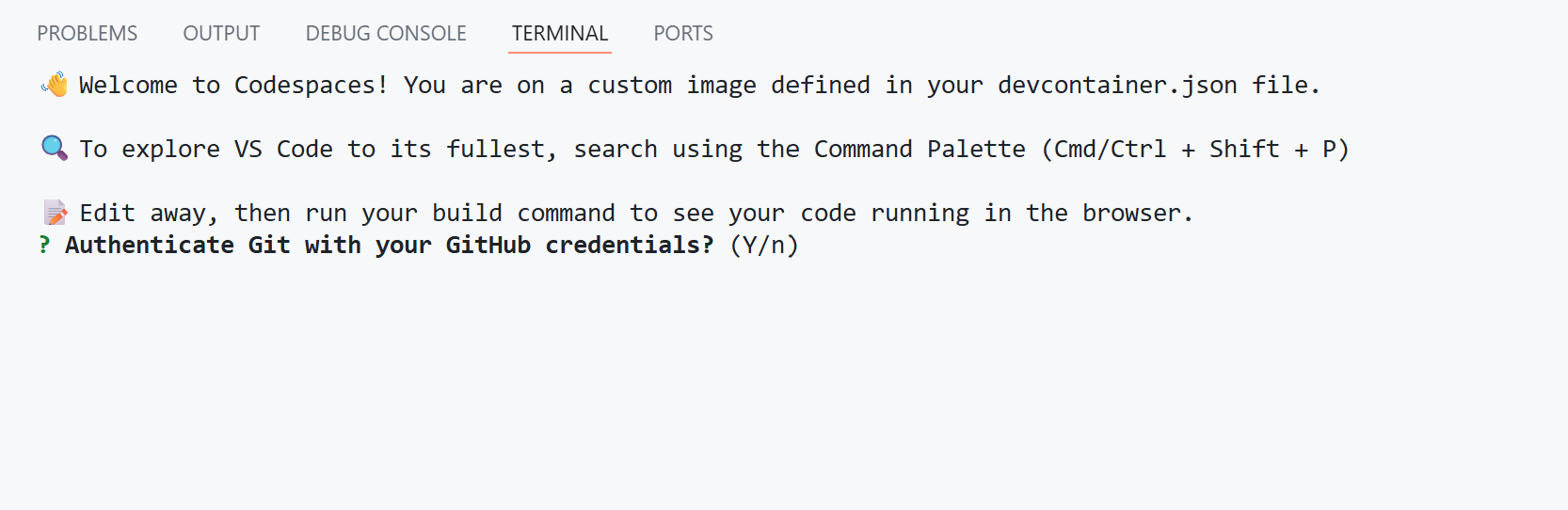
It helps login to your GitHub account interactively; after logging in, you won't need to do it again in a fresh terminal:
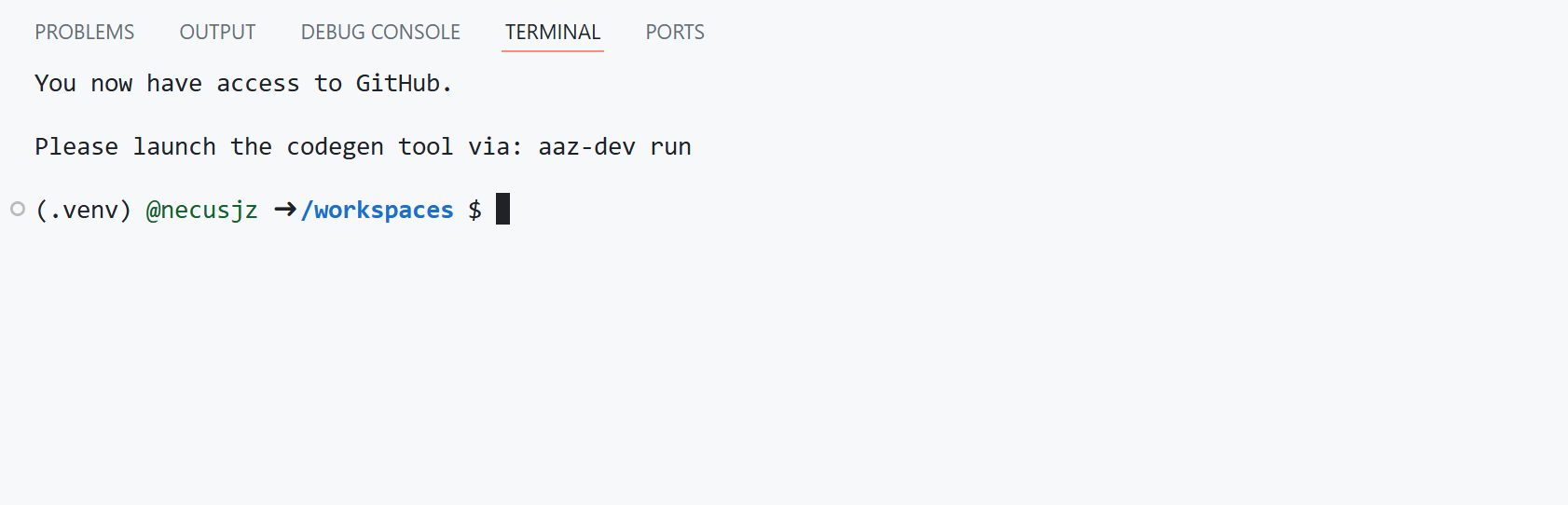
Furthermore, all dependencies will be installed automatically, and once a similar prompt appears, you can start development:
```commandline
Elapsed time: 3m 26s.
Finished setup! Please launch the codegen tool via: aaz-dev run
```
## Introduction to development workflow
Once the environment is set up, you can proceed with the standard development process of Azure CLI.
**Generate Azure CLI module in seconds!** E.g.,
```bash
aaz-dev cli generate --spec chaos --module chaos
```
It will convert the specification from https://github.com/Azure/azure-rest-api-specs/tree/main/specification/chaos
into an Azure CLI module named `chaos`.
> Generate code effortlessly. If the result isn't what you expected, use the UI to fine-tune it.
### Prune command-line interface
Typically, the interface generated directly from the specification isn’t ideal. You can refine it in the [Workspace Editor](https://azure.github.io/aaz-dev-tools/pages/usage/workspace-editor/) to make it meet our requirements. You can open or create a workspace at:
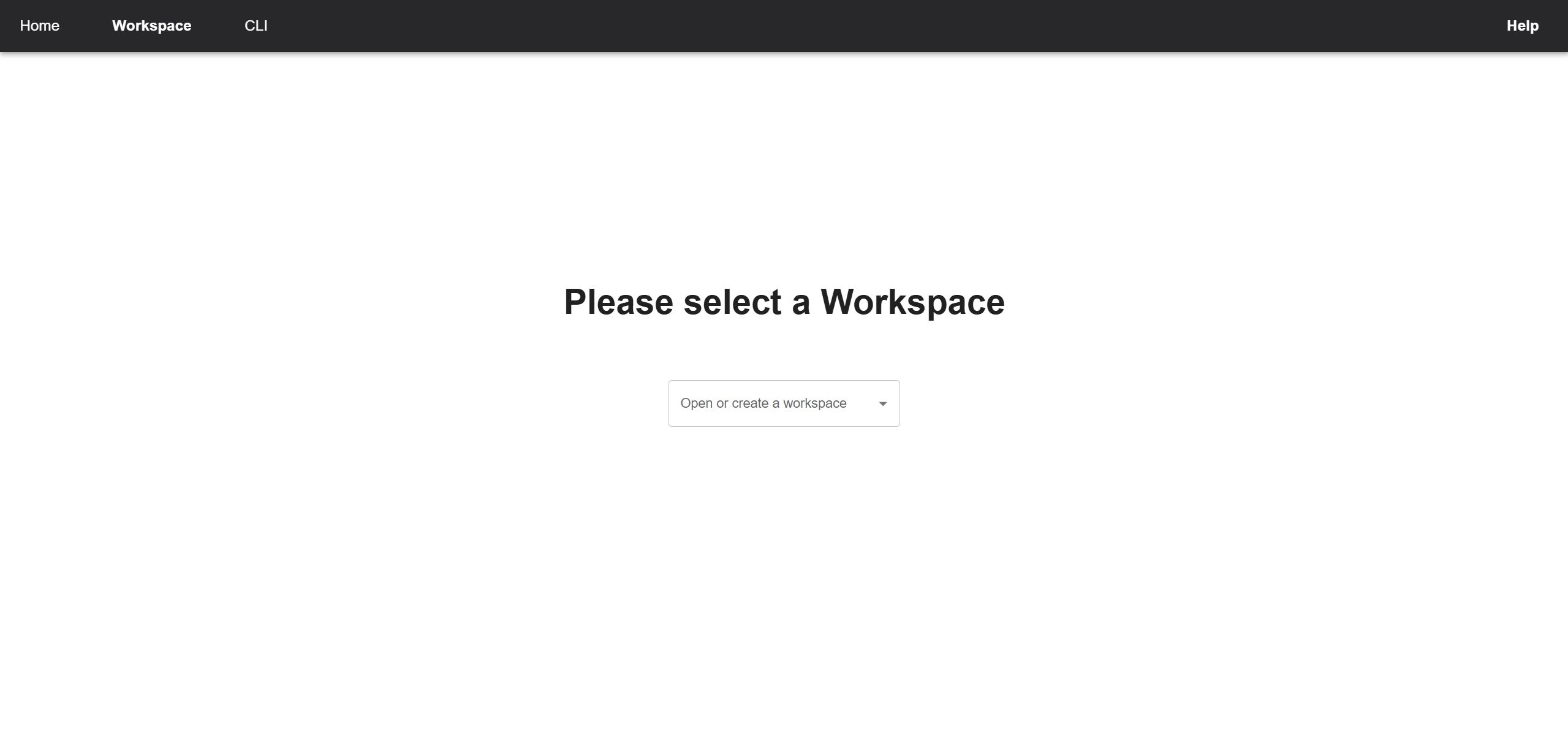
If everything is selected correctly, you will be redirected to the following UI. You can interactively edit our ideal command line interface based on that:
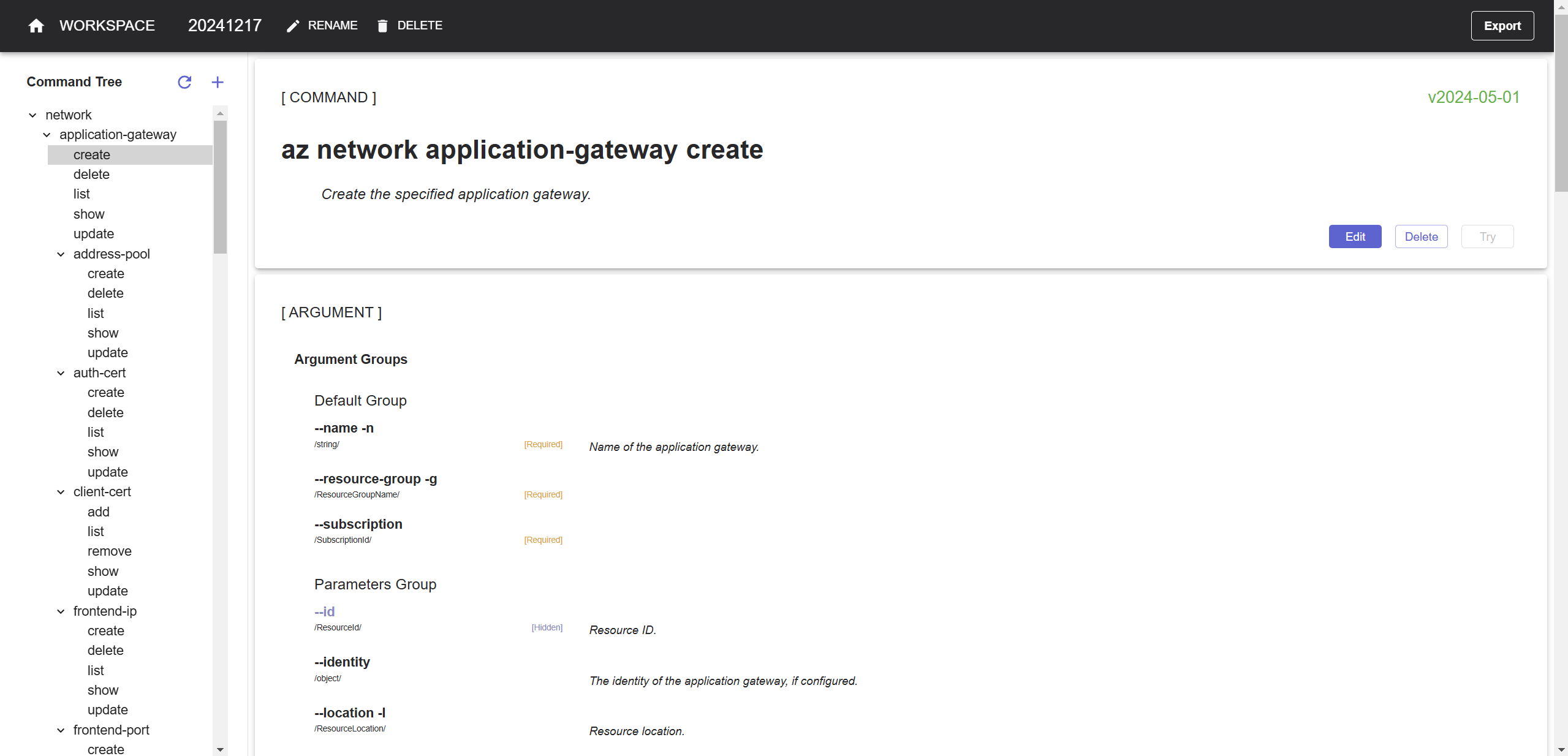
When you have completed all the editing in Workspace Editor and clicked EXPORT in its upper right corner. It's ready to switch to [CLI Generator](https://azure.github.io/aaz-dev-tools/pages/usage/cli-generator/) to generate code of Azure CLI:
1. You need to select the target for generating code. If you don't know where to generate the code, usually Azure CLI Extension is all you need:
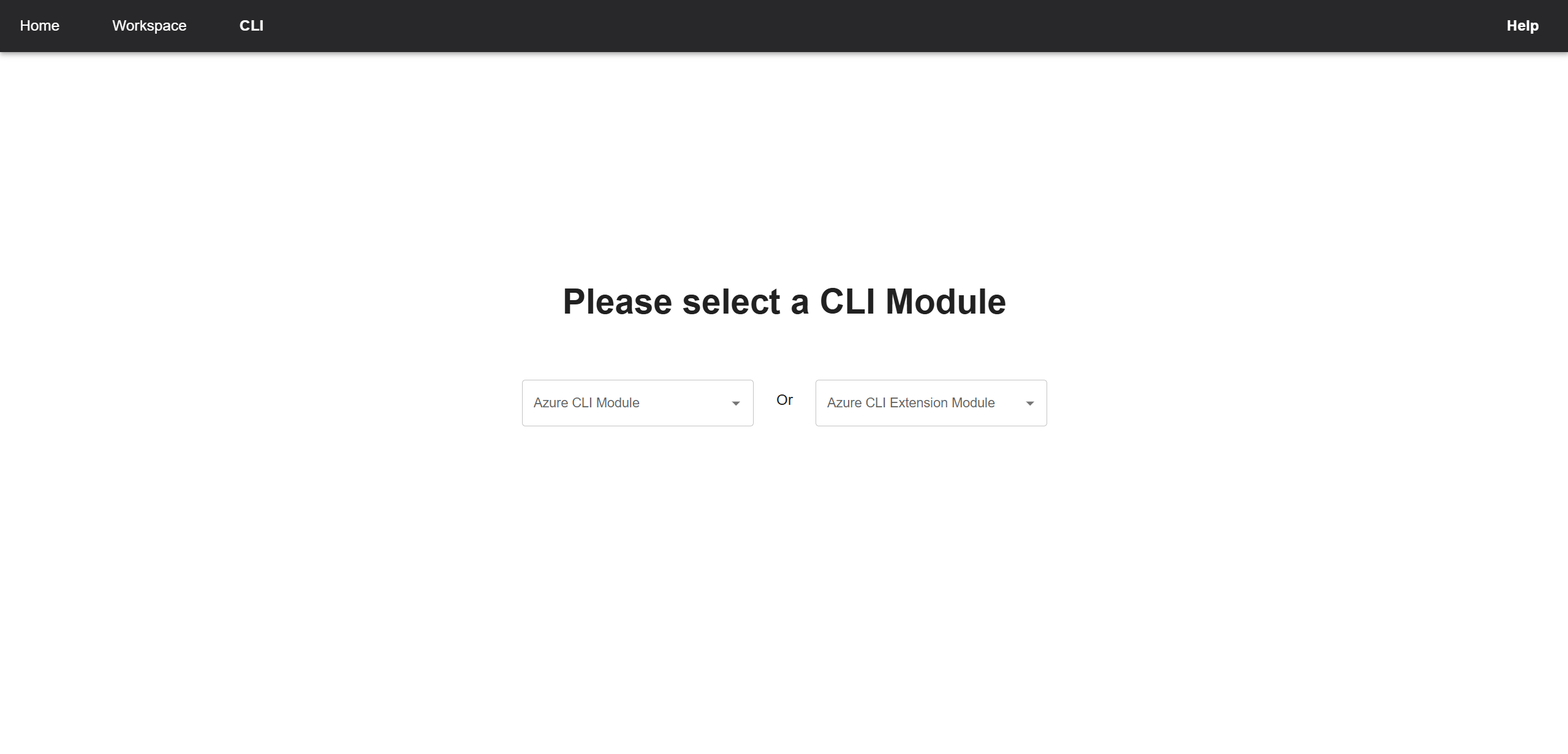
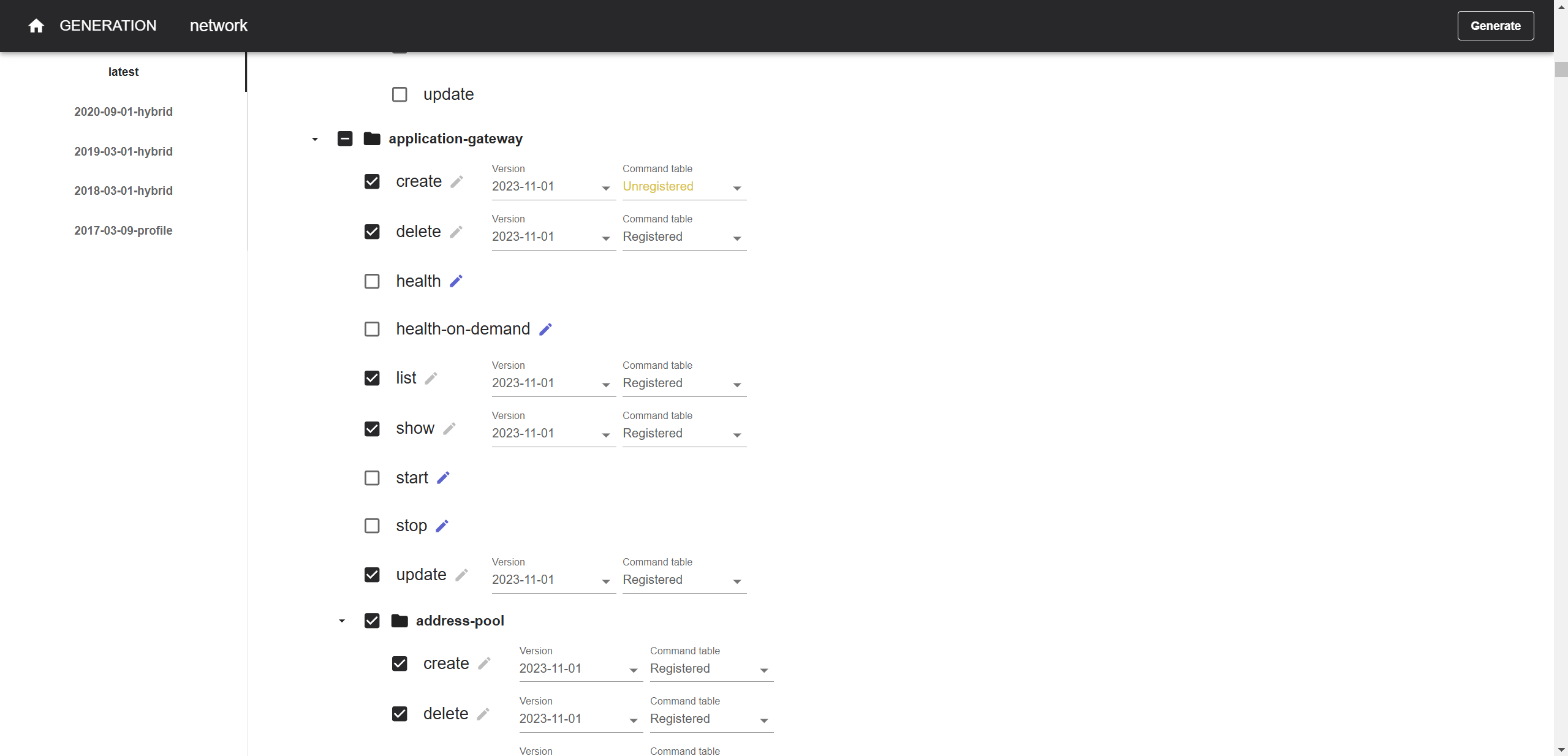
2. You can find the commands that you modified before in the following UI. Check the corresponding checkboxes, then click GENERATE in the upper right corner, and the code will be generated:
### Implement custom logic (optional)
Sometimes, the generated code may not fully meet the requirements. In such cases, you'll need to make some customizations based on it. This process can be relatively complex, so please refer to the [relevant documentation](https://azure.github.io/aaz-dev-tools/pages/usage/customization/).
### Test via real-world scenarios
With the help of the AAZ Flow MCP server, you can now generate some test cases. However, no one understands how to design better test scenarios better than you do. Please refer to the [relevant documentation](https://azure.github.io/aaz-dev-tools/pages/usage/command-usage-testing/) to author your own tests.
### Provide meaningful examples
While the codegen tool provides some initial examples, their quality directly impacts the quality of future documentation. Therefore, you should strive for continuous improvement. Please refine your command examples in the Workspace Editor.
Once everything is ready, you can raise pull requests in [Azure/azure-cli-extensions](https://github.com/Azure/azure-cli-extensions) and [Azure/aaz](https://github.com/Azure/aaz).
## Introduction to AAZ Flow
AAZ Flow is the MCP server for the AAZ APIs, enabling pruning of command-line interfaces, implementing custom logic, generating test cases, and more.
Please note that AAZ Flow is currently in early development. The functionality and available tools are subject to change and expansion as we continue to develop and improve the server.
### Tools
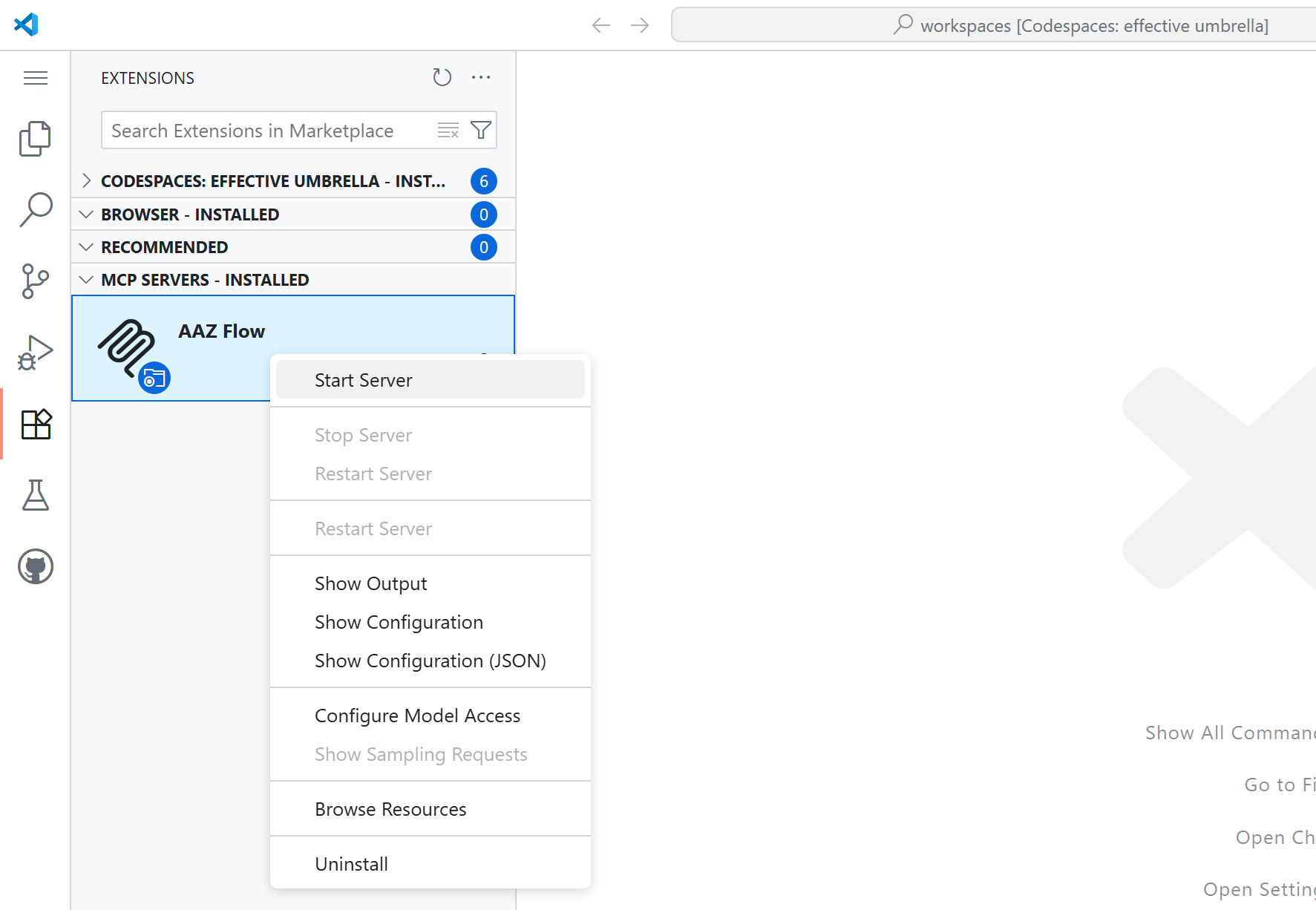
You can easily start the MCP server within your codespace environment:
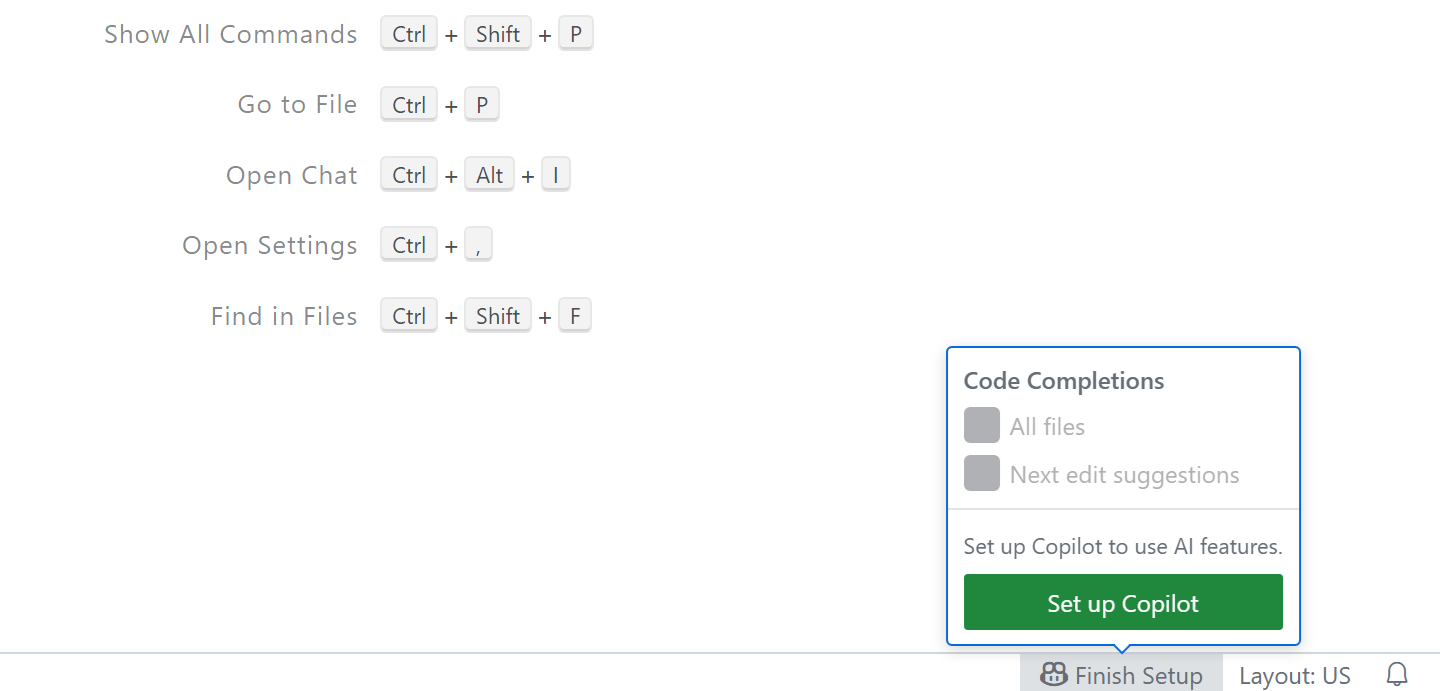
Please setup your Copilot to use the AI features (**Ctrl** + **Alt** + **I** to open a chat):
After that, set the mode to `Agent` and the model to `Claude Sonnet`. The following is the use case of the tools:
1. "generate test for chaos module" to generate test cases in _chaos_ module.
2. "generate code for azure cli" to generate models AND codes.
|
