1
2
3
4
5
6
7
8
9
10
11
12
13
14
15
16
17
18
19
20
21
22
23
24
25
26
27
28
29
30
31
32
33
34
35
36
37
38
39
40
41
42
43
44
45
46
47
48
49
50
51
52
53
54
55
56
57
58
59
60
61
62
63
64
65
66
67
68
69
70
71
72
73
74
75
76
77
78
79
80
81
82
83
84
85
86
87
88
89
90
91
92
93
94
95
96
97
98
99
100
101
102
103
104
105
106
107
108
109
110
111
112
113
114
115
116
117
118
119
120
121
122
123
124
125
126
127
128
129
130
131
132
133
134
135
136
137
138
139
140
141
142
143
144
145
146
147
148
149
150
151
152
153
154
155
156
157
158
159
160
161
162
163
164
165
166
167
168
169
170
171
172
173
174
175
176
177
178
179
180
181
182
183
184
185
186
187
188
189
190
191
192
193
194
195
196
197
198
199
200
201
202
203
204
205
206
207
208
209
210
211
212
213
214
215
216
217
218
219
220
221
222
223
224
225
226
227
228
229
230
231
232
233
234
235
236
237
238
239
240
241
242
243
244
245
246
247
248
249
250
251
252
253
254
255
256
257
258
259
260
261
262
263
264
265
266
267
268
269
270
271
272
273
274
275
276
277
278
279
280
281
282
283
284
285
286
287
288
289
290
291
292
293
294
295
296
297
298
299
300
301
302
303
304
305
306
307
308
309
310
311
312
313
314
315
316
317
318
319
320
321
322
323
324
325
326
327
328
329
330
331
332
333
334
335
336
337
338
339
340
341
342
343
344
345
346
347
348
349
350
351
352
353
354
355
356
357
358
359
360
361
362
363
364
365
366
367
368
369
370
371
372
373
374
375
376
377
378
379
380
381
382
383
384
385
386
387
388
389
390
391
392
393
394
395
396
397
398
399
400
401
402
403
404
405
406
407
408
409
410
411
412
413
414
415
416
417
418
419
420
421
422
423
424
425
426
427
428
429
430
431
432
433
434
435
436
437
438
439
440
441
442
443
444
445
446
447
448
449
450
451
452
453
454
455
456
457
458
459
460
461
462
463
464
465
466
467
468
469
470
471
472
473
474
475
476
477
478
479
480
481
482
483
484
485
486
487
488
489
490
491
492
493
494
495
496
497
498
499
500
501
502
503
504
505
506
507
508
509
510
511
512
513
514
515
516
517
518
519
520
521
522
523
524
525
526
527
528
529
530
531
532
533
534
535
536
537
538
539
540
541
542
543
544
545
546
547
548
549
550
551
552
553
554
555
556
557
558
559
560
561
562
563
564
565
566
567
568
569
570
571
572
573
574
575
576
577
578
579
580
581
582
583
584
585
586
587
588
589
590
591
592
593
594
595
596
597
598
599
600
601
602
603
604
605
606
607
608
609
610
611
612
613
614
615
616
617
618
619
620
621
622
623
624
625
626
627
628
629
630
631
632
633
634
635
636
637
638
639
640
641
642
643
644
645
646
647
648
649
650
651
652
653
654
655
656
657
658
659
660
661
|
<div align="center">
# Bibiman<a name="bibiman"></a>
<!-- [](https://nogithub.codeberg.page/) -->
[](https://matrix.to/#/#bibiman:tchncs.de)
<a title="This tool is Tool of The Week on Terminal Trove, The $HOME of all things in the terminal" href="https://terminaltrove.com/bibiman/"><img src="https://cdn.terminaltrove.com/media/badges/tool_of_the_week/png/terminal_trove_tool_of_the_week_green_on_dark_grey_bg.png" alt="Terminal Trove Tool of The Week" width="200" /></a>
</div>
<!-- mdformat-toc start --slug=github --maxlevel=6 --minlevel=1 -->
- [Bibiman](#bibiman)
- [TL;DR](#tldr)
- [Installation](#installation)
- [Crates.io](#cratesio)
- [Cargo (Build from source)](#cargo-build-from-source)
- [AUR](#aur)
- [Fedora](#fedora)
- [NixOS](#nixos)
- [OpenSuse Tumbleweed](#opensuse-tumbleweed)
- [Ubuntu/Debian](#ubuntudebian)
- [Void Linux](#void-linux)
- [Usage](#usage)
- [CLI for citekey formatting](#cli-for-citekey-formatting)
- [Configuration](#configuration)
- [Location of Config File](#location-of-config-file)
- [General Configuration](#general-configuration)
- [Citekey formatting](#citekey-formatting)
- [Color Configuration](#color-configuration)
- [Features](#features)
- [Keybindings](#keybindings)
- [Search](#search)
- [Edit bib entry](#edit-bib-entry)
- [Open connected files or links](#open-connected-files-or-links)
- [Note file creation](#note-file-creation)
- [Alternatives](#alternatives)
- [Notes](#notes)
<!-- mdformat-toc end -->
## TL;DR<a name="tldr"></a>
`bibiman` is a simple terminal user interface for handling your BibLaTeX
database as part of a terminal-based scientific workflow.
Here's a small impression how it looks and works:
[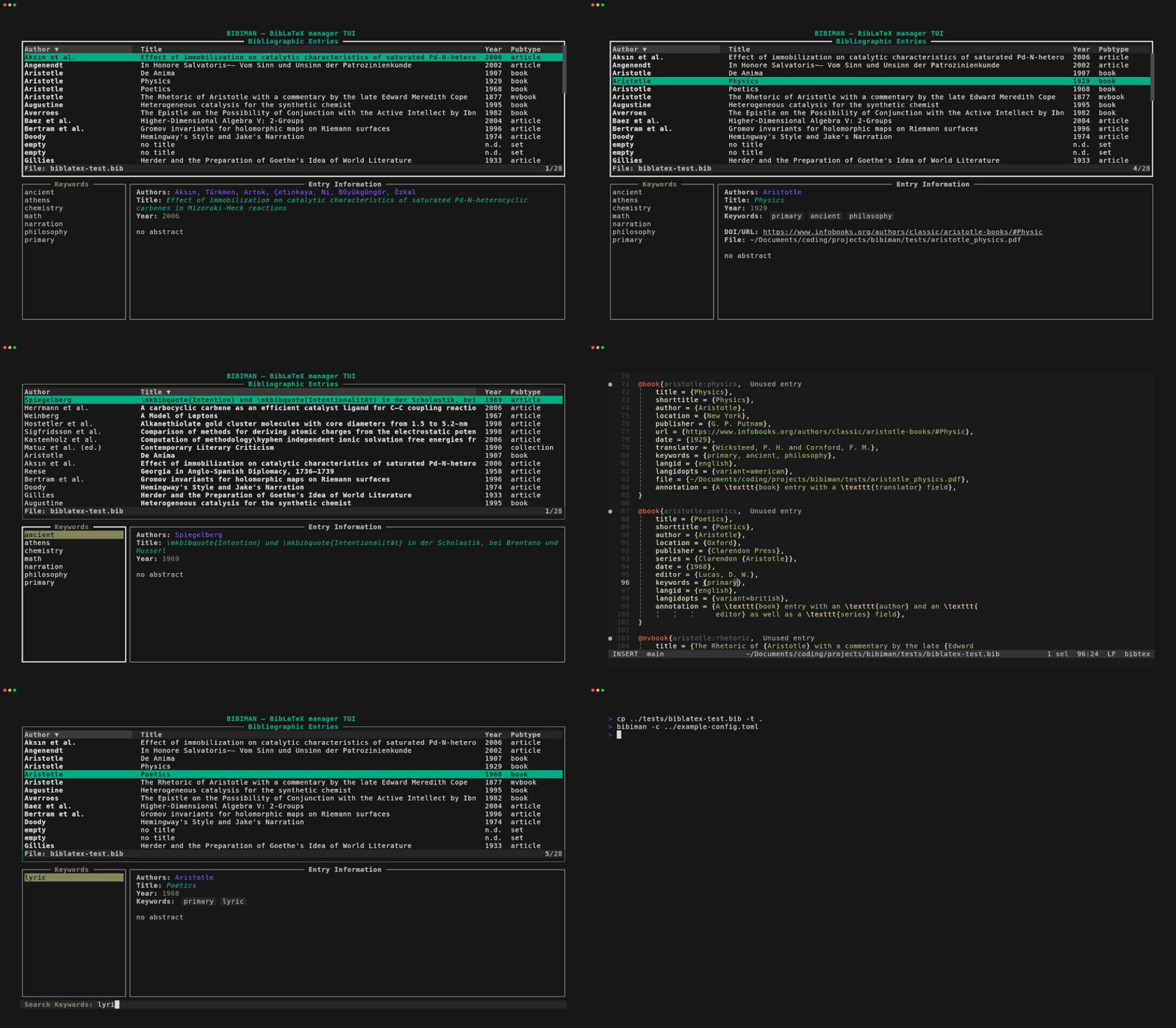](https://postimg.cc/ct0W0mK4)

## Installation<a name="installation"></a>
### Crates.io<a name="cratesio"></a>
You can install `bibiman` directly from `crates.io` using `cargo`:
```bash
cargo install bibiman
```
### Cargo (Build from source)<a name="cargo-build-from-source"></a>
To use the version including the newest commits, you can clone the repo and
build it from source using `cargo`:
```bash
git clone https://codeberg.org/lukeflo/bibiman
cd bibiman
# Build the binary to /target/release
cargo build --release
```
After successfully builing `bibiman` you can install it together with other
resources (manpages etc.) using the `install.sh` bash script. By default, it
will install `bibiman` to `/usr/local/bin` which needs `sudo` privileges for the
script. But its possible to define a different installation location. E.g. to
install `bibiman` locally on Linux run the following command:
```bash
./install.sh install --prefix "$HOME/.local"
```
If you want to check the installation directories without installing anything,
just use the `print-vars` command and the `--prefix` option.
Check `./install.sh --help` for more information.
### AUR<a name="aur"></a>
Thanks to user @matcha its possible to install `bibiman` on Arch-based systems
via the AUR:
```bash
yay -S bibiman # or any other AUR helper
```
### Fedora<a name="fedora"></a>
Thanks to user @samsci you can install `bibiman` on Fedora through adding a
custom repo:
```bash
dnf config-manager addrepo --from-repofile=https://download.opensuse.org/repositories/home:samsci:bibiman/Fedora_42/home:samsci:bibiman.repo
dnf install bibiman
```
### NixOS<a name="nixos"></a>
Thanks to user @clementpoiret you now can install it via Nix commandline:
```bash
# as package on any Linux distro
nix-env -iA nixpkgs.bibiman
# on NixOS
nix-env -iA nixos.bibiman
```
Or through `home-manager` config file:
```bash
home.packages = [
pkgs.bibiman
]
```
### OpenSuse Tumbleweed<a name="opensuse-tumbleweed"></a>
Thanks to user @samsci you can install `bibiman` on Tumbleweed through adding a
custom repo:
```bash
zypper addrepo https://download.opensuse.org/repositories/home:samsci:bibiman/openSUSE_Tumbleweed/home:samsci:bibiman.repo
zypper refresh
zypper install bibiman
```
### Ubuntu/Debian<a name="ubuntudebian"></a>
A `.deb` package by user @werdahias can be found here:
https://deb.debusine.debian.net/debian/r-werdahias-bibiman/
### Void Linux<a name="void-linux"></a>
You can install `bibiman` through `xbps`-package manager:
```bash
# Through xbps directly
sudo xpbs-install bibiman
# Or using xi from xtools package
xi bibiman
```
## Usage<a name="usage"></a>
The following arguments are possible:
```
USAGE
bibiman [OPTIONS] [SUBCOMMAND | POSITIONAL ARGUMENTS]
You can either use a subcommand or positional arguments, not both!
POSITIONAL ARGUMENTS
<file> Path to .bib file
<directory> Path to directory containing .bib files
Both can be passed multiple times
SUBCOMMANDS
format-citekeys
Run the citekey formatting procedure on a specified bibfile.
For further infos run bibiman format-citekeys --help
OPTIONS
-h, --help
Show this help and exit
-v, --version
Show the version and exit
--light-terminal
Enable default colors for light terminal background
-c, --config-file=<PATH>
Path to config file used for current session.
Takes precedence over standard config file.
-l, --log-file=<PATH>
Path to log file used for current session.
Takes precedence over standard logging path.
--pdf-path=<PATH>
Path to directory containing PDF files.
If the pdf files basename matches an entrys citekey,
its attached as connected PDF file for the current session.
Does not edit the bibfile itself!
-C, --cli-only
Load only entries from the file(s)/dirs set at the CLI.
Ignores files from the config file
```
As seen, you can pass a single file, multiple files, the path of a directory
containing bibfiles, or mix files and directories.
Directories will be searched recursively for files with the `.bib` extension and
add them to the entry list. Other files will be ignored.Thus, be careful not to
pass a directory with multiple subdirectories (like eg `/home/usr/`), because
this could lead to some delay while parsing GBs of data.
The following lines are all valid CLI calls to run `bibiman` using the test
files from the `tests` folder:
```bash
# single file
bibiman tests/biblatex-test.bib
# multiple files
bibiman tests/multi-files/bibfile1.bib tests/multi-files/bibfile2.bib
# directory containing bibfiles
bibman tests/multi-files/
# mixed arguments
bibiman tests/biblatex-test.bib tests/multi-files/
```
If you want to ignore files from the config file occassionally, you can use the
`-C`/`--cli-only` flag. That might be necessary if `bibman` should be used as
default program to open `.bib` files, e.g. via `xdg-open`.
### CLI for citekey formatting<a name="cli-for-citekey-formatting"></a>
Beside the TUI `bibiman` can format and replace citekeys. To make use of this
feature run the program with the `format-citekeys` subcommand. For more
information use `bibiman format-citekeys --help` and the see
[docs](./CITEKEYS.md).
## Configuration<a name="configuration"></a>
### Location of Config File<a name="location-of-config-file"></a>
`bibiman` can be configured through a config file. The standard location is the
user's config dir following the XDG scheme. On Linux systems this defaults to:
```bash
# XDG scheme:
$XDG_CONFIG_HOME/bibiman/bibiman.toml
# Fallback:
$HOME/.config/bibiman/bibiman.toml
```
You can set a custom config file through the CLI (`-c`/`--config-file=` flag)
which takes precedence over the standard one for the active session:
```bash
bibiman --config-file="/path/to/temporary/config"
```
If neither a file exists at the default location, nor a temporary config file is
set through the CLI, `bibiman` will offer to create a default config file at the
standard location. This will very likely happen on the first run of `bibiman`
after installation. If rejected, you probably will be asked again next time.
The created config contains all values which are set as default by `bibiman`.
### General Configuration<a name="general-configuration"></a>
The following general values can be set through the config file:
```toml
[general]
# Default files/dirs which are loaded on startup
# Use absolute paths (~ for HOME works). Otherwise, loading might not work.
bibfiles = [ "/path/to/bibfile", "path/to/dir/with/bibfiles" ]
## Default editor to use when editing files. It can be set as plain string
## only representing the command, or with arguments array.
editor = { command = "vim", args = [ "-y", "-R" ] }
# OR
# editor = "vim"
# Default app to open PDFs/Epubs
pdf_opener = "xdg-open"
# Default app to open URLs/DOIs
url_opener = "xdg-open"
# Prefix which is prepended to the filepath from the `file` field
# Use absolute paths (~ for HOME works). Otherwise, loading might not work.
file_prefix = "/some/path/prefix"
# Path to folder (with subfolders) containing PDF files with the basename
# of the format "citekey.pdf". Other PDF basenames are not accepted.
# Use absolute paths (~ for HOME works). Otherwise, loading might not work.
pdf_path = "/path/to/pdf-folder"
## Path to folder (with subfolders) containing note files with the basename of
## the format "citekey.extension". Other basenames are not accepted. The possible
## extensions can be set through the "note_extensions" array.
note_path = "path/to/note-files"
note_extensions = [ "md", "txt" ]
## Symbols/chars to show if not has specific attachement
file_symbol = " "
link_symbol = " "
note_symbol = ""
## Select a custom column beside standard "author", "title" and "year"
## Possible values are "journaltitle", "organization", "instituion", "publisher"
## and "pubtype" (which is the default)
custom_column = "pubtype"
## Define a custom formatter to format entries added via DOI. The formatter command
## must be able to read from stdin and print to stdout. Check the docs of
## your preffered formatter if specific options are needed to accomplish that.
formatter = { command = "tex-fmt", args = ["--stdin", "--tabsize=8", "--wraplen=30"] }
## Set the clipboard program to be used. If not set, bibiman will choose a default
## depending on OS, envrionment vars and available binaries.
## Its possible to explicitly set one of the standard providers:
clipboard = "wayland" # other possible values: 'x-clip', 'x-sel', 'win32-yank', 'tmux'
## Its also possible to set a custom command:
[global.clipboard.custom]
paste = { command = "wl-copy", args = [ "--type", "text/plain" ] } # "paste" is meant as pasting to the clipboard, thus, the copy-command is needed
[citekey_formatter]
fields = []
ascii_only = true
case = "lowercase"
```
`bibfiles`
: If no file or dir is set as `bibfiles` value, you *have to* add a path via CLI
interface. If the `bibfiles` value is set *and* a further path (or multiple)
is provided through the CLI call, the entries of all those files will be
opened in the started `bibiman` session.
`file_prefix`
: The `file_prefix` offers the possibility to keep file paths in your `.bib`
file short: E.g. a combination of those values in config and bibfile:
```toml
# bibiman.toml
file_prefix = "~/Documents/literature"
```
```latex
% bibfile.bib
file = {aristotle.pdf}
```
Will result in opening the file `~/Documents/literature/aristotle.pdf` when
trying to open the PDF from inside `bibiman`. The `.bib` file itself will not
be edited!
The prefix will only be added to filepaths which are explicitly set in the
`.bib` file itself using the `file` field. It will *not* "destroy" file paths
created through the `pdf_path` variable. Thus, it is safe to mix both
approaches if wanted!
`pdf_path` and `note_path`
: The `pdf_path`/`note_path` is used as path wich is recursivley searched for
files which basename consists of the an entrys `citekey` plus a `.pdf` ending
or one of the specified note endinfs (case-insensitive). Every file which
matches this pattern for an existing `citekey` is associated with the
particular entry for the current `bibiman` session and can be opened from
within.
`custom_column`
: Set a value for the fourth column used in the bibentry list. Possible values
are:
- `journaltitle`: Lists the title of the journal the paper was published in.
- `organization`: Name of the organization.
- `institution`: Name of the institution the author belonged to.
- `series`: Title of the book series the work was published in.
- `publisher`: Name of the publisher.
- `pubtype`: BibLaTex pubtype; e.g. `article`, `book`, `incollection` etc.
Since the width of the values for the different fields can vary, it might be a
good advice to use a rather wide terminal window when using a value like
`journaltitle`.
`editor` and `formatter`
: Can be set to external commands. If you want to use arguments use the syntax
`{ command = <cmd>, args = [<args array>] }`, otherwise the simple command
name is enough.
If no editor is set, the fallbacks are `VISUAL` or `EDITOR` environment vars
and as last try `vi`. The following editors have been tested:
- [x] **Helix**
- [x] **Vim/Neovim**
- [x] **Emacs (Terminal)**
- [x] **Nano**
- [x] **Emacs (GUI)**
If the formatter is unset or the arguments are incorrect, the entries
downloaded via DOI will be added with very basic formatting of the `biblatex`
crate only. To run properly, the formatter must read from `stdin` and print
the formatted string to `stdout`. Check the manpages of your favourite program
for necessary options.
`clipboard`
: Explicitly choose the used clipboard. Possible values:
- `wayland`
- `x-clip`
- `x-sel`
- `pasteboard`
- `tmux`
- `win32-yank`
Or set a custom program under the subheading `[general.clipboard.custom]`:
`paste = { command = <cmd>, args = [<args array>] }`
### Citekey formatting<a name="citekey-formatting"></a>
`bibiman` now also offers a citekey generating feature. This enables to reformat
all citekeys based on an elaborated pattern matching syntax. For furthter
information and examples see the [docs](CITEKEYS.md).
### Color Configuration<a name="color-configuration"></a>
Furthermore, it is now possible to customize the colors. The following values
can be changed:
```toml
[colors]
# Default values for dark-themed terminal
main_text_color = "250"
highlight_text_color = "254"
entry_color = "36"
keyword_color = "101"
info_color = "99"
confirm_color = "47"
warn_color = "124"
bar_bg_color = "234"
popup_fg_color = "43"
popup_bg_color = "234"
selected_row_bg_color = "237"
note_color = "123"
file_color = "209"
link_color = "27"
author_color = "38"
title_color = "37"
year_color = "135"
```
Colors can be set through three different methods:
[ANSI color names](https://docs.rs/ratatui/latest/ratatui/style/enum.Color.html),
[256-color indices](https://en.wikipedia.org/wiki/ANSI_escape_code#8-bit) and
[HEX codes](https://www.w3schools.com/colors/colors_hexadecimal.asp). For
example, the following definitions are all valid:
```toml
selected_row_bg_color = "darkgray" # ANSI color name (light_black or bright_black would also work)
selected_row_bg_color = "237" # 256-color index
selected_row_bg_color = "#3a3a3a" # HEX code
```
To run `bibiman` with some default values for a light-colored terminal use the
`--light-terminal` flag.
## Features<a name="features"></a>
These are the current features, the list will be updated:
- [x] **Browse** through the bib entries using _Vim-like keybindings_ and a
_fuzzy search_ mode.
- [x] **Filter** the bib entries by _keywords_ (and afterwards filter further by
fuzzy searching).
- [x] **Edit** the current entry by opening a _terminal-based editor_ at the
specific line.
- [x] **Yank/Copy** the citekey of the current entry to the system clipboard.
- [x] **Connect PDF files** via `file` field or matching citekey basename.
- [x] **Open related PDF** file with keypress.
- [x] **Open related URL/DOI** with keypress.
- [x] **Scrollbar** for better navigating.
- [x] **Sort Entries** by column (`Authors`, `Title`, `Year`,
`<Custom column>`), or by position in bibfile.
- [x] **Custom column** to show extra information per entry.
- [x] **Load multiple files** into one session.
- [x] **Add Entry via DOI**.
- [x] **Format added entries** with external formatting CLI tool.
- [x] **Implement config file** for setting some default values like main
bibfile, PDF-opener, or editor
- [x] **Connect notes files** throuch matching citekey and basename.
- [x] **Create note file** for bib entries.
- [x] **Hide LaTeX macros** in user interface (e.g. in `title`, `subtitle` or
`abstract` field).
- [x] **Format citekeys** via CLI with elaborated pattern syntax.
- [ ] **Support Hayagriva(`.yaml`)** format as input (_on hold for now_, because
the Hayagriva Yaml style doesn't offer keywords; s. issue in
[Hayagriva repo](https://github.com/typst/hayagriva/issues/240)).
**Please feel free to suggest further features through the issue
functionality.**
## Keybindings<a name="keybindings"></a>
Use the following keybindings to manage the TUI:
| Key | Action |
| ---------------------------------------- | -------------------------------------------------------- |
| `?` | Open help popup with keybindings |
| `j`, `k` \| `Down`, `Up` | Move down/up by 1 |
| `Ctrl-d`, `Ctrl-u` | Move down/up by 5 |
| `g`, `G` | Go to first/last entry |
| `h`, `k` \| `Left`, `Right` | Select previous/next entry column |
| `s` | Sort entries by current column (toggles) |
| `S` | Sort entries by position in file |
| `PageDown`, `PageUp` \| `Alt-j`, `Alt-k` | Scroll Info window |
| `y` | Yank/copy field value of selected entry to clipboard |
| `e` | Open editor at selected entry |
| `a` | Add entry through DOI |
| `o` | Open related PDF or URL/DOI |
| `n` | Create new note file for selected entry |
| `TAB` | Switch between entries and keywords |
| `/`, `Ctrl-f` | Enter search mode |
| `Alt-/`, `Alt-f` | Select specific field to search |
| `Enter` | Filter by selected keyword / Confirm search or selection |
| `ESC` | Abort search / Reset current list |
| `q`, `Ctrl-c` | Quit TUI |
**Fast selection keys**:
There are some shortcuts to select an item from the opening/yanking popup
without navigating the list:
- `o-o`|`o-l`|`o-n`: directly opens the first file|link|note for the selected
entry.
- `y-y`: directly yanks the citekey of the selected entry to the clipboard.
## Search<a name="search"></a>
To search through most important fields, just press `/` or `Ctrl-f`. If you only
want to search specific fields (like Abstract or Title), press `Alt-/` or
`Alt-f` and select a field from the list.
The search mode uses the `nucleo-matcher` crate. Thus, _fuzzy searching_ is
enabled by default. You can use some special chars to alter pattern matching:
- `^...` matches literally at beginning of the string.
- `...$` matches literally at end of the string.
- `'...` matches literally everywhere in string.
For the last literal match option beginning with `'`, which should be the most
used feature, matches are highlighted in the selected search field. The
highlighting stays intact until the list is reset or a new search is triggered.
## Edit bib entry<a name="edit-bib-entry"></a>
The main editor can be set through the [config file](#general-configuration).
Otherwise, the environment variables `VISUAL` and `EDITOR` will be used in this
order. The last fallback solution is `vi`.
I've tested the following editors (set as value of `VISUAL` and through the
config file):
- [x] **Helix**: `export VISUAL="hx"`
- [x] **Vim/Neovim**: `export VISUAL="vim/nvim"`
- [x] **Emacs (Terminal)**: `export VISUAL="emacs -nw"`
- [x] **Nano**: `export VISUAL="nano"`
- [x] **Emacs (GUI)**: `export VISUAL="emacs"` (open emacs in separate window,
blocks the terminal running `bibiman` as long as emacs is opened)
Feel free to try other editors and report. Important is that the editor supports
the argument `+..` to set the line number that the cursor should be placed at.
Otherwise, the functionality might not work properly.
While this behaviour is most likely supported on UNIX-based systems (Linux,
MacOS), it might not work under Windows. I can't test it on a Windows machine,
thus, there might be unexpected errors with it.
## Open connected files or links<a name="open-connected-files-or-links"></a>
`bibiman` also provides the possibility to open PDFs , note files, as well as
DOIs and URLs connected with the different entries of the bibfile.
For selecting the right program, it uses `xdg-open` on Linux, `open` on MacOS,
and `start` on Windows by default. Thanks to the report from @bastislack in #2
MacOS seems to work.
_However, Windows does not work. Have to figure this out. Reports from some
Windows users are very welcome._
Furthermore, DOIs have to begin with either `https://doi...` as full URL or
`10.(...)` as regular DOI style. URLs work if they begin with either `http...`
or with `www...`.
## Note file creation<a name="note-file-creation"></a>
It is possible to create notes for an entry missing such a file. The `note_path`
and `note_extensions` values need to be set in the config file or it will fail.
The notes basename is *always* the citekey of the selected entry and the
directory is set to the value of the `note_path` variable. The extension can be
choosen from one of the file format extension set in the `note_extensions`
array.
**Be aware**: The operation of creating new notes is not permitted if the
citekey contains some special chars which could cause problems with Unixish
shell commands and file operations. Currently, the following chars are not
allowed as part of the citekey: `/` | `|` | `#` | `*` | `\` | `"` | `'` | `;` |
`!`
The bibfile itself will *not be edited*. Therefore, you can't break anything in
your bibfile with this operation!
## Alternatives<a name="alternatives"></a>
I used [`JabRef`](https://github.com/jabref/jabref/) for many years, but it has
way too many features for my personal needs. There exists a bunch of other
graphical tools...
But there are also some TUI alternatives with slightly different approaches.
Maybe one of these might fit _your_ personal needs better:
- [bibman (Haskell)](https://codeberg.org/KMIJPH/bibman): A very nice CLI
program including a TUI I also used for some times. It has way more CLI
features (export etc.) at the moment.
- [bibman (Python)](https://github.com/ductri/bibman): A TUI written in Python
with focus on Zotero-like functions. If you're used to Zotero, this might be a
good fit.
- [bibman (Perl)](https://github.com/maciejjan/bibman): A fast and simple TUI
written in good ol' Perl. It looks like back in the days, but seems not being
maintained anymore.
- [cobib](https://github.com/mrossinek/cobib): Very elaborated bib manager with
CLI and TUI functions.
- [papis](https://github.com/papis/papis): Powerful CLI tool for managing
bibliographies and documents. Has also some TUI features.
## Notes<a name="notes"></a>
No line of `bibiman`s code in this repo was written by or only with the direct
support of an AI agent. Thats very obvious if you take a look in the code since
its not very idiomatic and sometimes even too complicated in some parts. It's
one of my first hobby coding projects and I want it to be all human blood, sweat
and tears :wink: . Thus, I also wont accept any PRs which contain obvious parts
of LLM generated code and I leave it to myself to make a final assessment if
this was the case or not.
However, all other **PRs are very welcome** and I'm always happy for any
contribution; be it in form of code, issues or just ideas.
|
