1
2
3
4
5
6
7
8
9
10
11
12
13
14
15
16
17
18
19
20
21
22
23
24
25
26
27
28
29
30
31
32
33
34
35
36
37
38
39
40
41
42
43
44
45
46
47
48
49
50
51
52
53
54
55
56
57
58
59
60
61
62
63
64
65
66
67
68
69
70
71
72
73
74
75
76
77
78
79
80
81
82
83
84
85
86
87
88
89
90
91
92
93
94
95
96
97
98
99
100
101
102
103
104
105
106
107
108
109
110
111
112
113
114
115
116
117
118
119
120
121
122
123
124
125
126
127
128
129
130
131
132
133
134
135
136
137
138
139
140
141
142
143
144
145
146
147
148
149
150
151
152
153
154
155
156
157
158
159
160
161
162
163
164
165
166
167
168
169
170
171
172
173
174
175
176
177
178
179
180
181
182
183
184
185
186
187
188
189
190
191
192
193
194
195
196
197
198
199
200
201
202
203
204
205
206
207
208
209
210
211
212
213
214
215
216
217
218
219
220
221
222
223
224
225
226
227
228
229
230
231
232
233
234
235
236
237
238
239
240
241
242
243
244
245
246
247
248
249
250
251
252
253
254
255
256
257
258
259
260
261
262
263
264
265
266
267
268
269
270
271
272
273
274
275
276
277
278
279
280
281
282
283
284
285
286
287
288
289
290
291
292
293
294
295
296
297
298
299
300
301
302
303
304
305
306
307
308
309
310
311
312
313
314
315
316
317
318
319
320
321
322
323
324
325
326
327
328
329
330
331
332
333
334
335
336
337
338
339
340
341
342
343
344
345
346
347
348
349
350
351
352
353
354
355
356
357
358
359
360
361
362
363
364
365
|
# gcalcli
Google Calendar Command Line Interface
[](https://github.com/insanum/gcalcli/actions/workflows/tests.yml)
gcalcli is a Python application that allows you to access your Google
Calendar(s) from a command line. It's easy to get your agenda, search for
events, add new events, delete events, edit events, see recently updated
events, and even import those annoying ICS/vCal invites from Microsoft
Exchange and/or other sources. Additionally, gcalcli can be used as a reminder
service and execute any application you want when an event is coming up.
gcalcli uses the [Google Calendar API version
3](https://developers.google.com/calendar/api/v3/reference/).
## Features
* OAuth2 authentication with your Google account
* list your calendars
* show an agenda using a specified start/end date and time
* show updates since a specified datetime for events between a start/end date and time
* find conflicts between events matching search term
* ascii text graphical calendar display with variable width
* search for past and/or future events
* "quick add" new events to a specified calendar
* "add" a new event to a specified calendar (interactively or automatically)
* "delete" event(s) from a calendar(s) (interactively or automatically)
* "edit" event(s) interactively
* import events from ICS/vCal files to a specified calendar
* easy integration with your favorite mail client (attachment handler)
* run as a cron job and execute a command for reminders
* work against specific calendars (by calendar name w/ regex)
* flag file support for specifying option defaults
* colored output and unicode character support
* custom shell completion for bash, zsh, fish, etc
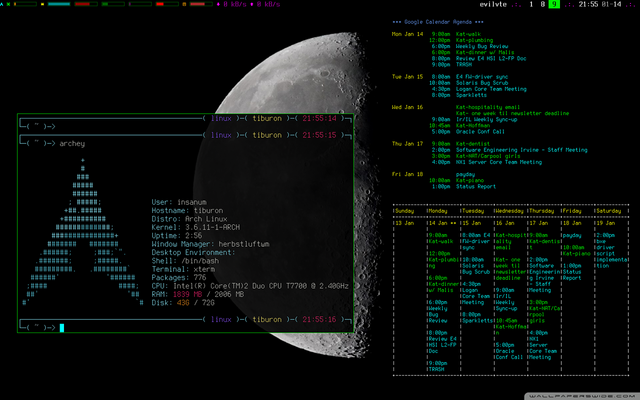
* super fun hacking with shell scripts, cron, screen, tmux, conky, etc
[](https://raw.githubusercontent.com/insanum/gcalcli/HEAD/docs/gcalcli_5.png)
## Requirements
Installing and using gcalcli requires python 3, the dependencies listed in
pyproject.toml, and a love for the command line!
## Installation
Check your OS distribution for packages.
If your OS doesn't have the latest released version you can install using pip
(or pipx).
### Install on Linux
Several Linux distros have packages available. A few popular ones...
* Debian/Ubuntu: `sudo apt install gcalcli`
* Void Linux: `xbps-install gcalcli`
### Install using [Nix](https://nixos.org/nix/)
```shell
nix-env -i gcalcli
```
### Install using [Homebrew](https://brew.sh/) (MacOS)
```shell
brew install gcalcli
```
### Install from PyPI
```shell
pip install gcalcli[vobject]
# OR: pipx install gcalcli[vobject]
```
If you don't need the `import` command you can install without extras:
```shell
pip install gcalcli
```
### Install from source
```sh
git clone https://github.com/insanum/gcalcli.git
cd gcalcli
pip install .[vobject]
```
## Usage
`gcalcli` provides a series of subcommands with the following functionality:
init initialize authentication, etc
list list available calendars
edit edit calendar events
agenda get an agenda for a time period
updates get updates since a datetime for a time period
calw get a week-based agenda in calendar format
calm get a month agenda in calendar format
quick quick-add an event to a calendar
add add a detailed event to the calendar
import import an ics/vcal file to a calendar
remind execute command if event occurs within <mins> time
See the manual (`man (1) gcalcli`), or run with `--help`/`-h` for detailed usage.
### Initial setup
OAuth2 is used for authenticating with your Google account. The resulting token
is placed in an `oauth` file in your platform's data directory (for example
~/.local/share/gcalcli/oauth on Linux). When you first start gcalcli the
authentication process will proceed. Simply follow the instructions.
**You currently have to use your own Calendar API token.** Our Calendar API token is restricted to few users only and waits for Google's approval to be unlocked.
Set up your Google "project" and auth token as explained in
[docs/auth-api.md](https://github.com/insanum/gcalcli/blob/HEAD/docs/api-auth.md),
then run gcalcli passing a `--client-id` to finish setup:
```shell
gcalcli --client-id=xxxxxxxxxxxxxxx.apps.googleusercontent.com init
```
Enter the client secret when prompted and follow its directions to complete the permission flow.
### Shell completion
gcalcli provides command completion you can configure in bash, zsh, fish, etc using the [https://kislyuk.github.io/argcomplete/] library.
To enable it, follow argcomplete's setup instructions to ensure your shell can find the completion hooks.
```shell
gcalcli <TAB>
add
agenda
agendaupdate
...
```
NOTE: Setup for fish and other shells is currently explained [under "contrib"](https://github.com/kislyuk/argcomplete/tree/develop/contrib) instead of their main docs, and their centralized "global activation" mechanism doesn't seem to be supported yet for those shells.
### HTTP Proxy Support
gcalcli will automatically work with an HTTP Proxy simply by setting up some
environment variables used by the gdata Python module:
```
http_proxy
https_proxy
proxy-username or proxy_username
proxy-password or proxy_password
```
Note that these environment variables must be lowercase.
### Configuration
gcalcli supports some configuration options in a config.toml file under your
platform's standard config directory path. Edit it with `gcalcli config edit`.
Example:
```toml
#:schema https://raw.githubusercontent.com/insanum/gcalcli/HEAD/data/config-schema.json
[calendars]
default-calendars = ["Personal", "Work"]
ignore-calendars = ["Boring stuff", "Holidays"]
[output]
week-start = "monday"
```
You can also use the $GCALCLI_CONFIG environment variable to customize which
config file/directory to use, which is useful if you need to dynamically switch
between different sets of configuration. For example:
```shell
GCALCLI_CONFIG=~/.config/gcalcli/config.tuesdays.toml gcalcli add
```
#### Using cli args from a file (and gcalclirc flag file)
You can save commonly-used options in a file and load them into cli options
using an `@` prefix. For example:
```shell
gcalcli @~/.gcalcli_global_flags add \
@~/.gcalcli_add_flags
```
will insert flags listed in a ~/.gcalcli_global_flags file (one per line), then
load more flags specific to the add command from ~/.gcalcli_add_flags.
The flag files should have a set of cli args one per line (with no blank lines
in between) like:
```shell
--nocache
--nocolor
--default-calendar=CALENDAR_NAME
--client-secret=API_KEY
```
Note that long options require an equal sign if specifying a parameter. With
short options the equal sign is optional.
Currently any file named "gcalclirc" in your config directory (or a ~/.gcalclirc
file) will be automatically loaded unconditionally like that as global options,
but that mechanism may change in the future because it's more brittle than
config.toml.
#### Importing VCS/VCAL/ICS Files from Exchange (or other)
Importing events from files is easy with gcalcli. The 'import' command accepts
a filename on the command line or can read from standard input. Here is a script
that can be used as an attachment handler for Thunderbird or in a mailcap entry
with Mutt (or in Mutt you could just use the attachment viewer and pipe command):
```bash
#!/bin/bash
TERMINAL=evilvte
CONFIG=~/.gcalclirc
$TERMINAL -e bash -c "echo 'Importing invite...' ; \
gcalcli --detail-url=short \
--calendar='Eric Davis' \
import -v \"$1\" ; \
read -p 'press enter to exit: '"
```
Note that with Thunderbird you'll have to have the 'Show All Body Parts'
extension installed for seeing the calendar attachments when not using
'Lightning'. See this
[bug report](https://bugzilla.mozilla.org/show_bug.cgi?id=505024)
for more details.
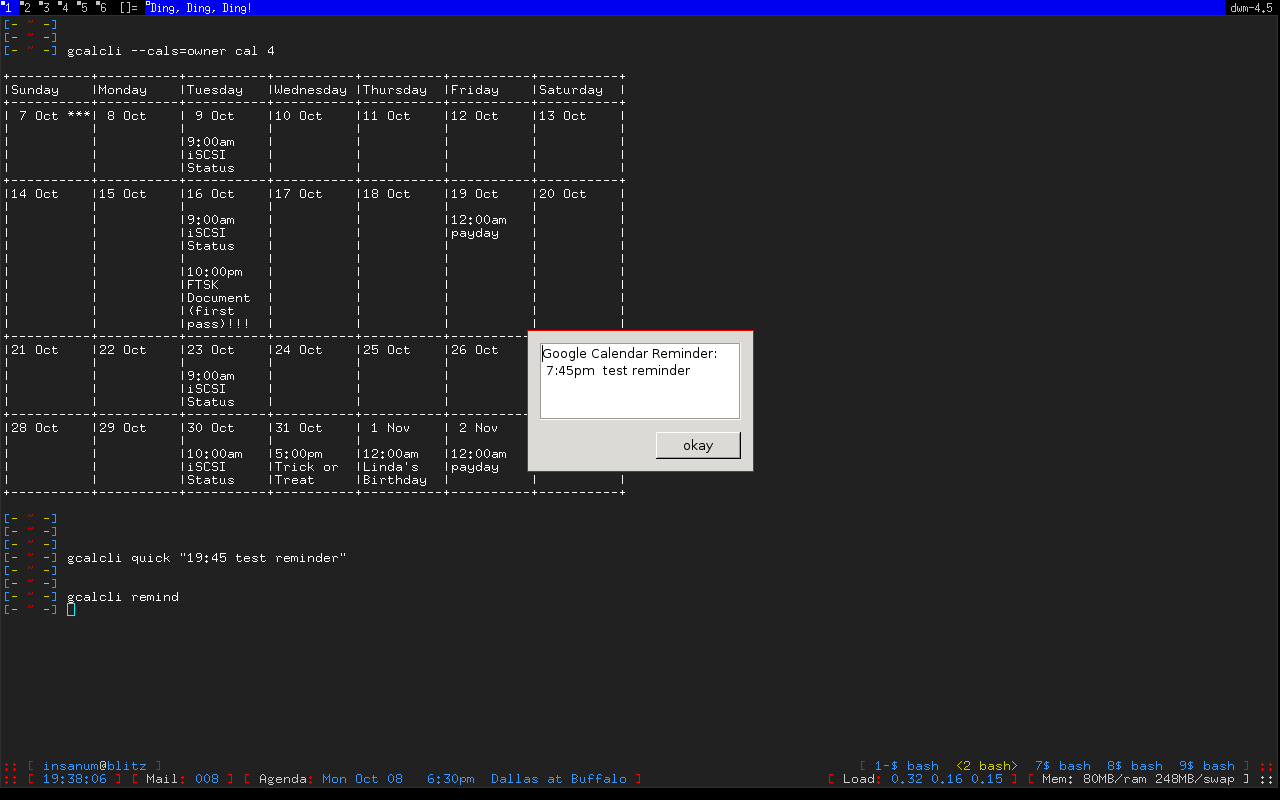
### Event Popup Reminders
The 'remind' command for gcalcli is used to execute any command as an event
notification. This can be a notify-send or an xmessage-like popup or whatever
else you can think of. gcalcli does not contain a daemon so you'll have to use
some other tool to ensure gcalcli is run in a timely manner for notifications.
Two options are using cron or a loop inside a shell script.
Cron:
```sh
% crontab -l
*/10 * * * * /usr/bin/gcalcli remind
```
Shell script like your .xinitrc so notifications only occur when you're logged
in via X:
```bash
#!/bin/bash
[[ -x /usr/bin/dunst ]] && /usr/bin/dunst -config ~/.dunstrc &
if [ -x /usr/bin/gcalcli ]; then
while true; do
/usr/bin/gcalcli --calendar="davis" remind
sleep 300
done &
fi
exec herbstluftwm # :-)
```
By default gcalcli executes the notify-send command for notifications. Most
common Linux desktop environments already contain a DBUS notification daemon
that supports libnotify so it should automagically just work. If you're like
me and use nothing that is common I highly recommend the
[dunst](https://github.com/knopwob/dunst) dmenu'ish notification daemon.
Note that each time you run this you will get a reminder if you're still inside
the event duration. Also note that due to time slip between machines, gcalcli
will give you a ~5 minute margin of error. Plan your cron jobs accordingly.
### Agenda On Your Root Desktop
Put your agenda on your desktop using
[Conky](https://github.com/brndnmtthws/conky). The '--conky' option causes
gcalcli to output Conky color sequences. Note that you need to use the Conky
'execpi' command for the gcalcli output to be parsed for color sequences. Add
the following to your .conkyrc:
```conkyrc
${execpi 300 gcalcli --conky agenda}
```
To also get a graphical calendar that shows the next three weeks add:
```conkyrc
${execpi 300 gcalcli --conky calw 3}
```
You may need to increase the `text_buffer_size` in your conkyrc file. Users
have reported that the default of 256 bytes is too small for busy calendars.
Additionally you need to set `--lineart=unicode` to output unicode-characters
for box drawing. To avoid misaligned borders use a monospace font like 'DejaVu
Sans Mono'. On Python2 it might be necessary to set the environment variable
`PYTHONIOENCODING=utf8` if you are using characters beyond ascii. For
example:
```
${font DejaVu Sans Mono:size=9}${execpi 300 export PYTHONIOENCODING=utf8 && gcalcli --conky --lineart=unicode calw 3}
```
### Agenda Integration With tmux
Put your next event in the left of your 'tmux' status line. Add the following
to your tmux.conf file:
```tmux
set-option -g status-interval 60
set-option -g status-left "#[fg=blue,bright]#(gcalcli agenda | head -2 | tail -1)#[default]"
```
### Agenda Integration With screen
Put your next event in your 'screen' hardstatus line. First add a cron job
that will dump you agenda to a text file:
```shell
% crontab -e
```
Then add the following line:
```shell
*/5 * * * * gcalcli --nocolor --nostarted agenda "`date`" > /tmp/gcalcli_agenda.txt
```
Next create a simple shell script that will extract the first agenda line.
Let's call this script 'screen_agenda':
```sh
#!/bin/bash
head -2 /tmp/gcalcli_agenda.txt | tail -1
```
Next configure screen's hardstatus line to gather data from a backtick command.
Of course your hardstatus line is most likely very different than this:
```screenrc
backtick 1 60 60 screen_agenda
hardstatus "[ %1` ]"
```
## More screenshots
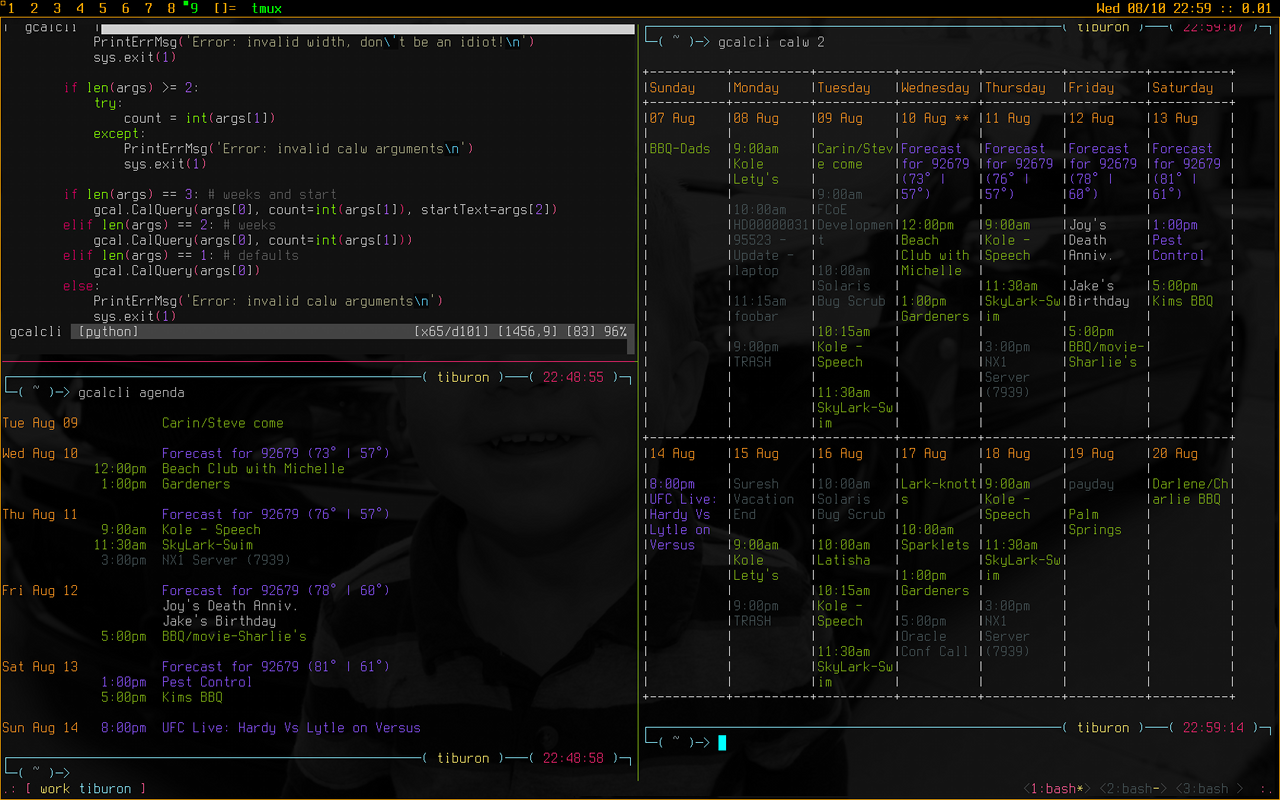
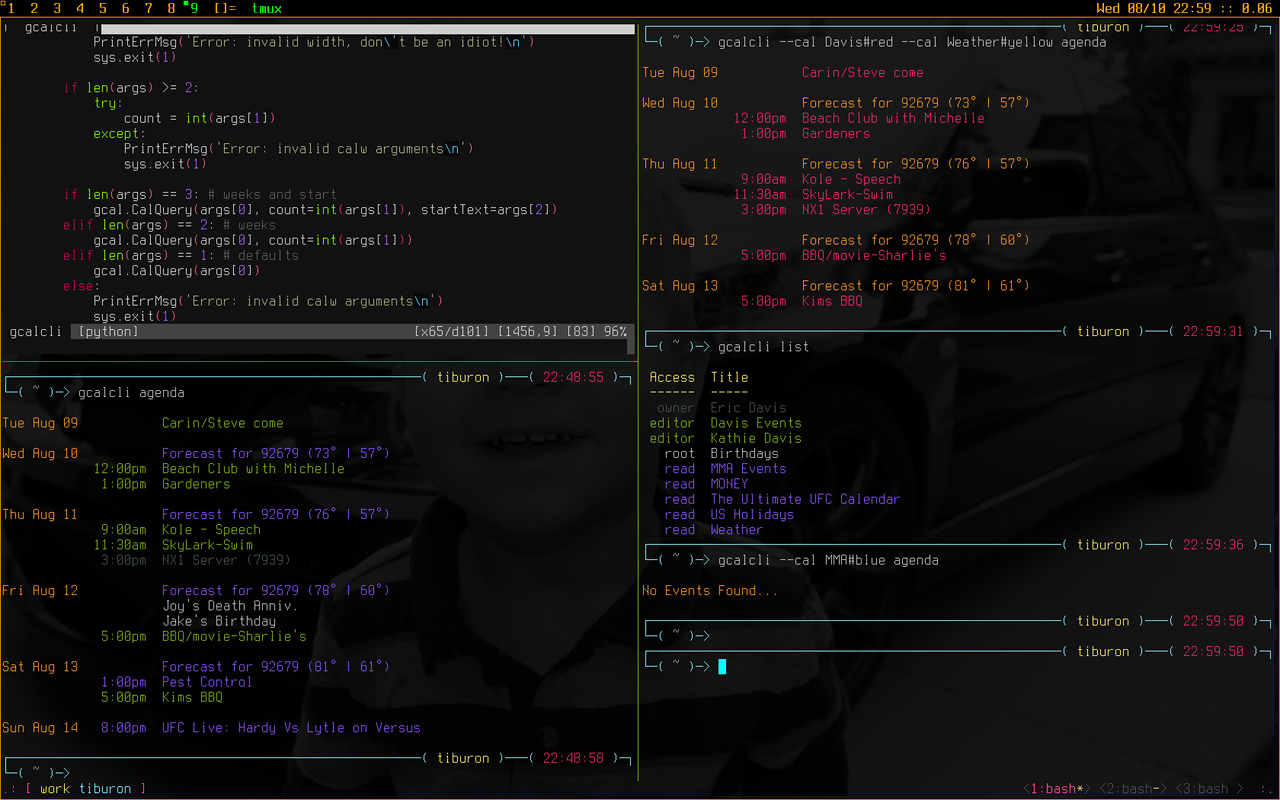
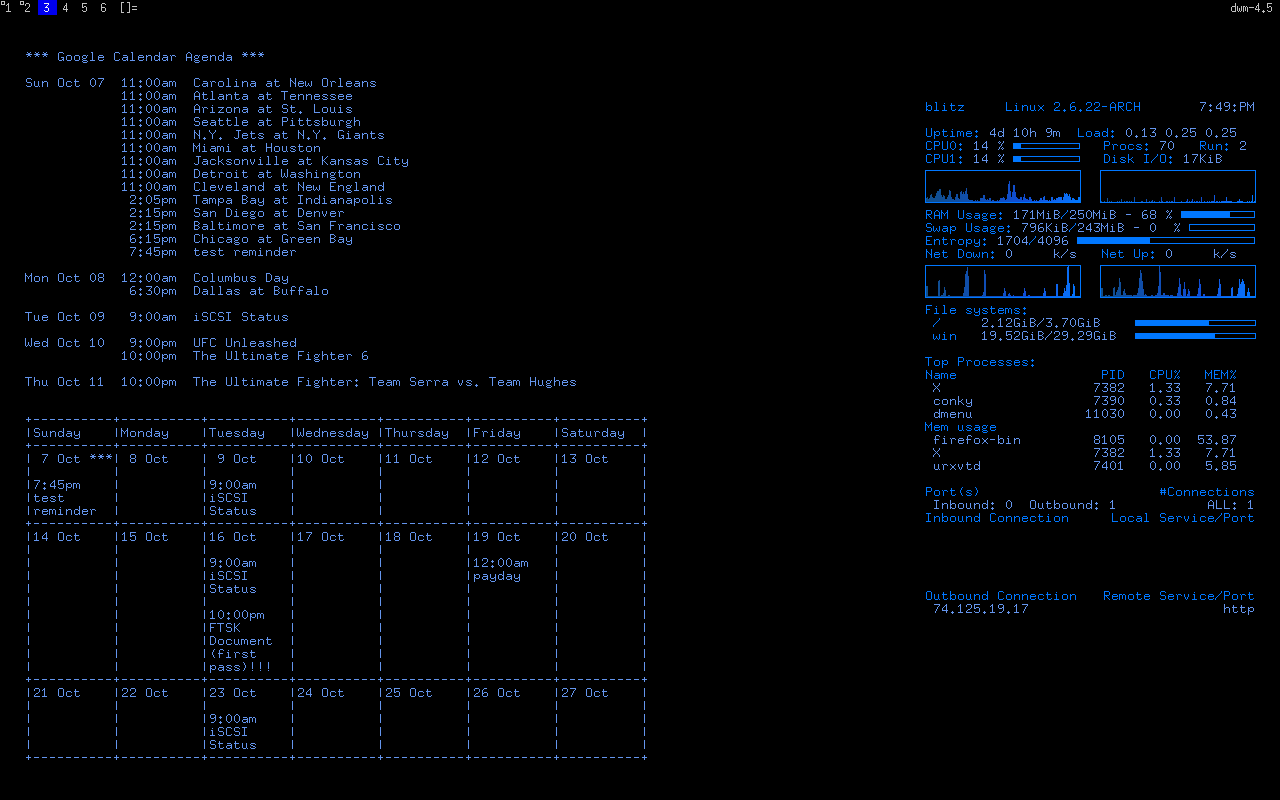
Reminder popup:
|
