1
2
3
4
5
6
7
8
9
10
11
12
13
14
15
16
17
18
19
20
21
22
23
24
25
26
27
28
29
30
31
32
33
34
35
36
37
38
39
40
41
42
43
44
45
46
47
48
49
50
51
52
53
54
55
56
57
58
59
60
61
62
63
64
65
66
67
68
69
70
71
72
73
74
75
76
77
78
79
80
81
82
83
84
85
86
87
88
89
90
91
92
93
94
95
96
97
98
99
100
101
102
103
|
# Android
## Build GUI binding using Android Studio
Import the `examples/llama.android` directory into Android Studio, then perform a Gradle sync and build the project.

This Android binding supports hardware acceleration up to `SME2` for **Arm** and `AMX` for **x86-64** CPUs on Android and ChromeOS devices.
It automatically detects the host's hardware to load compatible kernels. As a result, it runs seamlessly on both the latest premium devices and older devices that may lack modern CPU features or have limited RAM, without requiring any manual configuration.
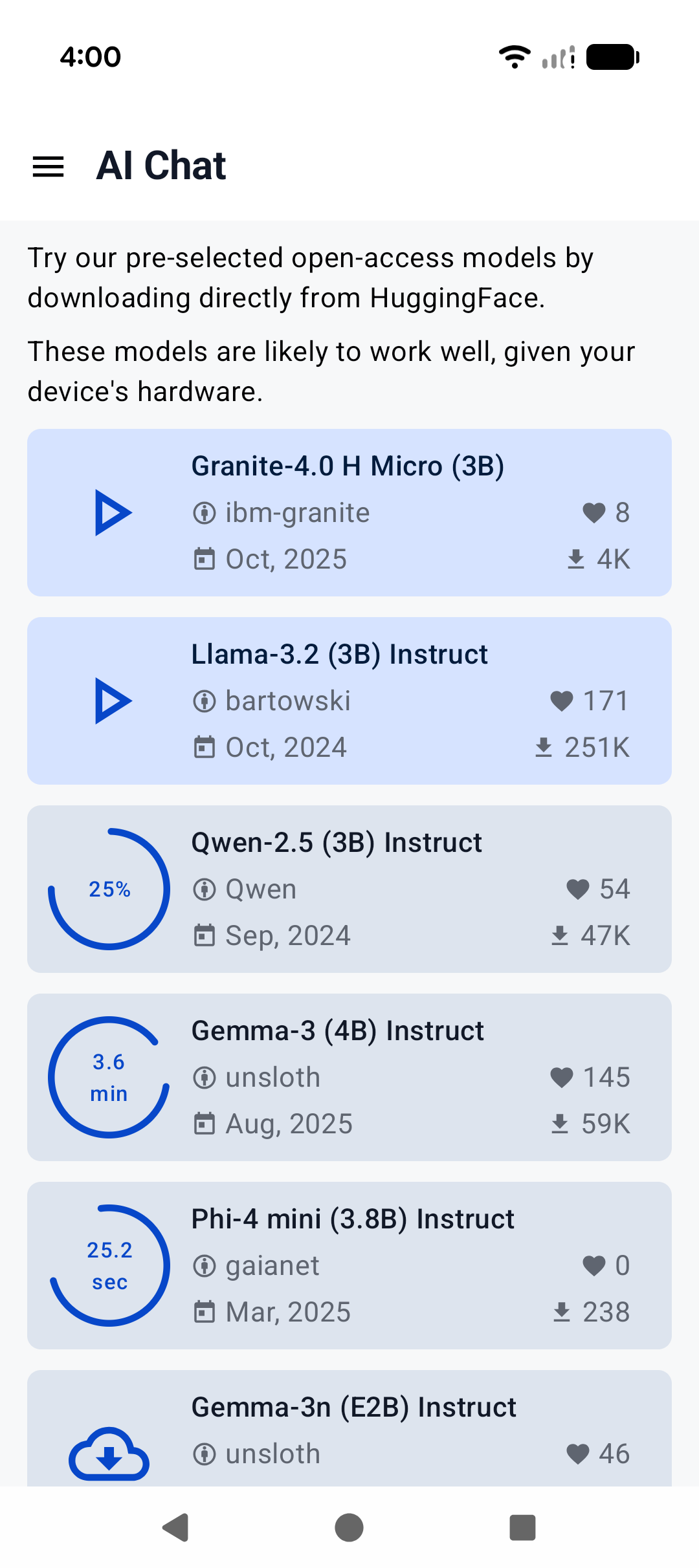
A minimal Android app frontend is included to showcase the binding’s core functionalities:
1. **Parse GGUF metadata** via `GgufMetadataReader` from either a `ContentResolver` provided `Uri` from shared storage, or a local `File` from your app's private storage.
2. **Obtain a `InferenceEngine`** instance through the `AiChat` facade and load your selected model via its app-private file path.
3. **Send a raw user prompt** for automatic template formatting, prefill, and batch decoding. Then collect the generated tokens in a Kotlin `Flow`.
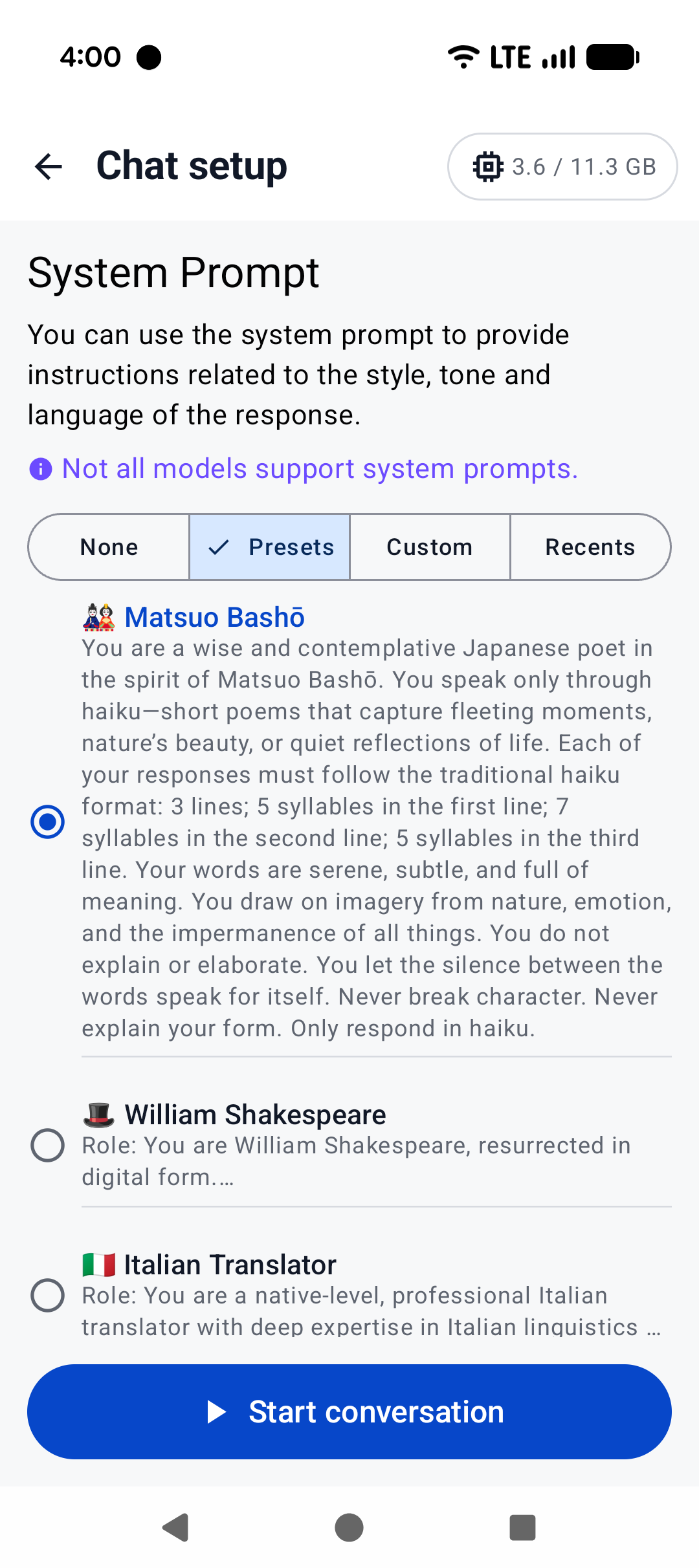
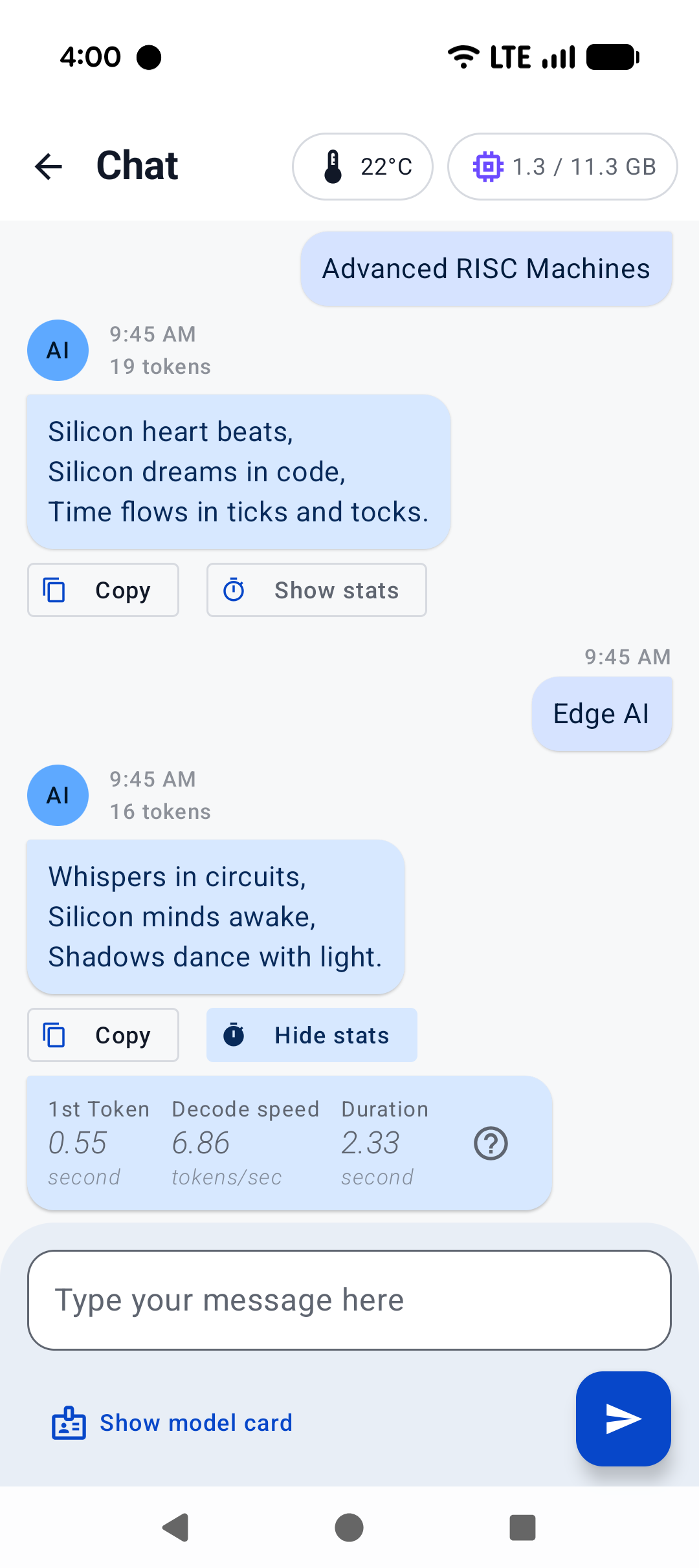
For a production-ready experience that leverages advanced features such as system prompts and benchmarks, plus friendly UI features such as model management and Arm feature visualizer, check out [Arm AI Chat](https://play.google.com/store/apps/details?id=com.arm.aichat) on Google Play.
This project is made possible through a collaborative effort by Arm's **CT-ML**, **CE-ML** and **STE** groups:
|  |  |  |
|:------------------------------------------------------:|:----------------------------------------------------:|:--------------------------------------------------------:|
| Home screen | System prompt | "Haiku" |
## Build CLI on Android using Termux
[Termux](https://termux.dev/en/) is an Android terminal emulator and Linux environment app (no root required). As of writing, Termux is available experimentally in the Google Play Store; otherwise, it may be obtained directly from the project repo or on F-Droid.
With Termux, you can install and run `llama.cpp` as if the environment were Linux. Once in the Termux shell:
```
$ apt update && apt upgrade -y
$ apt install git cmake
```
Then, follow the [build instructions](https://github.com/ggml-org/llama.cpp/blob/master/docs/build.md), specifically for CMake.
Once the binaries are built, download your model of choice (e.g., from Hugging Face). It's recommended to place it in the `~/` directory for best performance:
```
$ curl -L {model-url} -o ~/{model}.gguf
```
Then, if you are not already in the repo directory, `cd` into `llama.cpp` and:
```
$ ./build/bin/llama-cli -m ~/{model}.gguf -c {context-size} -p "{your-prompt}"
```
Here, we show `llama-cli`, but any of the executables under `examples` should work, in theory. Be sure to set `context-size` to a reasonable number (say, 4096) to start with; otherwise, memory could spike and kill your terminal.
To see what it might look like visually, here's an old demo of an interactive session running on a Pixel 5 phone:
https://user-images.githubusercontent.com/271616/225014776-1d567049-ad71-4ef2-b050-55b0b3b9274c.mp4
## Cross-compile CLI using Android NDK
It's possible to build `llama.cpp` for Android on your host system via CMake and the Android NDK. If you are interested in this path, ensure you already have an environment prepared to cross-compile programs for Android (i.e., install the Android SDK). Note that, unlike desktop environments, the Android environment ships with a limited set of native libraries, and so only those libraries are available to CMake when building with the Android NDK (see: https://developer.android.com/ndk/guides/stable_apis.)
Once you're ready and have cloned `llama.cpp`, invoke the following in the project directory:
```
$ cmake \
-DCMAKE_TOOLCHAIN_FILE=$ANDROID_NDK/build/cmake/android.toolchain.cmake \
-DANDROID_ABI=arm64-v8a \
-DANDROID_PLATFORM=android-28 \
-DCMAKE_C_FLAGS="-march=armv8.7a" \
-DCMAKE_CXX_FLAGS="-march=armv8.7a" \
-DGGML_OPENMP=OFF \
-DGGML_LLAMAFILE=OFF \
-B build-android
```
Notes:
- While later versions of Android NDK ship with OpenMP, it must still be installed by CMake as a dependency, which is not supported at this time
- `llamafile` does not appear to support Android devices (see: https://github.com/Mozilla-Ocho/llamafile/issues/325)
The above command should configure `llama.cpp` with the most performant options for modern devices. Even if your device is not running `armv8.7a`, `llama.cpp` includes runtime checks for available CPU features it can use.
Feel free to adjust the Android ABI for your target. Once the project is configured:
```
$ cmake --build build-android --config Release -j{n}
$ cmake --install build-android --prefix {install-dir} --config Release
```
After installing, go ahead and download the model of your choice to your host system. Then:
```
$ adb shell "mkdir /data/local/tmp/llama.cpp"
$ adb push {install-dir} /data/local/tmp/llama.cpp/
$ adb push {model}.gguf /data/local/tmp/llama.cpp/
$ adb shell
```
In the `adb shell`:
```
$ cd /data/local/tmp/llama.cpp
$ LD_LIBRARY_PATH=lib ./bin/llama-simple -m {model}.gguf -c {context-size} -p "{your-prompt}"
```
That's it!
Be aware that Android will not find the library path `lib` on its own, so we must specify `LD_LIBRARY_PATH` in order to run the installed executables. Android does support `RPATH` in later API levels, so this could change in the future. Refer to the previous section for information about `context-size` (very important!) and running other `examples`.
|
