1
2
3
4
5
6
7
8
9
10
11
12
13
14
15
16
17
18
19
20
21
22
23
24
25
26
27
28
29
30
31
32
33
34
35
36
37
38
39
40
41
42
43
44
45
46
47
48
49
50
51
52
53
54
55
56
57
58
59
60
61
62
63
64
65
66
67
68
69
70
71
72
73
74
75
76
77
78
79
80
81
82
83
84
85
86
87
88
89
90
91
92
93
94
95
96
97
98
99
100
101
102
103
104
105
106
107
108
109
110
111
112
113
114
115
116
117
118
119
120
121
122
123
124
125
126
127
128
129
130
131
132
133
134
135
136
137
138
139
140
141
142
143
144
145
146
147
148
149
150
151
152
153
154
155
156
157
158
159
160
161
162
163
164
165
166
167
168
169
170
171
172
173
174
175
176
177
178
179
180
181
182
183
184
185
186
187
188
189
190
191
192
193
194
195
196
197
198
199
200
201
202
203
204
205
206
207
208
209
210
211
212
213
214
215
216
217
|
# Using MultiQC Reports
Once MultiQC has finished, you should have a HTML report file called
`multiqc_report.html` (or something similar, depending on how you ran MultiQC).
You can launch this report with `open multiqc_report.html` on the command
line, or double clicking the file in a file browser.
## Browser compatibility
MultiQC reports should work in any modern browser. They have been tested
using OSX Chrome, Firefox and Safari. If you find any report bugs, please
report them as a [GitHub issue](https://github.com/ewels/MultiQC/issues).
## Report layout
MultiQC reports have three main page sections:
- The navigation menu (left side)
- Links to the different module sections in the report
- Click the logo to go to the top of the page
- The toolbox (right side)
- Contains various tools to modify the report data (see below)
- The report (middle)
- This is what you came here for, the data!
Note that if you're viewing the report on a mobile device / small window,
the content will be reformatted to fit the screen.
## General Statistics table
At the top of every MultiQC report is the 'General Statistics' table.
This shows an overview of key values, taken from all modules. The aim
of the table is to bring together stats for each sample from across the
analysis so that you can see it in one place.
Hovering over column headers will show a longer description, including which
module produced the data. Clicking a header will sort the table by that value.
Clicking it again will change the sort direction. You can shift-click multiple
headers to sort by multiple columns.

Above the table there is a button called 'Configure Columns'. Clicking this
will launch a modal window with more detailed information about each column,
plus options to show/hide and change the order of columns.

## Plots
MultiQC modules can take plot more extensive data in the sections below
the general statistics table.
### Interactive plots
Plots in MultiQC reports are usually interactive, using the
[HighCharts](http://www.highcharts.com/) JavaScript library.
You can hover the mouse over data to see a tooltip with more information
about that dataset. Clicking and dragging on line graphs will zoom into that area.

To reset the zoom, use the button in the top right:

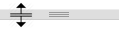
Plots have a grey bar along their base; clicking and dragging this will
resize the plot's height:
You can force reports to use interactive plots instead of flat by specifying
the `--interactive` command line option (see below).
### Flat plots
Reports with large numbers of samples may contain flat plots. These are
rendered when the MultiQC report is generated using
[MatPlotLib](http://matplotlib.org/) and are non-interactive (flat)
images within the report. The reason for generating these is that large
sample numbers can make MultiQC reports very data-intensive and unresponsive
(crashing people's browsers in extreme cases). Plotting data in flat images
is scalable to any number of samples, however.
Flat plots in MultiQC have been designed to look as similar to their interactive
versions as possible. They are also copied to `multiqc_data/multiqc_plots`
You can force reports to use flat plots with the `--flat` command line option.
See the [Large sample numbers](http://multiqc.info/docs/#large-sample-numbers) section of the
_Configuring MultiQC_ docs for more on how to customise the flat / interactive
plot behaviour.
### Exporting plots
If you want to use the plot elsewhere (_eg._ in a presentation or paper),
you can export it in a range of formats. Just click the menu button in
the top right of the plot:
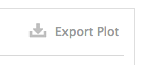
This opens the MultiQC Toolbox _Export Plots_ panel with the current plot
selected. You have a range of export options here. When deciding on output
format bear in mind that SVG is a vector format, so can be edited in tools
such as [Adobe Illustrator](http://www.adobe.com/products/illustrator.html)
or the free tool [Inkscape](https://inkscape.org/en/). This makes it ideal
for use in publications and manual customisation / annotation. The
_Plot scaling_ option changes how large the labels are relative to the plot.
### Dynamic plots
Some plots have buttons above them which allow you to change the data
that they show or their axis. For example, many bar plots have the option
to show the data as percentages instead of counts:

## Toolbox
MultiQC reports come with a 'toolbox', accessible by clicking the buttons
on the right hand side of the report:

Active toolbox panels have their button highlighted with a blue outline.
You can hide the toolbox by clicking the open panel button a second time,
or pressing `Escape` on your keyboard.
### Highlight Samples
If you run MultiQC plots with a lot of samples, plots can become very
data-heavy. This makes it difficult to find specific samples, or subsets
of samples.
To help with this, you can use the Highlight Samples tool to colour datasets
of interest. Simply enter some text which will match the samples you want to
highlight and press enter (or click the add button). If you like, you can also
customise the highlight colour.

To make it easier to match groups of samples, you can use a regular expressions
by turning on 'Regex mode'. You can test regexes using a nice tool at
[regex101.com](https://regex101.com/). See a nice introduction to regexes
[here](http://www.regular-expressions.info/quickstart.html). Note that pattern
delimiters are not needed (use `pattern`, not `/pattern/`).
Here, we highlight any sample names that end in `_1`:

Note that a new button appears above the General Statistics table when samples
are highlighted, allowing you to sort the table according to highlights.
Search patterns can be changed after creation, just click to edit. To remove,
click the grey cross on the right hand side.
Searching for an empty string will match all samples.
### Renaming Samples
Sample names are typically generated based on processed file names. These
file names are not always informative. To help with this, you can do a search
and replace within sample names. Here, we remove the `SRR1067` and `_1` parts
of the sample names, which are the same for all samples:

Again, regular expressions can be used. See above for details. Note that
regex groups can be used - define a group match with parentheses and
use the matching value with `$1`, `$2` etc. For example - a search string
`SRR283(\d{3})` and replace string `$1_SRR283` would move the final three
digits of matching sample names to the start of the name.
Often, you may have a spreadsheet with filenames and informative sample
names. To avoid having to manually enter each name, you can paste from a
spreadsheet using the 'bulk import' tool:

### Hiding Samples
Sometimes, you want to focus on a subset of samples. To temporarily
hide samples from the report, enter a search string as described above into
the 'Hide Samples' toolbox panel.
Here, we hide all samples with `_trimmed` in their sample name:
_(Note that plots will tell you how many samples have been hidden)_

### Export
This panel allows you to download MultiQC plots as images or as raw data.
You can configure the size and characteristics of exported plot images:
Width and Height set the output size of the images, scale sets
how "zoomed-in" they should look (typically you want the plot to be more
zoomed for printing). The tick boxes below these settings allow you to
download multiple plots in one go.
Plots with multiple tabs will all be exported as files when using the
Data tab. For plots with multiple tags, the currently visible plot
will be exported.
> Note: You can also save static plot images when you run MultiQC.
> See [Exporting Plots](http://multiqc.info/docs/#exporting-plots)
> for more information.
### Save Settings
To avoid having to re-enter the same toolbox setup repeatedly, you can
save your settings using the 'Save Settings' panel. Just pick a name
and click save. To load, choose your set of settings and press load
(or delete). Loaded settings are applied on top of current settings.
All configs are saved in browser local storage - they do not travel
with the report and may not work in older browsers.
|
