1
2
3
4
5
6
7
8
9
10
11
12
13
14
15
16
17
18
19
20
21
22
23
24
25
26
27
28
29
30
31
32
33
34
35
36
37
38
39
40
41
42
43
44
45
46
47
48
49
50
51
52
53
54
55
56
57
58
59
60
61
62
63
64
65
66
67
68
69
70
71
72
73
74
75
76
77
78
79
80
81
82
83
84
85
86
87
88
89
90
91
92
93
94
95
96
97
98
99
100
101
102
103
104
105
106
107
108
109
110
111
112
113
114
115
116
117
118
119
120
121
122
123
124
125
126
127
128
129
130
131
132
133
134
135
136
137
138
139
140
141
142
143
144
145
146
147
148
149
150
151
152
153
154
155
156
157
158
159
160
161
162
163
164
165
166
167
168
169
170
171
172
173
174
175
176
177
178
179
180
181
182
183
184
185
186
187
188
189
190
191
192
193
194
195
196
197
198
199
200
201
202
203
204
205
206
207
208
209
210
211
212
213
214
215
216
217
218
219
220
221
222
223
224
225
226
227
228
229
230
231
232
233
234
235
236
237
238
239
240
241
242
243
244
245
246
247
248
249
250
251
252
253
254
255
256
257
258
259
260
261
262
263
264
265
266
267
268
269
270
271
272
273
274
275
276
277
278
279
280
281
282
283
284
285
286
287
288
289
290
291
292
293
294
295
296
297
298
299
300
301
302
303
304
305
306
307
308
309
310
311
312
313
314
315
316
317
318
319
320
321
322
323
324
325
326
327
328
329
330
331
332
333
334
335
336
337
338
339
340
341
342
343
344
345
346
347
348
349
350
351
352
353
354
355
356
357
358
359
360
361
362
363
364
365
366
367
368
369
370
371
372
373
374
375
376
377
378
379
380
381
382
383
384
385
386
387
388
389
390
391
392
393
394
395
396
397
398
399
400
401
402
403
404
405
406
407
408
409
410
411
412
413
414
415
416
417
418
419
420
421
422
423
424
425
426
427
428
429
430
431
432
433
434
435
436
437
438
439
440
441
442
443
444
445
446
447
448
449
450
451
452
453
454
455
456
457
458
459
460
461
462
463
464
465
466
467
468
469
470
471
472
473
474
475
476
477
478
479
480
481
482
483
484
485
486
487
488
489
490
491
492
493
494
495
496
497
498
499
500
501
502
503
504
505
506
507
508
509
510
511
512
513
514
515
516
517
518
519
520
521
522
523
524
525
526
527
528
529
530
531
532
533
534
535
536
537
538
539
540
541
542
543
544
545
546
547
548
549
550
551
552
553
554
555
556
557
558
559
560
561
562
563
564
565
566
567
568
569
570
571
572
573
574
575
576
577
578
579
580
581
582
583
584
585
586
587
588
589
590
591
592
593
594
595
596
597
598
599
600
601
602
603
604
605
606
607
608
609
610
611
612
613
614
615
616
617
618
619
620
621
622
623
624
625
626
627
628
629
630
631
632
633
634
635
636
637
638
639
640
641
642
643
644
645
646
647
648
649
650
651
652
653
654
655
656
657
658
659
660
661
662
663
664
665
666
667
668
669
670
671
672
673
674
675
676
677
678
679
680
681
682
683
684
685
686
687
688
689
690
691
692
693
694
695
696
697
698
699
700
701
702
703
704
705
706
707
708
709
710
711
712
713
714
715
716
717
718
719
720
721
722
723
724
725
726
727
728
729
730
731
732
733
734
735
736
737
738
739
740
741
742
743
744
745
746
747
748
749
750
751
752
753
754
755
756
757
758
759
760
761
762
763
764
765
766
767
768
769
770
771
772
773
774
775
776
777
778
779
780
781
782
783
784
785
786
787
788
789
790
791
792
793
794
795
796
797
798
799
800
801
802
803
804
805
806
807
808
809
810
811
812
813
814
815
816
817
818
819
820
821
822
823
824
825
826
827
828
829
830
831
832
833
834
835
836
837
838
839
840
841
842
843
844
845
846
847
848
849
850
851
852
853
854
855
856
857
858
859
860
861
862
863
864
865
866
867
868
869
870
871
872
873
874
875
876
877
878
879
880
881
882
883
884
885
886
887
888
889
890
891
892
893
894
895
896
897
898
899
900
901
902
903
904
905
906
907
908
909
910
911
912
913
914
915
916
917
918
919
920
921
922
923
924
925
926
927
928
929
930
931
932
933
934
935
936
937
938
939
940
941
942
943
944
945
946
947
948
949
950
951
952
953
954
955
956
957
958
959
960
961
962
963
964
965
966
967
968
969
970
971
972
973
974
975
976
977
978
979
980
981
982
983
984
985
986
987
988
989
990
991
992
993
994
995
996
997
998
999
1000
1001
1002
1003
1004
1005
1006
1007
1008
1009
1010
1011
1012
1013
1014
1015
1016
1017
1018
1019
1020
1021
1022
1023
1024
1025
1026
1027
1028
1029
1030
1031
1032
1033
1034
1035
1036
1037
1038
1039
1040
1041
1042
1043
1044
1045
1046
1047
1048
1049
1050
1051
1052
1053
1054
1055
1056
1057
1058
1059
1060
1061
1062
1063
1064
1065
1066
1067
1068
1069
1070
1071
1072
1073
1074
1075
1076
1077
1078
1079
1080
1081
1082
1083
1084
1085
1086
1087
1088
1089
1090
1091
1092
1093
1094
1095
1096
1097
1098
1099
1100
1101
1102
1103
1104
1105
1106
1107
1108
1109
1110
1111
1112
1113
1114
1115
1116
1117
1118
1119
1120
1121
1122
1123
1124
1125
1126
1127
1128
1129
1130
1131
1132
1133
1134
1135
1136
1137
1138
1139
1140
1141
1142
1143
1144
1145
1146
1147
1148
1149
1150
1151
1152
1153
1154
1155
1156
1157
1158
1159
1160
1161
1162
1163
1164
1165
1166
1167
1168
1169
1170
1171
1172
1173
1174
1175
1176
1177
1178
1179
1180
1181
1182
1183
1184
1185
1186
1187
1188
1189
1190
1191
1192
1193
1194
1195
1196
1197
1198
1199
1200
1201
1202
1203
1204
1205
1206
1207
1208
1209
1210
1211
1212
1213
1214
1215
1216
1217
1218
1219
1220
1221
1222
1223
1224
1225
1226
1227
1228
1229
1230
1231
1232
1233
1234
1235
1236
1237
1238
1239
1240
1241
1242
1243
1244
1245
1246
1247
1248
1249
1250
1251
1252
1253
1254
1255
1256
1257
1258
1259
1260
1261
1262
1263
1264
1265
1266
1267
1268
1269
1270
1271
1272
1273
1274
1275
1276
1277
1278
1279
1280
1281
1282
1283
1284
1285
1286
1287
1288
1289
1290
1291
1292
1293
1294
1295
1296
1297
1298
1299
1300
1301
1302
1303
1304
1305
1306
1307
1308
1309
1310
1311
1312
1313
1314
1315
1316
1317
1318
1319
1320
1321
1322
1323
1324
1325
1326
1327
1328
1329
1330
1331
1332
1333
1334
1335
1336
1337
1338
1339
1340
1341
1342
1343
1344
1345
1346
1347
1348
1349
1350
1351
1352
1353
1354
1355
1356
1357
1358
1359
1360
1361
1362
1363
1364
1365
1366
1367
1368
1369
1370
1371
1372
1373
1374
1375
1376
1377
1378
1379
1380
1381
1382
1383
1384
1385
1386
1387
1388
1389
1390
1391
1392
1393
1394
1395
1396
1397
1398
1399
1400
1401
1402
1403
1404
1405
1406
1407
1408
1409
1410
1411
1412
1413
1414
1415
1416
1417
1418
1419
1420
1421
1422
1423
1424
1425
1426
1427
1428
1429
1430
1431
1432
1433
1434
1435
1436
1437
1438
1439
1440
1441
1442
1443
1444
1445
1446
1447
1448
1449
1450
1451
1452
1453
1454
1455
1456
1457
1458
1459
1460
1461
1462
1463
1464
1465
1466
1467
1468
1469
1470
1471
1472
1473
1474
1475
1476
1477
1478
1479
1480
1481
1482
1483
1484
1485
1486
1487
1488
1489
1490
1491
1492
1493
1494
1495
1496
1497
1498
1499
1500
1501
1502
1503
1504
1505
1506
1507
1508
1509
1510
1511
1512
1513
1514
1515
1516
1517
1518
1519
1520
1521
1522
1523
1524
1525
1526
1527
1528
1529
1530
1531
1532
1533
1534
1535
1536
1537
1538
1539
1540
1541
1542
1543
1544
1545
1546
1547
1548
1549
1550
1551
1552
1553
1554
1555
1556
1557
1558
1559
1560
1561
1562
1563
1564
1565
1566
1567
1568
1569
1570
1571
1572
1573
1574
1575
1576
1577
1578
1579
1580
1581
1582
1583
1584
1585
1586
1587
1588
1589
1590
1591
1592
1593
1594
1595
1596
1597
1598
1599
1600
1601
1602
1603
1604
1605
1606
1607
1608
1609
1610
1611
1612
1613
1614
1615
1616
1617
1618
1619
1620
1621
1622
1623
1624
1625
1626
1627
1628
1629
1630
1631
1632
1633
1634
1635
1636
1637
1638
1639
1640
1641
1642
1643
1644
1645
1646
1647
1648
1649
1650
1651
1652
1653
1654
1655
1656
1657
1658
1659
1660
1661
1662
1663
1664
1665
1666
1667
1668
1669
1670
1671
1672
1673
1674
1675
1676
1677
1678
1679
1680
1681
1682
1683
1684
1685
1686
1687
1688
1689
1690
1691
1692
1693
1694
1695
1696
1697
1698
1699
1700
1701
1702
1703
1704
1705
1706
1707
1708
1709
1710
1711
1712
1713
1714
1715
1716
1717
1718
1719
1720
1721
1722
1723
1724
1725
1726
1727
1728
1729
1730
1731
1732
1733
1734
1735
1736
1737
1738
1739
1740
1741
1742
1743
1744
1745
1746
1747
1748
1749
1750
1751
1752
1753
1754
1755
1756
1757
1758
1759
1760
1761
1762
1763
1764
1765
1766
1767
1768
1769
1770
1771
1772
1773
1774
1775
1776
1777
1778
1779
1780
1781
1782
1783
1784
1785
1786
1787
1788
1789
1790
1791
1792
1793
1794
1795
1796
1797
1798
1799
1800
1801
1802
1803
1804
1805
1806
1807
1808
1809
1810
1811
1812
1813
1814
1815
1816
1817
1818
1819
1820
1821
1822
1823
1824
1825
1826
1827
1828
1829
1830
1831
1832
1833
1834
1835
1836
1837
1838
1839
1840
1841
1842
1843
1844
1845
1846
1847
1848
1849
1850
1851
1852
1853
1854
1855
1856
1857
1858
1859
1860
1861
1862
1863
1864
1865
1866
1867
1868
1869
1870
1871
1872
1873
1874
1875
1876
1877
1878
1879
1880
1881
1882
1883
1884
1885
1886
1887
1888
1889
1890
1891
1892
1893
1894
1895
1896
1897
1898
1899
1900
1901
1902
1903
1904
1905
1906
1907
1908
1909
1910
1911
1912
1913
1914
1915
1916
1917
1918
1919
1920
1921
1922
1923
1924
1925
1926
1927
1928
1929
1930
1931
1932
1933
1934
1935
1936
1937
1938
1939
1940
1941
1942
1943
1944
1945
1946
1947
1948
1949
1950
1951
1952
1953
1954
1955
1956
1957
1958
1959
1960
1961
1962
1963
1964
1965
1966
1967
1968
1969
1970
1971
1972
1973
1974
1975
1976
1977
1978
1979
1980
1981
1982
1983
1984
1985
1986
1987
1988
1989
1990
1991
1992
1993
1994
1995
1996
1997
1998
1999
2000
2001
2002
2003
2004
2005
2006
2007
2008
2009
2010
2011
2012
2013
2014
2015
2016
2017
2018
2019
2020
2021
2022
2023
2024
2025
2026
2027
2028
2029
2030
2031
2032
2033
2034
2035
2036
2037
2038
2039
2040
2041
2042
2043
2044
2045
2046
2047
2048
2049
2050
2051
2052
2053
2054
2055
2056
2057
2058
2059
2060
2061
2062
2063
2064
2065
2066
2067
2068
2069
2070
2071
2072
2073
2074
2075
2076
2077
2078
2079
2080
2081
2082
2083
2084
2085
2086
2087
2088
2089
2090
2091
2092
2093
2094
2095
2096
2097
2098
2099
2100
2101
2102
2103
2104
2105
2106
2107
2108
2109
2110
2111
2112
2113
2114
2115
2116
2117
2118
2119
2120
2121
2122
2123
2124
2125
2126
2127
2128
2129
2130
2131
2132
2133
2134
2135
2136
2137
2138
2139
2140
2141
2142
2143
2144
2145
2146
2147
2148
2149
2150
2151
2152
2153
2154
2155
2156
2157
2158
2159
2160
2161
2162
2163
2164
2165
2166
2167
2168
2169
2170
2171
2172
2173
2174
2175
2176
2177
2178
2179
2180
2181
2182
2183
2184
2185
2186
2187
2188
2189
2190
2191
2192
2193
2194
2195
2196
2197
2198
2199
2200
2201
2202
2203
2204
2205
2206
2207
2208
2209
2210
2211
2212
2213
2214
2215
2216
2217
2218
2219
2220
2221
2222
2223
2224
2225
2226
2227
2228
2229
2230
2231
2232
2233
2234
2235
2236
2237
2238
2239
2240
2241
2242
2243
2244
2245
2246
2247
2248
2249
2250
2251
2252
2253
2254
2255
2256
2257
2258
2259
2260
2261
2262
2263
2264
2265
2266
2267
2268
2269
2270
2271
2272
2273
2274
2275
2276
2277
2278
2279
2280
2281
2282
2283
2284
2285
2286
2287
2288
2289
2290
2291
2292
2293
2294
2295
2296
2297
2298
2299
2300
2301
2302
2303
2304
2305
2306
2307
2308
2309
2310
2311
2312
2313
2314
2315
2316
2317
2318
2319
2320
2321
2322
2323
2324
2325
2326
2327
2328
2329
2330
2331
2332
2333
2334
2335
2336
2337
2338
2339
2340
2341
2342
2343
2344
2345
2346
2347
2348
2349
2350
2351
2352
2353
2354
2355
2356
2357
2358
2359
2360
2361
2362
2363
2364
2365
2366
2367
2368
2369
2370
2371
2372
2373
2374
2375
2376
2377
2378
2379
2380
2381
2382
2383
2384
2385
2386
2387
2388
2389
2390
2391
2392
2393
2394
2395
2396
2397
2398
2399
2400
2401
2402
2403
2404
2405
2406
2407
2408
2409
2410
2411
2412
2413
2414
2415
2416
2417
2418
2419
2420
2421
2422
2423
2424
2425
2426
2427
2428
2429
2430
2431
2432
2433
2434
2435
2436
2437
2438
2439
2440
2441
2442
2443
2444
2445
2446
2447
2448
2449
2450
2451
2452
2453
2454
2455
2456
2457
2458
2459
2460
2461
2462
2463
2464
2465
2466
2467
2468
2469
2470
2471
2472
2473
2474
2475
2476
2477
2478
2479
2480
2481
2482
2483
2484
2485
2486
2487
2488
2489
2490
2491
2492
2493
2494
2495
2496
2497
2498
2499
2500
2501
2502
2503
2504
2505
2506
2507
2508
2509
2510
2511
2512
2513
2514
2515
2516
2517
2518
2519
2520
2521
2522
2523
2524
2525
2526
2527
2528
2529
2530
2531
2532
2533
2534
2535
2536
2537
2538
2539
2540
2541
2542
2543
2544
2545
2546
2547
2548
2549
2550
2551
2552
2553
2554
2555
2556
2557
2558
2559
2560
2561
2562
2563
2564
2565
2566
2567
2568
2569
2570
2571
2572
2573
2574
2575
2576
2577
2578
2579
2580
2581
2582
2583
2584
2585
2586
2587
2588
2589
2590
2591
2592
2593
2594
2595
2596
2597
2598
2599
2600
2601
2602
2603
2604
2605
2606
2607
2608
2609
2610
2611
2612
2613
2614
2615
2616
2617
2618
2619
2620
2621
2622
2623
2624
2625
2626
2627
2628
2629
2630
2631
2632
2633
2634
2635
2636
2637
2638
2639
2640
2641
2642
2643
2644
2645
2646
2647
2648
2649
2650
2651
2652
2653
2654
2655
2656
2657
2658
2659
2660
2661
2662
2663
2664
2665
2666
2667
2668
2669
2670
2671
2672
2673
2674
2675
2676
2677
2678
2679
2680
2681
2682
2683
2684
2685
2686
2687
2688
2689
2690
2691
2692
2693
2694
2695
2696
2697
2698
2699
2700
2701
2702
2703
2704
2705
2706
2707
2708
2709
2710
2711
2712
2713
2714
2715
2716
2717
2718
2719
2720
2721
2722
2723
2724
2725
2726
2727
2728
2729
2730
2731
2732
2733
2734
2735
2736
2737
2738
2739
2740
2741
2742
2743
2744
2745
2746
2747
2748
2749
2750
2751
2752
2753
2754
2755
2756
2757
2758
2759
2760
2761
2762
2763
2764
2765
2766
2767
2768
2769
2770
2771
2772
2773
2774
2775
2776
2777
2778
2779
2780
2781
2782
2783
2784
2785
2786
2787
2788
2789
2790
2791
2792
2793
2794
2795
2796
2797
2798
2799
2800
2801
2802
2803
2804
2805
2806
2807
2808
2809
2810
2811
2812
2813
2814
2815
2816
2817
2818
2819
2820
2821
2822
2823
2824
2825
2826
2827
2828
2829
2830
2831
2832
2833
2834
2835
2836
2837
2838
2839
2840
2841
2842
2843
2844
2845
2846
2847
2848
2849
2850
2851
2852
2853
2854
2855
2856
2857
2858
2859
2860
2861
2862
2863
2864
2865
2866
2867
2868
2869
2870
2871
2872
2873
2874
2875
2876
2877
2878
2879
2880
2881
2882
2883
2884
2885
2886
2887
2888
2889
2890
2891
2892
2893
2894
2895
2896
2897
2898
2899
2900
2901
2902
2903
2904
2905
2906
2907
2908
2909
2910
2911
2912
2913
2914
2915
2916
2917
2918
2919
2920
2921
2922
2923
2924
2925
2926
2927
2928
2929
2930
2931
2932
2933
2934
2935
2936
2937
2938
2939
2940
2941
2942
2943
2944
2945
2946
2947
2948
2949
2950
2951
2952
2953
2954
2955
2956
2957
2958
2959
2960
2961
2962
2963
2964
2965
2966
2967
2968
2969
2970
2971
2972
2973
2974
2975
2976
2977
2978
2979
2980
2981
2982
2983
2984
2985
2986
2987
2988
2989
2990
2991
2992
2993
2994
2995
2996
2997
2998
2999
3000
3001
3002
3003
3004
3005
3006
3007
3008
3009
3010
3011
3012
3013
3014
3015
3016
3017
3018
3019
3020
3021
3022
3023
3024
3025
3026
3027
3028
3029
3030
3031
3032
3033
3034
3035
3036
3037
3038
3039
3040
3041
3042
3043
3044
3045
3046
3047
3048
3049
3050
3051
3052
3053
3054
3055
3056
3057
3058
3059
3060
3061
3062
3063
3064
3065
3066
3067
3068
3069
3070
3071
3072
3073
3074
3075
3076
3077
3078
3079
3080
3081
3082
3083
3084
3085
3086
3087
3088
3089
3090
3091
3092
3093
3094
3095
3096
3097
3098
3099
3100
3101
3102
3103
3104
3105
3106
3107
3108
3109
3110
3111
3112
3113
3114
3115
3116
3117
3118
3119
3120
3121
3122
3123
3124
3125
3126
3127
3128
3129
3130
3131
3132
3133
3134
3135
3136
3137
3138
3139
3140
3141
3142
3143
3144
3145
3146
3147
3148
3149
3150
3151
3152
3153
3154
3155
3156
3157
3158
3159
3160
3161
3162
3163
3164
3165
3166
3167
3168
3169
3170
3171
3172
3173
3174
3175
3176
3177
3178
3179
3180
3181
3182
3183
3184
3185
3186
3187
3188
3189
3190
3191
3192
3193
3194
3195
3196
3197
3198
3199
3200
3201
3202
3203
3204
3205
3206
3207
3208
3209
3210
3211
3212
3213
3214
3215
3216
3217
3218
3219
3220
3221
3222
3223
3224
3225
3226
3227
3228
3229
3230
3231
3232
3233
3234
3235
3236
3237
3238
3239
3240
3241
3242
3243
3244
3245
3246
3247
3248
3249
3250
3251
3252
3253
3254
3255
3256
3257
3258
3259
3260
3261
3262
3263
3264
3265
3266
3267
3268
3269
3270
3271
3272
3273
3274
3275
3276
3277
3278
3279
3280
3281
3282
3283
3284
3285
3286
3287
3288
3289
3290
3291
3292
3293
3294
3295
3296
3297
3298
3299
3300
3301
3302
3303
3304
3305
3306
3307
3308
3309
3310
3311
3312
3313
3314
3315
3316
3317
3318
3319
3320
3321
3322
3323
3324
3325
3326
3327
3328
3329
3330
3331
3332
3333
3334
3335
3336
3337
3338
3339
3340
3341
3342
3343
3344
3345
3346
3347
3348
3349
3350
3351
3352
3353
3354
3355
3356
3357
3358
3359
3360
3361
3362
3363
3364
3365
3366
3367
3368
3369
3370
3371
3372
3373
3374
3375
3376
3377
3378
3379
3380
3381
3382
3383
3384
3385
3386
3387
3388
3389
3390
3391
3392
3393
3394
3395
3396
3397
3398
3399
3400
3401
3402
3403
3404
3405
3406
3407
3408
3409
3410
3411
3412
3413
3414
3415
3416
3417
3418
3419
3420
3421
3422
3423
3424
3425
3426
3427
3428
3429
3430
3431
3432
3433
3434
3435
3436
3437
3438
3439
3440
3441
3442
3443
3444
3445
3446
3447
3448
3449
3450
3451
3452
3453
3454
3455
3456
3457
3458
3459
3460
3461
3462
3463
3464
3465
3466
3467
3468
3469
3470
3471
3472
3473
3474
3475
3476
3477
3478
3479
3480
3481
3482
3483
3484
3485
3486
3487
3488
3489
3490
3491
3492
3493
3494
3495
3496
3497
3498
3499
3500
3501
3502
3503
3504
3505
3506
3507
3508
3509
3510
3511
3512
3513
3514
3515
3516
3517
3518
3519
3520
3521
3522
3523
3524
3525
3526
3527
3528
3529
3530
3531
3532
3533
3534
3535
3536
3537
3538
3539
3540
3541
3542
3543
3544
3545
3546
3547
3548
3549
3550
3551
3552
3553
3554
3555
3556
3557
3558
3559
3560
3561
3562
3563
3564
3565
3566
3567
3568
3569
3570
3571
3572
3573
3574
3575
3576
3577
3578
3579
3580
3581
3582
3583
3584
3585
3586
3587
3588
3589
3590
3591
3592
3593
3594
3595
3596
3597
3598
3599
3600
3601
3602
3603
3604
3605
3606
3607
3608
3609
3610
3611
3612
3613
3614
3615
3616
3617
3618
3619
3620
3621
3622
3623
3624
3625
3626
3627
3628
3629
3630
3631
3632
3633
3634
3635
3636
3637
3638
3639
3640
3641
3642
3643
3644
3645
3646
3647
3648
3649
3650
3651
3652
3653
3654
3655
3656
3657
3658
3659
3660
3661
3662
3663
3664
3665
3666
3667
3668
3669
3670
3671
3672
3673
3674
3675
3676
3677
3678
3679
3680
3681
3682
3683
3684
3685
3686
3687
3688
3689
3690
3691
3692
3693
3694
3695
3696
3697
3698
3699
3700
3701
3702
3703
3704
3705
3706
3707
3708
3709
3710
3711
3712
3713
3714
3715
3716
3717
3718
3719
3720
3721
3722
3723
3724
3725
3726
3727
3728
3729
3730
3731
3732
3733
3734
3735
3736
3737
3738
3739
3740
3741
3742
3743
3744
3745
3746
3747
3748
3749
3750
3751
3752
3753
3754
3755
3756
3757
3758
3759
3760
3761
3762
3763
3764
3765
3766
3767
3768
3769
3770
3771
3772
3773
3774
3775
3776
3777
3778
3779
3780
3781
3782
3783
3784
3785
3786
3787
3788
3789
3790
3791
3792
3793
3794
3795
3796
3797
3798
3799
3800
3801
3802
3803
3804
3805
3806
3807
3808
3809
3810
3811
3812
3813
3814
3815
3816
3817
3818
3819
3820
3821
3822
3823
3824
3825
3826
3827
3828
3829
3830
3831
3832
3833
3834
3835
3836
3837
3838
3839
3840
3841
3842
3843
3844
3845
3846
3847
3848
3849
3850
3851
3852
3853
3854
3855
3856
3857
3858
3859
3860
3861
3862
3863
3864
3865
3866
3867
3868
3869
3870
3871
3872
3873
3874
3875
3876
3877
3878
3879
3880
3881
3882
3883
3884
3885
3886
3887
3888
3889
3890
3891
3892
3893
3894
3895
3896
3897
3898
3899
3900
3901
3902
3903
3904
3905
3906
3907
3908
3909
3910
3911
3912
3913
3914
3915
3916
3917
3918
3919
3920
3921
3922
3923
3924
3925
3926
3927
3928
3929
3930
3931
3932
3933
3934
3935
3936
3937
3938
3939
3940
3941
3942
3943
3944
3945
3946
3947
3948
3949
3950
3951
3952
3953
3954
3955
3956
3957
3958
3959
3960
3961
3962
3963
3964
3965
3966
3967
3968
3969
3970
3971
3972
3973
3974
3975
3976
3977
3978
3979
3980
3981
3982
3983
3984
3985
3986
3987
3988
3989
3990
3991
3992
3993
3994
3995
3996
3997
3998
3999
4000
4001
4002
4003
4004
4005
4006
4007
4008
4009
4010
4011
4012
4013
4014
4015
4016
4017
4018
4019
4020
4021
4022
4023
4024
4025
4026
4027
4028
4029
4030
4031
4032
4033
4034
4035
4036
4037
4038
4039
4040
4041
4042
4043
4044
4045
4046
4047
4048
4049
4050
4051
4052
4053
4054
4055
4056
4057
4058
4059
4060
4061
4062
4063
4064
4065
4066
4067
4068
4069
4070
4071
4072
4073
4074
4075
4076
4077
4078
4079
4080
4081
4082
4083
4084
4085
4086
4087
4088
4089
4090
4091
4092
4093
4094
4095
4096
4097
4098
4099
4100
4101
4102
4103
4104
4105
4106
4107
4108
4109
4110
4111
4112
4113
4114
4115
4116
4117
4118
4119
4120
4121
4122
4123
4124
4125
4126
4127
4128
4129
4130
4131
4132
4133
4134
4135
4136
4137
4138
4139
4140
4141
4142
4143
4144
4145
4146
4147
4148
4149
4150
4151
4152
4153
4154
4155
4156
4157
4158
4159
4160
4161
4162
4163
4164
4165
4166
4167
4168
4169
4170
4171
4172
4173
4174
4175
4176
4177
4178
4179
4180
4181
4182
4183
4184
4185
4186
4187
4188
4189
4190
4191
4192
4193
4194
4195
4196
4197
4198
4199
4200
4201
4202
4203
4204
4205
4206
4207
4208
4209
4210
4211
4212
4213
4214
4215
4216
4217
4218
4219
4220
4221
4222
4223
4224
4225
4226
4227
4228
4229
4230
4231
4232
4233
4234
4235
4236
4237
4238
4239
4240
4241
4242
4243
4244
4245
4246
4247
4248
4249
4250
4251
4252
4253
4254
4255
4256
4257
4258
4259
4260
4261
4262
4263
4264
4265
4266
4267
4268
4269
4270
4271
4272
4273
4274
4275
4276
4277
4278
4279
4280
4281
4282
4283
4284
4285
4286
4287
4288
4289
4290
4291
4292
4293
4294
4295
4296
4297
4298
4299
4300
4301
4302
4303
4304
4305
4306
4307
4308
4309
4310
4311
4312
4313
4314
4315
4316
4317
4318
4319
4320
4321
4322
4323
4324
4325
4326
4327
4328
4329
4330
4331
4332
4333
4334
4335
4336
4337
4338
4339
4340
4341
4342
4343
4344
4345
4346
4347
4348
4349
4350
4351
4352
4353
4354
4355
4356
4357
4358
4359
4360
4361
4362
4363
4364
4365
4366
4367
4368
4369
4370
4371
4372
4373
4374
4375
4376
4377
4378
4379
4380
4381
4382
4383
4384
4385
4386
4387
4388
4389
4390
4391
4392
4393
4394
4395
4396
4397
4398
4399
4400
4401
4402
4403
4404
4405
4406
4407
4408
4409
4410
4411
4412
4413
4414
4415
4416
4417
4418
4419
4420
4421
4422
4423
4424
4425
4426
4427
4428
4429
4430
4431
4432
4433
4434
4435
4436
4437
4438
4439
4440
4441
4442
4443
4444
4445
4446
4447
4448
4449
4450
4451
4452
4453
4454
4455
4456
4457
4458
4459
4460
4461
4462
4463
4464
4465
4466
4467
4468
4469
4470
4471
4472
4473
4474
4475
4476
4477
4478
4479
4480
4481
4482
4483
4484
4485
4486
4487
4488
4489
4490
4491
4492
4493
4494
4495
4496
4497
4498
4499
4500
4501
4502
4503
4504
4505
4506
4507
4508
4509
4510
4511
4512
4513
4514
4515
4516
4517
4518
4519
4520
4521
4522
4523
4524
4525
4526
4527
4528
4529
4530
4531
4532
4533
4534
4535
4536
4537
4538
4539
4540
4541
4542
4543
4544
4545
4546
4547
4548
4549
4550
4551
4552
4553
4554
4555
4556
4557
4558
4559
4560
4561
4562
4563
4564
4565
4566
4567
4568
4569
4570
4571
4572
4573
4574
4575
4576
4577
4578
4579
4580
4581
4582
4583
4584
4585
4586
4587
4588
4589
4590
4591
4592
4593
4594
4595
4596
4597
4598
4599
4600
4601
4602
4603
4604
4605
4606
4607
4608
4609
4610
4611
4612
4613
4614
4615
4616
4617
4618
4619
4620
4621
4622
4623
4624
4625
4626
4627
4628
4629
4630
4631
4632
4633
4634
4635
4636
4637
4638
4639
4640
4641
4642
4643
4644
4645
4646
4647
4648
4649
4650
4651
4652
4653
4654
4655
4656
4657
4658
4659
4660
4661
4662
4663
4664
4665
4666
4667
4668
4669
4670
4671
4672
4673
4674
4675
4676
4677
4678
4679
4680
4681
4682
4683
4684
4685
4686
4687
4688
4689
4690
4691
4692
4693
4694
4695
4696
4697
4698
4699
4700
4701
4702
4703
4704
4705
4706
4707
4708
4709
4710
4711
4712
4713
4714
4715
4716
4717
4718
4719
4720
4721
4722
4723
4724
4725
4726
4727
4728
4729
4730
4731
4732
|
<div align=right>Table of Contents↗️</div>
<h1 align=center><code>just</code></h1>
<div align=center>
<a href=https://crates.io/crates/just>
<img src=https://img.shields.io/crates/v/just.svg alt="crates.io version">
</a>
<a href=https://github.com/casey/just/actions/workflows/ci.yaml>
<img src=https://github.com/casey/just/actions/workflows/ci.yaml/badge.svg alt="build status">
</a>
<a href=https://github.com/casey/just/releases>
<img src=https://img.shields.io/github/downloads/casey/just/total.svg alt=downloads>
</a>
<a href=https://discord.gg/ezYScXR>
<img src=https://img.shields.io/discord/695580069837406228?logo=discord alt="chat on discord">
</a>
<a href=mailto:casey@rodarmor.com?subject=Thanks%20for%20Just!>
<img src=https://img.shields.io/badge/Say%20Thanks-!-1EAEDB.svg alt="say thanks">
</a>
</div>
<br>
`just` is a handy way to save and run project-specific commands.
This readme is also available as a [book](https://just.systems/man/en/). The
book reflects the latest release, whereas the
[readme on GitHub](https://github.com/casey/just/blob/master/README.md)
reflects latest master.
(中文文档在 [这里](https://github.com/casey/just/blob/master/README.中文.md),
快看过来!)
Commands, called recipes, are stored in a file called `justfile` with syntax
inspired by `make`:
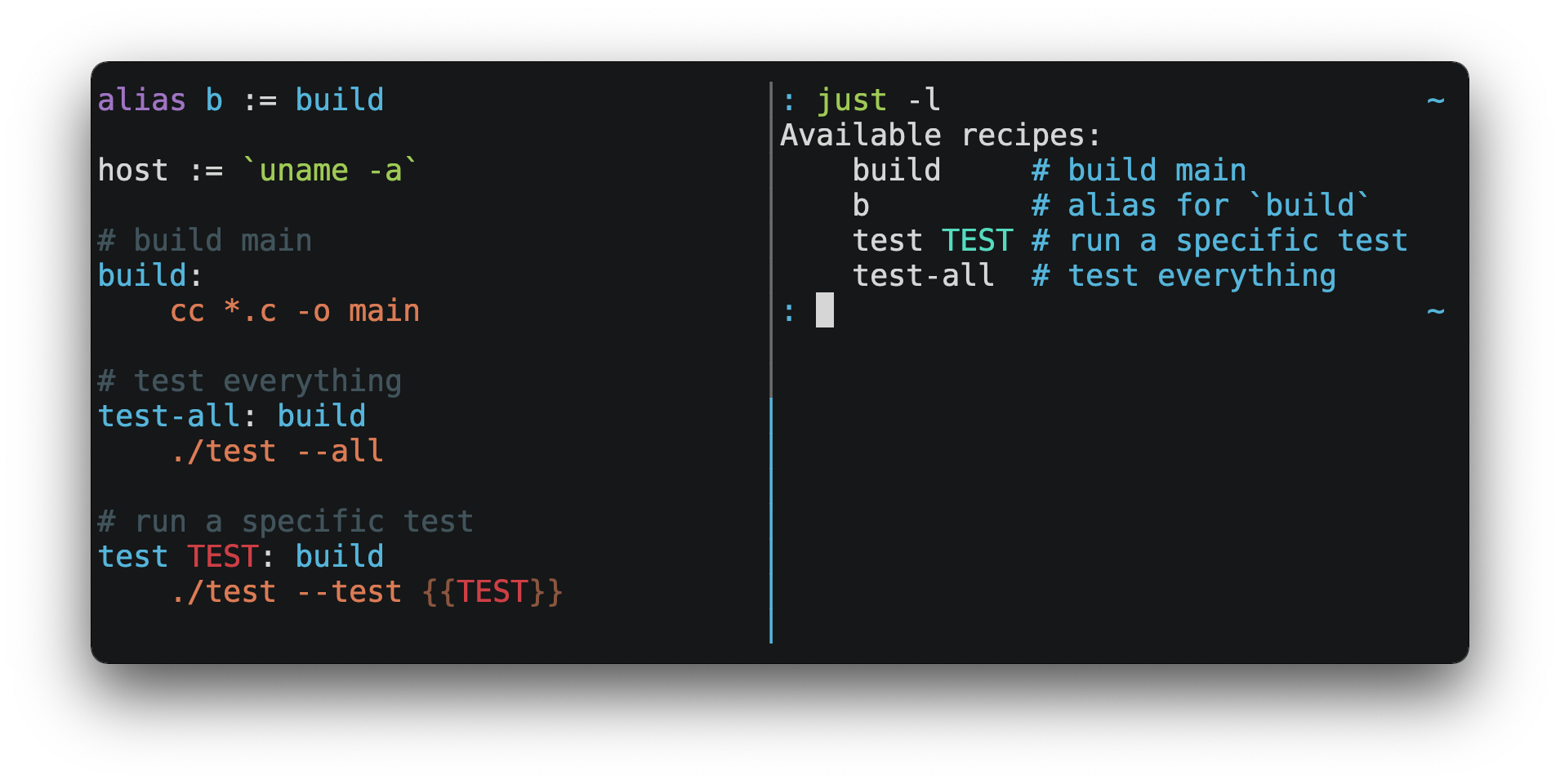
You can then run them with `just RECIPE`:
```console
$ just test-all
cc *.c -o main
./test --all
Yay, all your tests passed!
```
`just` has a ton of useful features, and many improvements over `make`:
- `just` is a command runner, not a build system, so it avoids much of
[`make`'s complexity and idiosyncrasies](#what-are-the-idiosyncrasies-of-make-that-just-avoids).
No need for `.PHONY` recipes!
- Linux, MacOS, Windows, and other reasonable unices are supported with no
additional dependencies. (Although if your system doesn't have an `sh`,
you'll need to [choose a different shell](#shell).)
- Errors are specific and informative, and syntax errors are reported along
with their source context.
- Recipes can accept [command line arguments](#recipe-parameters).
- Wherever possible, errors are resolved statically. Unknown recipes and
circular dependencies are reported before anything runs.
- `just` [loads `.env` files](#dotenv-settings), making it easy to populate
environment variables.
- Recipes can be [listed from the command line](#listing-available-recipes).
- Command line completion scripts are
[available for most popular shells](#shell-completion-scripts).
- Recipes can be written in
[arbitrary languages](#shebang-recipes), like Python or NodeJS.
- `just` can be invoked from any subdirectory, not just the directory that
contains the `justfile`.
- And [much more](https://just.systems/man/en/)!
If you need help with `just` please feel free to open an issue or ping me on
[Discord](https://discord.gg/ezYScXR). Feature requests and bug reports are
always welcome!
Installation
------------
### Prerequisites
`just` should run on any system with a reasonable `sh`, including Linux, MacOS,
and the BSDs.
#### Windows
On Windows, `just` works with the `sh` provided by
[Git for Windows](https://git-scm.com),
[GitHub Desktop](https://desktop.github.com), or
[Cygwin](http://www.cygwin.com). After installation, `sh` must be
available in the `PATH` of the shell you want to to invoke `just` from.
If you'd rather not install `sh`, you can use the `shell` setting to use the
shell of your choice.
Like PowerShell:
```just
# use PowerShell instead of sh:
set shell := ["powershell.exe", "-c"]
hello:
Write-Host "Hello, world!"
```
…or `cmd.exe`:
```just
# use cmd.exe instead of sh:
set shell := ["cmd.exe", "/c"]
list:
dir
```
You can also set the shell using command-line arguments. For example, to use
PowerShell, launch `just` with `--shell powershell.exe --shell-arg -c`.
(PowerShell is installed by default on Windows 7 SP1 and Windows Server 2008 R2
S1 and later, and `cmd.exe` is quite fiddly, so PowerShell is recommended for
most Windows users.)
### Packages
#### Cross-platform
<table>
<thead>
<tr>
<th>Package Manager</th>
<th>Package</th>
<th>Command</th>
</tr>
</thead>
<tbody>
<tr>
<td><a href=https://github.com/alexellis/arkade>arkade</a></td>
<td>just</td>
<td><code>arkade get just</code></td>
</tr>
<tr>
<td><a href=https://asdf-vm.com>asdf</a></td>
<td><a href=https://github.com/olofvndrhr/asdf-just>just</a></td>
<td>
<code>asdf plugin add just</code><br>
<code>asdf install just <version></code>
</td>
</tr>
<tr>
<td><a href=https://www.rust-lang.org>Cargo</a></td>
<td><a href=https://crates.io/crates/just>just</a></td>
<td><code>cargo install just</code></td>
</tr>
<tr>
<td><a href=https://docs.conda.io/projects/conda/en/latest/index.html>Conda</a></td>
<td><a href=https://anaconda.org/conda-forge/just>just</a></td>
<td><code>conda install -c conda-forge just</code></td>
</tr>
<tr>
<td><a href=https://brew.sh>Homebrew</a></td>
<td><a href=https://formulae.brew.sh/formula/just>just</a></td>
<td><code>brew install just</code></td>
</tr>
<tr>
<td><a href=https://nixos.org/nix/>Nix</a></td>
<td><a href=https://github.com/NixOS/nixpkgs/blob/master/pkgs/by-name/ju/just/package.nix>just</a></td>
<td><code>nix-env -iA nixpkgs.just</code></td>
</tr>
<tr>
<td><a href=https://www.npmjs.com/>npm</a></td>
<td><a href=https://www.npmjs.com/package/rust-just>rust-just</a></td>
<td><code>npm install -g rust-just</code></td>
</tr>
<tr>
<td><a href=https://pipx.pypa.io/stable/>pipx</a></td>
<td><a href=https://pypi.org/project/rust-just/>rust-just</a></td>
<td><code>pipx install rust-just</code></td>
</tr>
<tr>
<td><a href=https://snapcraft.io>Snap</a></td>
<td><a href=https://snapcraft.io/just>just</a></td>
<td><code>snap install --edge --classic just</code></td>
</tr>
</tbody>
</table>
#### BSD
<table>
<thead>
<tr>
<th>Operating System</th>
<th>Package Manager</th>
<th>Package</th>
<th>Command</th>
</tr>
</thead>
<tbody>
<tr>
<td><a href=https://www.freebsd.org>FreeBSD</a></td>
<td><a href=https://www.freebsd.org/doc/handbook/pkgng-intro.html>pkg</a></td>
<td><a href=https://www.freshports.org/deskutils/just/>just</a></td>
<td><code>pkg install just</code></td>
</tr>
</tbody>
</table>
#### Linux
<table>
<thead>
<tr>
<th>Operating System</th>
<th>Package Manager</th>
<th>Package</th>
<th>Command</th>
</tr>
</thead>
<tbody>
<tr>
<td><a href=https://alpinelinux.org>Alpine</a></td>
<td><a href=https://wiki.alpinelinux.org/wiki/Alpine_Linux_package_management>apk-tools</a></td>
<td><a href=https://pkgs.alpinelinux.org/package/edge/community/x86_64/just>just</a></td>
<td><code>apk add just</code></td>
</tr>
<tr>
<td><a href=https://www.archlinux.org>Arch</a></td>
<td><a href=https://wiki.archlinux.org/title/Pacman>pacman</a></td>
<td><a href=https://archlinux.org/packages/extra/x86_64/just/>just</a></td>
<td><code>pacman -S just</code></td>
</tr>
<tr>
<td>
<a href=https://debian.org>Debian 13</a> and
<a href=https://ubuntu.com>Ubuntu 24.04</a> derivatives</td>
<td><a href=https://en.wikipedia.org/wiki/APT_(software)>apt</a></td>
<td><a href=https://packages.debian.org/trixie/just>just</a></td>
<td><code>apt install just</code></td>
</tr>
<tr>
<td><a href=https://debian.org>Debian</a> and <a href=https://ubuntu.com>Ubuntu</a> derivatives</td>
<td><a href=https://mpr.makedeb.org>MPR</a></td>
<td><a href=https://mpr.makedeb.org/packages/just>just</a></td>
<td>
<code>git clone https://mpr.makedeb.org/just</code><br>
<code>cd just</code><br>
<code>makedeb -si</code>
</td>
</tr>
<tr>
<td><a href=https://debian.org>Debian</a> and <a href=https://ubuntu.com>Ubuntu</a> derivatives</td>
<td><a href=https://docs.makedeb.org/prebuilt-mpr>Prebuilt-MPR</a></td>
<td><a href=https://mpr.makedeb.org/packages/just>just</a></td>
<td>
<sup><b>You must have the <a href=https://docs.makedeb.org/prebuilt-mpr/getting-started/#setting-up-the-repository>Prebuilt-MPR set up</a> on your system in order to run this command.</b></sup><br>
<code>apt install just</code>
</td>
</tr>
<tr>
<td><a href=https://getfedora.org>Fedora</a></td>
<td><a href=https://dnf.readthedocs.io/en/latest/>DNF</a></td>
<td><a href=https://src.fedoraproject.org/rpms/rust-just>just</a></td>
<td><code>dnf install just</code></td>
</tr>
<tr>
<td><a href=https://www.gentoo.org>Gentoo</a></td>
<td><a href=https://wiki.gentoo.org/wiki/Portage>Portage</a></td>
<td><a href=https://github.com/gentoo-mirror/guru/tree/master/dev-build/just>guru/dev-build/just</a></td>
<td>
<code>eselect repository enable guru</code><br>
<code>emerge --sync guru</code><br>
<code>emerge dev-build/just</code>
</td>
</tr>
<tr>
<td><a href=https://nixos.org/nixos/>NixOS</a></td>
<td><a href=https://nixos.org/nix/>Nix</a></td>
<td><a href=https://github.com/NixOS/nixpkgs/blob/master/pkgs/by-name/ju/just/package.nix>just</a></td>
<td><code>nix-env -iA nixos.just</code></td>
</tr>
<tr>
<td><a href=https://opensuse.org>openSUSE</a></td>
<td><a href=https://en.opensuse.org/Portal:Zypper>Zypper</a></td>
<td><a href=https://build.opensuse.org/package/show/Base:System/just>just</a></td>
<td><code>zypper in just</code></td>
</tr>
<tr>
<td><a href=https://getsol.us>Solus</a></td>
<td><a href=https://getsol.us/articles/package-management/basics/en>eopkg</a></td>
<td><a href=https://dev.getsol.us/source/just/>just</a></td>
<td><code>eopkg install just</code></td>
</tr>
<tr>
<td><a href=https://voidlinux.org>Void</a></td>
<td><a href=https://wiki.voidlinux.org/XBPS>XBPS</a></td>
<td><a href=https://github.com/void-linux/void-packages/blob/master/srcpkgs/just/template>just</a></td>
<td><code>xbps-install -S just</code></td>
</tr>
</tbody>
</table>
#### Windows
<table>
<thead>
<tr>
<th>Package Manager</th>
<th>Package</th>
<th>Command</th>
</tr>
</thead>
<tbody>
<tr>
<td><a href=https://chocolatey.org>Chocolatey</a></td>
<td><a href=https://github.com/michidk/just-choco>just</a></td>
<td><code>choco install just</code></td>
</tr>
<tr>
<td><a href=https://scoop.sh>Scoop</a></td>
<td><a href=https://github.com/ScoopInstaller/Main/blob/master/bucket/just.json>just</a></td>
<td><code>scoop install just</code></td>
</tr>
<tr>
<td><a href=https://learn.microsoft.com/en-us/windows/package-manager/>Windows Package Manager</a></td>
<td><a href=https://github.com/microsoft/winget-pkgs/tree/master/manifests/c/Casey/Just>Casey/Just</a></td>
<td><code>winget install --id Casey.Just --exact</code></td>
</tr>
</tbody>
</table>
#### macOS
<table>
<thead>
<tr>
<th>Package Manager</th>
<th>Package</th>
<th>Command</th>
</tr>
</thead>
<tbody>
<tr>
<td><a href=https://www.macports.org>MacPorts</a></td>
<td><a href=https://ports.macports.org/port/just/summary>just</a></td>
<td><code>port install just</code></td>
</tr>
</tbody>
</table>

### Pre-Built Binaries
Pre-built binaries for Linux, MacOS, and Windows can be found on
[the releases page](https://github.com/casey/just/releases).
You can use the following command on Linux, MacOS, or Windows to download the
latest release, just replace `DEST` with the directory where you'd like to put
`just`:
```console
curl --proto '=https' --tlsv1.2 -sSf https://just.systems/install.sh | bash -s -- --to DEST
```
For example, to install `just` to `~/bin`:
```console
# create ~/bin
mkdir -p ~/bin
# download and extract just to ~/bin/just
curl --proto '=https' --tlsv1.2 -sSf https://just.systems/install.sh | bash -s -- --to ~/bin
# add `~/bin` to the paths that your shell searches for executables
# this line should be added to your shells initialization file,
# e.g. `~/.bashrc` or `~/.zshrc`
export PATH="$PATH:$HOME/bin"
# just should now be executable
just --help
```
Note that `install.sh` may fail on GitHub Actions, or in other environments
where many machines share IP addresses. `install.sh` calls GitHub APIs in order
to determine the latest version of `just` to install, and those API calls are
rate-limited on a per-IP basis. To make `install.sh` more reliable in such
circumstances, pass a specific tag to install with `--tag`.
Another way to avoid rate-limiting is to pass a GitHub authentication token to
`install.sh` as an environment variable named `GITHUB_TOKEN`, allowing it to
authenticate its requests.
[Releases](https://github.com/casey/just/releases) include a `SHA256SUM` file
which can be used to verify the integrity of pre-built binary archives.
To verify a release, download the pre-built binary archive along with the
`SHA256SUM` file and run:
```sh
shasum --algorithm 256 --ignore-missing --check SHA256SUMS
```
### GitHub Actions
`just` can be installed on GitHub Actions in a few ways.
Using package managers pre-installed on GitHub Actions runners on MacOS with
`brew install just`, and on Windows with `choco install just`.
With [extractions/setup-just](https://github.com/extractions/setup-just):
```yaml
- uses: extractions/setup-just@v3
with:
just-version: 1.5.0 # optional semver specification, otherwise latest
```
Or with [taiki-e/install-action](https://github.com/taiki-e/install-action):
```yaml
- uses: taiki-e/install-action@just
```
### Release RSS Feed
An [RSS feed](https://en.wikipedia.org/wiki/RSS) of `just` releases is available [here](https://github.com/casey/just/releases.atom).
### Node.js Installation
[just-install](https://npmjs.com/package/just-install) can be used to automate
installation of `just` in Node.js applications.
`just` is a great, more robust alternative to npm scripts. If you want to
include `just` in the dependencies of a Node.js application, `just-install`
will install a local, platform-specific binary as part of the `npm install`
command. This removes the need for every developer to install `just`
independently using one of the processes mentioned above. After installation,
the `just` command will work in npm scripts or with npx. It's great for teams
who want to make the set up process for their project as easy as possible.
For more information, see the
[just-install README file](https://github.com/brombal/just-install#readme).
Backwards Compatibility
-----------------------
With the release of version 1.0, `just` features a strong commitment to
backwards compatibility and stability.
Future releases will not introduce backwards incompatible changes that make
existing `justfile`s stop working, or break working invocations of the
command-line interface.
This does not, however, preclude fixing outright bugs, even if doing so might
break `justfiles` that rely on their behavior.
There will never be a `just` 2.0. Any desirable backwards-incompatible changes
will be opt-in on a per-`justfile` basis, so users may migrate at their
leisure.
Features that aren't yet ready for stabilization are marked as unstable and may
be changed or removed at any time. Using unstable features produces an error by
default, which can be suppressed with by passing the `--unstable` flag,
`set unstable`, or setting the environment variable `JUST_UNSTABLE`, to any
value other than `false`, `0`, or the empty string.
Editor Support
--------------
`justfile` syntax is close enough to `make` that you may want to tell your
editor to use `make` syntax highlighting for `just`.
### Vim and Neovim
Vim version 9.1.1042 or better and Neovim version 0.11 or better support
Justfile syntax highlighting out of the box, thanks to
[pbnj](https://github.com/pbnj).
#### `vim-just`
The [vim-just](https://github.com/NoahTheDuke/vim-just) plugin provides syntax
highlighting for `justfile`s.
Install it with your favorite package manager, like
[Plug](https://github.com/junegunn/vim-plug):
```vim
call plug#begin()
Plug 'NoahTheDuke/vim-just'
call plug#end()
```
Or with Vim's built-in package support:
```console
mkdir -p ~/.vim/pack/vendor/start
cd ~/.vim/pack/vendor/start
git clone https://github.com/NoahTheDuke/vim-just.git
```
#### `tree-sitter-just`
[tree-sitter-just](https://github.com/IndianBoy42/tree-sitter-just) is an
[Nvim Treesitter](https://github.com/nvim-treesitter/nvim-treesitter) plugin
for Neovim.
#### Makefile Syntax Highlighting
Vim's built-in makefile syntax highlighting isn't perfect for `justfile`s, but
it's better than nothing. You can put the following in `~/.vim/filetype.vim`:
```vimscript
if exists("did_load_filetypes")
finish
endif
augroup filetypedetect
au BufNewFile,BufRead justfile setf make
augroup END
```
Or add the following to an individual `justfile` to enable `make` mode on a
per-file basis:
```text
# vim: set ft=make :
```
### Emacs
[just-mode](https://github.com/leon-barrett/just-mode.el) provides syntax
highlighting and automatic indentation of `justfile`s. It is available on
[MELPA](https://melpa.org/) as [just-mode](https://melpa.org/#/just-mode).
[justl](https://github.com/psibi/justl.el) provides commands for executing and
listing recipes.
You can add the following to an individual `justfile` to enable `make` mode on
a per-file basis:
```text
# Local Variables:
# mode: makefile
# End:
```
### Visual Studio Code
An extension for VS Code is [available here](https://github.com/nefrob/vscode-just).
Unmaintained VS Code extensions include
[skellock/vscode-just](https://github.com/skellock/vscode-just) and
[sclu1034/vscode-just](https://github.com/sclu1034/vscode-just).
### JetBrains IDEs
A plugin for JetBrains IDEs by [linux_china](https://github.com/linux-china) is
[available here](https://plugins.jetbrains.com/plugin/18658-just).
### Kakoune
Kakoune supports `justfile` syntax highlighting out of the box, thanks to
TeddyDD.
### Helix
[Helix](https://helix-editor.com/) supports `justfile` syntax highlighting
out-of-the-box since version 23.05.
### Sublime Text
The [Just package](https://github.com/nk9/just_sublime) by
[nk9](https://github.com/nk9) with `just` syntax and some other tools is
available on [PackageControl](https://packagecontrol.io/packages/Just).
### Micro
[Micro](https://micro-editor.github.io/) supports Justfile syntax highlighting
out of the box, thanks to [tomodachi94](https://github.com/tomodachi94).
### Zed
The [zed-just](https://github.com/jackTabsCode/zed-just/) extension by
[jackTabsCode](https://github.com/jackTabsCode) is avilable on the
[Zed extensions page](https://zed.dev/extensions?query=just).
### Other Editors
Feel free to send me the commands necessary to get syntax highlighting working
in your editor of choice so that I may include them here.
### Language Server Protocol
[just-lsp](https://github.com/terror/just-lsp) provides a [language server
protocol](https://en.wikipedia.org/wiki/Language_Server_Protocol)
implementation, enabling features such as go-to-definition, inline diagnostics,
and code completion.
### Model Context Protocol
[just-mcp](http://github.com/promptexecution/just-mcp) provides a
[model context protocol](https://en.wikipedia.org/wiki/Model_Context_Protocol)
adapter to allow LLMs to query the contents of `justfiles` and run recipes.
Quick Start
-----------
See the installation section for how to install `just` on your computer. Try
running `just --version` to make sure that it's installed correctly.
For an overview of the syntax, check out
[this cheatsheet](https://cheatography.com/linux-china/cheat-sheets/justfile/).
Once `just` is installed and working, create a file named `justfile` in the
root of your project with the following contents:
```just
recipe-name:
echo 'This is a recipe!'
# this is a comment
another-recipe:
@echo 'This is another recipe.'
```
When you invoke `just` it looks for file `justfile` in the current directory
and upwards, so you can invoke it from any subdirectory of your project.
The search for a `justfile` is case insensitive, so any case, like `Justfile`,
`JUSTFILE`, or `JuStFiLe`, will work. `just` will also look for files with the
name `.justfile`, in case you'd like to hide a `justfile`.
Running `just` with no arguments runs the first recipe in the `justfile`:
```console
$ just
echo 'This is a recipe!'
This is a recipe!
```
One or more arguments specify the recipe(s) to run:
```console
$ just another-recipe
This is another recipe.
```
`just` prints each command to standard error before running it, which is why
`echo 'This is a recipe!'` was printed. This is suppressed for lines starting
with `@`, which is why `echo 'This is another recipe.'` was not printed.
Recipes stop running if a command fails. Here `cargo publish` will only run if
`cargo test` succeeds:
```just
publish:
cargo test
# tests passed, time to publish!
cargo publish
```
Recipes can depend on other recipes. Here the `test` recipe depends on the
`build` recipe, so `build` will run before `test`:
```just
build:
cc main.c foo.c bar.c -o main
test: build
./test
sloc:
@echo "`wc -l *.c` lines of code"
```
```console
$ just test
cc main.c foo.c bar.c -o main
./test
testing… all tests passed!
```
Recipes without dependencies will run in the order they're given on the command
line:
```console
$ just build sloc
cc main.c foo.c bar.c -o main
1337 lines of code
```
Dependencies will always run first, even if they are passed after a recipe that
depends on them:
```console
$ just test build
cc main.c foo.c bar.c -o main
./test
testing… all tests passed!
```
Recipes may depend on recipes in submodules:
```justfile
mod foo
baz: foo::bar
```
Examples
--------
A variety of `justfile`s can be found in the
[examples directory](https://github.com/casey/just/tree/master/examples) and on
[GitHub](https://github.com/search?q=path%3A**%2Fjustfile&type=code).
Features
--------
### The Default Recipe
When `just` is invoked without a recipe, it runs the recipe with the
`[default]` attribute, or the first recipe in the `justfile` if no recipe has
the `[default]` attribute.
This recipe might be the most frequently run command in the project, like
running the tests:
```just
test:
cargo test
```
You can also use dependencies to run multiple recipes by default:
```just
default: lint build test
build:
echo Building…
test:
echo Testing…
lint:
echo Linting…
```
If no recipe makes sense as the default recipe, you can add a recipe to the
beginning of your `justfile` that lists the available recipes:
```just
default:
just --list
```
### Listing Available Recipes
Recipes can be listed in alphabetical order with `just --list`:
```console
$ just --list
Available recipes:
build
test
deploy
lint
```
Recipes in [submodules](#modules1190) can be listed with `just --list PATH`,
where `PATH` is a space- or `::`-separated module path:
```
$ cat justfile
mod foo
$ cat foo.just
mod bar
$ cat bar.just
baz:
$ just --list foo bar
Available recipes:
baz
$ just --list foo::bar
Available recipes:
baz
```
`just --summary` is more concise:
```console
$ just --summary
build test deploy lint
```
Pass `--unsorted` to print recipes in the order they appear in the `justfile`:
```just
test:
echo 'Testing!'
build:
echo 'Building!'
```
```console
$ just --list --unsorted
Available recipes:
test
build
```
```console
$ just --summary --unsorted
test build
```
If you'd like `just` to default to listing the recipes in the `justfile`, you
can use this as your default recipe:
```just
default:
@just --list
```
Note that you may need to add `--justfile {{justfile()}}` to the line above.
Without it, if you executed `just -f /some/distant/justfile -d .` or
`just -f ./non-standard-justfile`, the plain `just --list` inside the recipe
would not necessarily use the file you provided. It would try to find a
justfile in your current path, maybe even resulting in a `No justfile found`
error.
The heading text can be customized with `--list-heading`:
```console
$ just --list --list-heading $'Cool stuff…\n'
Cool stuff…
test
build
```
And the indentation can be customized with `--list-prefix`:
```console
$ just --list --list-prefix ····
Available recipes:
····test
····build
```
The argument to `--list-heading` replaces both the heading and the newline
following it, so it should contain a newline if non-empty. It works this way so
you can suppress the heading line entirely by passing the empty string:
```console
$ just --list --list-heading ''
test
build
```
### Invoking Multiple Recipes
Multiple recipes may be invoked on the command line at once:
```just
build:
make web
serve:
python3 -m http.server -d out 8000
```
```console
$ just build serve
make web
python3 -m http.server -d out 8000
```
Keep in mind that recipes with parameters will swallow arguments, even if they
match the names of other recipes:
```just
build project:
make {{project}}
serve:
python3 -m http.server -d out 8000
```
```console
$ just build serve
make: *** No rule to make target `serve'. Stop.
```
The `--one` flag can be used to restrict command-line invocations to a single
recipe:
```console
$ just --one build serve
error: Expected 1 command-line recipe invocation but found 2.
```
### Working Directory
By default, recipes run with the working directory set to the directory that
contains the `justfile`.
The `[no-cd]` attribute can be used to make recipes run with the working
directory set to directory in which `just` was invoked.
```just
@foo:
pwd
[no-cd]
@bar:
pwd
```
```console
$ cd subdir
$ just foo
/
$ just bar
/subdir
```
You can override the working directory for all recipes with
`set working-directory := '…'`:
```just
set working-directory := 'bar'
@foo:
pwd
```
```console
$ pwd
/home/bob
$ just foo
/home/bob/bar
```
You can override the working directory for a specific recipe with the
`working-directory` attribute<sup>1.38.0</sup>:
```just
[working-directory: 'bar']
@foo:
pwd
```
```console
$ pwd
/home/bob
$ just foo
/home/bob/bar
```
The argument to the `working-directory` setting or `working-directory`
attribute may be absolute or relative. If it is relative it is interpreted
relative to the default working directory.
### Aliases
Aliases allow recipes to be invoked on the command line with alternative names:
```just
alias b := build
build:
echo 'Building!'
```
```console
$ just b
echo 'Building!'
Building!
```
The target of an alias may be a recipe in a submodule:
```justfile
mod foo
alias baz := foo::bar
```
### Settings
Settings control interpretation and execution. Each setting may be specified at
most once, anywhere in the `justfile`.
For example:
```just
set shell := ["zsh", "-cu"]
foo:
# this line will be run as `zsh -cu 'ls **/*.txt'`
ls **/*.txt
```
#### Table of Settings
| Name | Value | Default | Description |
|------|-------|---------|-------------|
| `allow-duplicate-recipes` | boolean | `false` | Allow recipes appearing later in a `justfile` to override earlier recipes with the same name. |
| `allow-duplicate-variables` | boolean | `false` | Allow variables appearing later in a `justfile` to override earlier variables with the same name. |
| `dotenv-filename` | string | - | Load a `.env` file with a custom name, if present. |
| `dotenv-load` | boolean | `false` | Load a `.env` file, if present. |
| `dotenv-override` | boolean | `false` | Override existing environment variables with values from the `.env` file. |
| `dotenv-path` | string | - | Load a `.env` file from a custom path and error if not present. Overrides `dotenv-filename`. |
| `dotenv-required` | boolean | `false` | Error if a `.env` file isn't found. |
| `export` | boolean | `false` | Export all variables as environment variables. |
| `fallback` | boolean | `false` | Search `justfile` in parent directory if the first recipe on the command line is not found. |
| `ignore-comments` | boolean | `false` | Ignore recipe lines beginning with `#`. |
| `positional-arguments` | boolean | `false` | Pass positional arguments. |
| `quiet` | boolean | `false` | Disable echoing recipe lines before executing. |
| `script-interpreter`<sup>1.33.0</sup> | `[COMMAND, ARGS…]` | `['sh', '-eu']` | Set command used to invoke recipes with empty `[script]` attribute. |
| `shell` | `[COMMAND, ARGS…]` | - | Set command used to invoke recipes and evaluate backticks. |
| `tempdir` | string | - | Create temporary directories in `tempdir` instead of the system default temporary directory. |
| `unstable`<sup>1.31.0</sup> | boolean | `false` | Enable unstable features. |
| `windows-powershell` | boolean | `false` | Use PowerShell on Windows as default shell. (Deprecated. Use `windows-shell` instead. |
| `windows-shell` | `[COMMAND, ARGS…]` | - | Set the command used to invoke recipes and evaluate backticks. |
| `working-directory`<sup>1.33.0</sup> | string | - | Set the working directory for recipes and backticks, relative to the default working directory. |
Boolean settings can be written as:
```justfile
set NAME
```
Which is equivalent to:
```justfile
set NAME := true
```
#### Allow Duplicate Recipes
If `allow-duplicate-recipes` is set to `true`, defining multiple recipes with
the same name is not an error and the last definition is used. Defaults to
`false`.
```just
set allow-duplicate-recipes
@foo:
echo foo
@foo:
echo bar
```
```console
$ just foo
bar
```
#### Allow Duplicate Variables
If `allow-duplicate-variables` is set to `true`, defining multiple variables
with the same name is not an error and the last definition is used. Defaults to
`false`.
```just
set allow-duplicate-variables
a := "foo"
a := "bar"
@foo:
echo {{a}}
```
```console
$ just foo
bar
```
#### Dotenv Settings
If any of `dotenv-load`, `dotenv-filename`, `dotenv-override`, `dotenv-path`,
or `dotenv-required` are set, `just` will try to load environment variables
from a file.
If `dotenv-path` is set, `just` will look for a file at the given path, which
may be absolute, or relative to the working directory.
The command-line option `--dotenv-path`, short form `-E`, can be used to set or
override `dotenv-path` at runtime.
If `dotenv-filename` is set `just` will look for a file at the given path,
relative to the working directory and each of its ancestors.
If `dotenv-filename` is not set, but `dotenv-load` or `dotenv-required` are
set, just will look for a file named `.env`, relative to the working directory
and each of its ancestors.
`dotenv-filename` and `dotenv-path` are similar, but `dotenv-path` is only
checked relative to the working directory, whereas `dotenv-filename` is checked
relative to the working directory and each of its ancestors.
It is not an error if an environment file is not found, unless
`dotenv-required` is set.
The loaded variables are environment variables, not `just` variables, and so
must be accessed using `$VARIABLE_NAME` in recipes and backticks.
If `dotenv-override` is set, variables from the environment file will override
existing environment variables.
For example, if your `.env` file contains:
```console
# a comment, will be ignored
DATABASE_ADDRESS=localhost:6379
SERVER_PORT=1337
```
And your `justfile` contains:
```just
set dotenv-load
serve:
@echo "Starting server with database $DATABASE_ADDRESS on port $SERVER_PORT…"
./server --database $DATABASE_ADDRESS --port $SERVER_PORT
```
`just serve` will output:
```console
$ just serve
Starting server with database localhost:6379 on port 1337…
./server --database $DATABASE_ADDRESS --port $SERVER_PORT
```
#### Export
The `export` setting causes all `just` variables to be exported as environment
variables. Defaults to `false`.
```just
set export
a := "hello"
@foo b:
echo $a
echo $b
```
```console
$ just foo goodbye
hello
goodbye
```
#### Positional Arguments
If `positional-arguments` is `true`, recipe arguments will be passed as
positional arguments to commands. For linewise recipes, argument `$0` will be
the name of the recipe.
For example, running this recipe:
```just
set positional-arguments
@foo bar:
echo $0
echo $1
```
Will produce the following output:
```console
$ just foo hello
foo
hello
```
When using an `sh`-compatible shell, such as `bash` or `zsh`, `$@` expands to
the positional arguments given to the recipe, starting from one. When used
within double quotes as `"$@"`, arguments including whitespace will be passed
on as if they were double-quoted. That is, `"$@"` is equivalent to `"$1" "$2"`…
When there are no positional parameters, `"$@"` and `$@` expand to nothing
(i.e., they are removed).
This example recipe will print arguments one by one on separate lines:
```just
set positional-arguments
@test *args='':
bash -c 'while (( "$#" )); do echo - $1; shift; done' -- "$@"
```
Running it with _two_ arguments:
```console
$ just test foo "bar baz"
- foo
- bar baz
```
Positional arguments may also be turned on on a per-recipe basis with the
`[positional-arguments]` attribute<sup>1.29.0</sup>:
```just
[positional-arguments]
@foo bar:
echo $0
echo $1
```
Note that PowerShell does not handle positional arguments in the same way as
other shells, so turning on positional arguments will likely break recipes that
use PowerShell.
If using PowerShell 7.4 or better, the `-CommandWithArgs` flag will make
positional arguments work as expected:
```just
set shell := ['pwsh.exe', '-CommandWithArgs']
set positional-arguments
print-args a b c:
Write-Output @($args[1..($args.Count - 1)])
```
#### Shell
The `shell` setting controls the command used to invoke recipe lines and
backticks. Shebang recipes are unaffected. The default shell is `sh -cu`.
```just
# use python3 to execute recipe lines and backticks
set shell := ["python3", "-c"]
# use print to capture result of evaluation
foos := `print("foo" * 4)`
foo:
print("Snake snake snake snake.")
print("{{foos}}")
```
`just` passes the command to be executed as an argument. Many shells will need
an additional flag, often `-c`, to make them evaluate the first argument.
##### Windows Shell
`just` uses `sh` on Windows by default. To use a different shell on Windows,
use `windows-shell`:
```just
set windows-shell := ["powershell.exe", "-NoLogo", "-Command"]
hello:
Write-Host "Hello, world!"
```
See
[powershell.just](https://github.com/casey/just/blob/master/examples/powershell.just)
for a justfile that uses PowerShell on all platforms.
##### Windows PowerShell
*`set windows-powershell` uses the legacy `powershell.exe` binary, and is no
longer recommended. See the `windows-shell` setting above for a more flexible
way to control which shell is used on Windows.*
`just` uses `sh` on Windows by default. To use `powershell.exe` instead, set
`windows-powershell` to true.
```just
set windows-powershell := true
hello:
Write-Host "Hello, world!"
```
##### Python 3
```just
set shell := ["python3", "-c"]
```
##### Bash
```just
set shell := ["bash", "-uc"]
```
##### Z Shell
```just
set shell := ["zsh", "-uc"]
```
##### Fish
```just
set shell := ["fish", "-c"]
```
##### Nushell
```just
set shell := ["nu", "-c"]
```
If you want to change the default table mode to `light`:
```just
set shell := ['nu', '-m', 'light', '-c']
```
*[Nushell](https://github.com/nushell/nushell) was written in Rust, and **has
cross-platform support for Windows / macOS and Linux**.*
### Documentation Comments
Comments immediately preceding a recipe will appear in `just --list`:
```just
# build stuff
build:
./bin/build
# test stuff
test:
./bin/test
```
```console
$ just --list
Available recipes:
build # build stuff
test # test stuff
```
The `[doc]` attribute can be used to set or suppress a recipe's doc comment:
```just
# This comment won't appear
[doc('Build stuff')]
build:
./bin/build
# This one won't either
[doc]
test:
./bin/test
```
```console
$ just --list
Available recipes:
build # Build stuff
test
```
### Expressions and Substitutions
Various operators and function calls are supported in expressions, which may be
used in assignments, default recipe arguments, and inside recipe body `{{…}}`
substitutions.
```just
tmpdir := `mktemp -d`
version := "0.2.7"
tardir := tmpdir / "awesomesauce-" + version
tarball := tardir + ".tar.gz"
config := quote(config_dir() / ".project-config")
publish:
rm -f {{tarball}}
mkdir {{tardir}}
cp README.md *.c {{ config }} {{tardir}}
tar zcvf {{tarball}} {{tardir}}
scp {{tarball}} me@server.com:release/
rm -rf {{tarball}} {{tardir}}
```
#### Concatenation
The `+` operator returns the left-hand argument concatenated with the
right-hand argument:
```just
foobar := 'foo' + 'bar'
```
#### Logical Operators
The logical operators `&&` and `||` can be used to coalesce string
values<sup>1.37.0</sup>, similar to Python's `and` and `or`. These operators
consider the empty string `''` to be false, and all other strings to be true.
These operators are currently unstable.
The `&&` operator returns the empty string if the left-hand argument is the
empty string, otherwise it returns the right-hand argument:
```justfile
foo := '' && 'goodbye' # ''
bar := 'hello' && 'goodbye' # 'goodbye'
```
The `||` operator returns the left-hand argument if it is non-empty, otherwise
it returns the right-hand argument:
```justfile
foo := '' || 'goodbye' # 'goodbye'
bar := 'hello' || 'goodbye' # 'hello'
```
#### Joining Paths
The `/` operator can be used to join two strings with a slash:
```just
foo := "a" / "b"
```
```
$ just --evaluate foo
a/b
```
Note that a `/` is added even if one is already present:
```just
foo := "a/"
bar := foo / "b"
```
```
$ just --evaluate bar
a//b
```
Absolute paths can also be constructed<sup>1.5.0</sup>:
```just
foo := / "b"
```
```
$ just --evaluate foo
/b
```
The `/` operator uses the `/` character, even on Windows. Thus, using the `/`
operator should be avoided with paths that use universal naming convention
(UNC), i.e., those that start with `\?`, since forward slashes are not
supported with UNC paths.
#### Escaping `{{`
To write a recipe containing `{{`, use `{{{{`:
```just
braces:
echo 'I {{{{LOVE}} curly braces!'
```
(An unmatched `}}` is ignored, so it doesn't need to be escaped.)
Another option is to put all the text you'd like to escape inside of an
interpolation:
```just
braces:
echo '{{'I {{LOVE}} curly braces!'}}'
```
Yet another option is to use `{{ "{{" }}`:
```just
braces:
echo 'I {{ "{{" }}LOVE}} curly braces!'
```
### Strings
`'single'`, `"double"`, and `'''triple'''` quoted string literals are
supported. Unlike in recipe bodies, `{{…}}` interpolations are not supported
inside strings.
Double-quoted strings support escape sequences:
```just
carriage-return := "\r"
double-quote := "\""
newline := "\n"
no-newline := "\
"
slash := "\\"
tab := "\t"
unicode-codepoint := "\u{1F916}"
```
```console
$ just --evaluate
"arriage-return := "
double-quote := """
newline := "
"
no-newline := ""
slash := "\"
tab := " "
unicode-codepoint := "🤖"
```
The unicode character escape sequence `\u{…}`<sup>1.36.0</sup> accepts up to
six hex digits.
Strings may contain line breaks:
```just
single := '
hello
'
double := "
goodbye
"
```
Single-quoted strings do not recognize escape sequences:
```just
escapes := '\t\n\r\"\\'
```
```console
$ just --evaluate
escapes := "\t\n\r\"\\"
```
Indented versions of both single- and double-quoted strings, delimited by
triple single- or double-quotes, are supported. Indented string lines are
stripped of a leading line break, and leading whitespace common to all
non-blank lines:
```just
# this string will evaluate to `foo\nbar\n`
x := '''
foo
bar
'''
# this string will evaluate to `abc\n wuv\nxyz\n`
y := """
abc
wuv
xyz
"""
```
Similar to unindented strings, indented double-quoted strings process escape
sequences, and indented single-quoted strings ignore escape sequences. Escape
sequence processing takes place after unindentation. The unindentation
algorithm does not take escape-sequence produced whitespace or newlines into
account.
#### Shell-expanded strings
Strings prefixed with `x` are shell expanded<sup>1.27.0</sup>:
```justfile
foobar := x'~/$FOO/${BAR}'
```
| Value | Replacement |
|------|-------------|
| `$VAR` | value of environment variable `VAR` |
| `${VAR}` | value of environment variable `VAR` |
| `${VAR:-DEFAULT}` | value of environment variable `VAR`, or `DEFAULT` if `VAR` is not set |
| Leading `~` | path to current user's home directory |
| Leading `~USER` | path to `USER`'s home directory |
This expansion is performed at compile time, so variables from `.env` files and
exported `just` variables cannot be used. However, this allows shell expanded
strings to be used in places like settings and import paths, which cannot
depend on `just` variables and `.env` files.
#### Format strings
Strings prefixed with `f` are format strings<sup>1.44.0</sup>:
```justfile
name := "world"
message := f'Hello, {{name}}!'
```
Format strings may contain interpolations delimited with `{{…}}` that contain
expressions. Format strings evaluate to the concatenated string fragments and
evaluated expressions.
Use `{{{{` to include a literal `{{` in a format string:
```justfile
foo := f'I {{{{LOVE} curly braces!'
```
### Ignoring Errors
Normally, if a command returns a non-zero exit status, execution will stop. To
continue execution after a command, even if it fails, prefix the command with
`-`:
```just
foo:
-cat foo
echo 'Done!'
```
```console
$ just foo
cat foo
cat: foo: No such file or directory
echo 'Done!'
Done!
```
### Functions
`just` provides many built-in functions for use in expressions, including
recipe body `{{…}}` substitutions, assignments, and default parameter values.
All functions ending in `_directory` can be abbreviated to `_dir`. So
`home_directory()` can also be written as `home_dir()`. In addition,
`invocation_directory_native()` can be abbreviated to
`invocation_dir_native()`.
#### System Information
- `arch()` — Instruction set architecture. Possible values are: `"aarch64"`,
`"arm"`, `"asmjs"`, `"hexagon"`, `"mips"`, `"msp430"`, `"powerpc"`,
`"powerpc64"`, `"s390x"`, `"sparc"`, `"wasm32"`, `"x86"`, `"x86_64"`, and
`"xcore"`.
- `num_cpus()`<sup>1.15.0</sup> - Number of logical CPUs.
- `os()` — Operating system. Possible values are: `"android"`, `"bitrig"`,
`"dragonfly"`, `"emscripten"`, `"freebsd"`, `"haiku"`, `"ios"`, `"linux"`,
`"macos"`, `"netbsd"`, `"openbsd"`, `"solaris"`, and `"windows"`.
- `os_family()` — Operating system family; possible values are: `"unix"` and
`"windows"`.
For example:
```just
system-info:
@echo "This is an {{arch()}} machine".
```
```console
$ just system-info
This is an x86_64 machine
```
The `os_family()` function can be used to create cross-platform `justfile`s
that work on various operating systems. For an example, see
[cross-platform.just](https://github.com/casey/just/blob/master/examples/cross-platform.just)
file.
#### External Commands
- `shell(command, args...)`<sup>1.27.0</sup> returns the standard output of shell script
`command` with zero or more positional arguments `args`. The shell used to
interpret `command` is the same shell that is used to evaluate recipe lines,
and can be changed with `set shell := […]`.
`command` is passed as the first argument, so if the command is `'echo $@'`,
the full command line, with the default shell command `sh -cu` and `args`
`'foo'` and `'bar'` will be:
```
'sh' '-cu' 'echo $@' 'echo $@' 'foo' 'bar'
```
This is so that `$@` works as expected, and `$1` refers to the first
argument. `$@` does not include the first positional argument, which is
expected to be the name of the program being run.
```just
# arguments can be variables or expressions
file := '/sys/class/power_supply/BAT0/status'
bat0stat := shell('cat $1', file)
# commands can be variables or expressions
command := 'wc -l'
output := shell(command + ' "$1"', 'main.c')
# arguments referenced by the shell command must be used
empty := shell('echo', 'foo')
full := shell('echo $1', 'foo')
error := shell('echo $1')
```
```just
# Using python as the shell. Since `python -c` sets `sys.argv[0]` to `'-c'`,
# the first "real" positional argument will be `sys.argv[2]`.
set shell := ["python3", "-c"]
olleh := shell('import sys; print(sys.argv[2][::-1])', 'hello')
```
#### Environment Variables
- `env(key)`<sup>1.15.0</sup> — Retrieves the environment variable with name `key`, aborting
if it is not present.
```just
home_dir := env('HOME')
test:
echo "{{home_dir}}"
```
```console
$ just
/home/user1
```
- `env(key, default)`<sup>1.15.0</sup> — Retrieves the environment variable with
name `key`, returning `default` if it is not present.
- `env_var(key)` — Deprecated alias for `env(key)`.
- `env_var_or_default(key, default)` — Deprecated alias for `env(key, default)`.
A default can be substituted for an empty environment variable value with the
`||` operator, currently unstable:
```just
set unstable
foo := env('FOO', '') || 'DEFAULT_VALUE'
```
#### Executables
- `require(name)`<sup>1.39.0</sup> — Search directories in the `PATH`
environment variable for the executable `name` and return its full path, or
halt with an error if no executable with `name` exists.
```just
bash := require("bash")
@test:
echo "bash: '{{bash}}'"
```
```console
$ just
bash: '/bin/bash'
```
- `which(name)`<sup>1.39.0</sup> — Search directories in the `PATH` environment
variable for the executable `name` and return its full path, or the empty
string if no executable with `name` exists. Currently unstable.
```just
set unstable
bosh := which("bosh")
@test:
echo "bosh: '{{bosh}}'"
```
```console
$ just
bosh: ''
```
#### Invocation Information
- `is_dependency()` - Returns the string `true` if the current recipe is being
run as a dependency of another recipe, rather than being run directly,
otherwise returns the string `false`.
#### Invocation Directory
- `invocation_directory()` - Retrieves the absolute path to the current
directory when `just` was invoked, before `just` changed it (chdir'd) prior
to executing commands. On Windows, `invocation_directory()` uses `cygpath` to
convert the invocation directory to a Cygwin-compatible `/`-separated path.
Use `invocation_directory_native()` to return the verbatim invocation
directory on all platforms.
For example, to call `rustfmt` on files just under the "current directory"
(from the user/invoker's perspective), use the following rule:
```just
rustfmt:
find {{invocation_directory()}} -name \*.rs -exec rustfmt {} \;
```
Alternatively, if your command needs to be run from the current directory, you
could use (e.g.):
```just
build:
cd {{invocation_directory()}}; ./some_script_that_needs_to_be_run_from_here
```
- `invocation_directory_native()` - Retrieves the absolute path to the current
directory when `just` was invoked, before `just` changed it (chdir'd) prior
to executing commands.
#### Justfile and Justfile Directory
- `justfile()` - Retrieves the path of the current `justfile`.
- `justfile_directory()` - Retrieves the path of the parent directory of the
current `justfile`.
For example, to run a command relative to the location of the current
`justfile`:
```just
script:
{{justfile_directory()}}/scripts/some_script
```
#### Source and Source Directory
- `source_file()`<sup>1.27.0</sup> - Retrieves the path of the current source file.
- `source_directory()`<sup>1.27.0</sup> - Retrieves the path of the parent directory of the
current source file.
`source_file()` and `source_directory()` behave the same as `justfile()` and
`justfile_directory()` in the root `justfile`, but will return the path and
directory, respectively, of the current `import` or `mod` source file when
called from within an import or submodule.
#### Just Executable
- `just_executable()` - Absolute path to the `just` executable.
For example:
```just
executable:
@echo The executable is at: {{just_executable()}}
```
```console
$ just
The executable is at: /bin/just
```
#### Just Process ID
- `just_pid()` - Process ID of the `just` executable.
For example:
```just
pid:
@echo The process ID is: {{ just_pid() }}
```
```console
$ just
The process ID is: 420
```
#### String Manipulation
- `append(suffix, s)`<sup>1.27.0</sup> Append `suffix` to whitespace-separated
strings in `s`. `append('/src', 'foo bar baz')` → `'foo/src bar/src baz/src'`
- `prepend(prefix, s)`<sup>1.27.0</sup> Prepend `prefix` to
whitespace-separated strings in `s`. `prepend('src/', 'foo bar baz')` →
`'src/foo src/bar src/baz'`
- `encode_uri_component(s)`<sup>1.27.0</sup> - Percent-encode characters in `s`
except `[A-Za-z0-9_.!~*'()-]`, matching the behavior of the
[JavaScript `encodeURIComponent` function](https://developer.mozilla.org/en-US/docs/Web/JavaScript/Reference/Global_Objects/encodeURIComponent).
- `quote(s)` - Replace all single quotes with `'\''` and prepend and append
single quotes to `s`. This is sufficient to escape special characters for
many shells, including most Bourne shell descendants.
- `replace(s, from, to)` - Replace all occurrences of `from` in `s` to `to`.
- `replace_regex(s, regex, replacement)` - Replace all occurrences of `regex`
in `s` to `replacement`. Regular expressions are provided by the
[Rust `regex` crate](https://docs.rs/regex/latest/regex/). See the
[syntax documentation](https://docs.rs/regex/latest/regex/#syntax) for usage
examples. Capture groups are supported. The `replacement` string uses
[Replacement string syntax](https://docs.rs/regex/latest/regex/struct.Regex.html#replacement-string-syntax).
- `trim(s)` - Remove leading and trailing whitespace from `s`.
- `trim_end(s)` - Remove trailing whitespace from `s`.
- `trim_end_match(s, substring)` - Remove suffix of `s` matching `substring`.
- `trim_end_matches(s, substring)` - Repeatedly remove suffixes of `s` matching
`substring`.
- `trim_start(s)` - Remove leading whitespace from `s`.
- `trim_start_match(s, substring)` - Remove prefix of `s` matching `substring`.
- `trim_start_matches(s, substring)` - Repeatedly remove prefixes of `s`
matching `substring`.
#### Case Conversion
- `capitalize(s)`<sup>1.7.0</sup> - Convert first character of `s` to uppercase
and the rest to lowercase.
- `kebabcase(s)`<sup>1.7.0</sup> - Convert `s` to `kebab-case`.
- `lowercamelcase(s)`<sup>1.7.0</sup> - Convert `s` to `lowerCamelCase`.
- `lowercase(s)` - Convert `s` to lowercase.
- `shoutykebabcase(s)`<sup>1.7.0</sup> - Convert `s` to `SHOUTY-KEBAB-CASE`.
- `shoutysnakecase(s)`<sup>1.7.0</sup> - Convert `s` to `SHOUTY_SNAKE_CASE`.
- `snakecase(s)`<sup>1.7.0</sup> - Convert `s` to `snake_case`.
- `titlecase(s)`<sup>1.7.0</sup> - Convert `s` to `Title Case`.
- `uppercamelcase(s)`<sup>1.7.0</sup> - Convert `s` to `UpperCamelCase`.
- `uppercase(s)` - Convert `s` to uppercase.
#### Path Manipulation
##### Fallible
- `absolute_path(path)` - Absolute path to relative `path` in the working
directory. `absolute_path("./bar.txt")` in directory `/foo` is
`/foo/bar.txt`.
- `canonicalize(path)`<sup>1.24.0</sup> - Canonicalize `path` by resolving symlinks and removing
`.`, `..`, and extra `/`s where possible.
- `extension(path)` - Extension of `path`. `extension("/foo/bar.txt")` is
`txt`.
- `file_name(path)` - File name of `path` with any leading directory components
removed. `file_name("/foo/bar.txt")` is `bar.txt`.
- `file_stem(path)` - File name of `path` without extension.
`file_stem("/foo/bar.txt")` is `bar`.
- `parent_directory(path)` - Parent directory of `path`.
`parent_directory("/foo/bar.txt")` is `/foo`.
- `without_extension(path)` - `path` without extension.
`without_extension("/foo/bar.txt")` is `/foo/bar`.
These functions can fail, for example if a path does not have an extension,
which will halt execution.
##### Infallible
- `clean(path)` - Simplify `path` by removing extra path separators,
intermediate `.` components, and `..` where possible. `clean("foo//bar")` is
`foo/bar`, `clean("foo/..")` is `.`, `clean("foo/./bar")` is `foo/bar`.
- `join(a, b…)` - *This function uses `/` on Unix and `\` on Windows, which can
be lead to unwanted behavior. The `/` operator, e.g., `a / b`, which always
uses `/`, should be considered as a replacement unless `\`s are specifically
desired on Windows.* Join path `a` with path `b`. `join("foo/bar", "baz")` is
`foo/bar/baz`. Accepts two or more arguments.
#### Filesystem Access
- `path_exists(path)` - Returns `true` if the path points at an existing entity
and `false` otherwise. Traverses symbolic links, and returns `false` if the
path is inaccessible or points to a broken symlink.
- `read(path)`<sup>1.39.0</sup> - Returns the content of file at `path` as
string.
##### Error Reporting
- `error(message)` - Abort execution and report error `message` to user.
#### UUID and Hash Generation
- `blake3(string)`<sup>1.25.0</sup> - Return [BLAKE3] hash of `string` as hexadecimal string.
- `blake3_file(path)`<sup>1.25.0</sup> - Return [BLAKE3] hash of file at `path` as hexadecimal
string.
- `sha256(string)` - Return the SHA-256 hash of `string` as hexadecimal string.
- `sha256_file(path)` - Return SHA-256 hash of file at `path` as hexadecimal
string.
- `uuid()` - Generate a random version 4 UUID.
[BLAKE3]: https://github.com/BLAKE3-team/BLAKE3/
#### Random
- `choose(n, alphabet)`<sup>1.27.0</sup> - Generate a string of `n` randomly
selected characters from `alphabet`, which may not contain repeated
characters. For example, `choose('64', HEX)` will generate a random
64-character lowercase hex string.
#### Datetime
- `datetime(format)`<sup>1.30.0</sup> - Return local time with `format`.
- `datetime_utc(format)`<sup>1.30.0</sup> - Return UTC time with `format`.
The arguments to `datetime` and `datetime_utc` are `strftime`-style format
strings, see the
[`chrono` library docs](https://docs.rs/chrono/latest/chrono/format/strftime/index.html)
for details.
#### Semantic Versions
- `semver_matches(version, requirement)`<sup>1.16.0</sup> - Check whether a
[semantic `version`](https://semver.org), e.g., `"0.1.0"` matches a
`requirement`, e.g., `">=0.1.0"`, returning `"true"` if so and `"false"`
otherwise.
#### Style
- `style(name)`<sup>1.37.0</sup> - Return a named terminal display attribute
escape sequence used by `just`. Unlike terminal display attribute escape
sequence constants, which contain standard colors and styles, `style(name)`
returns an escape sequence used by `just` itself, and can be used to make
recipe output match `just`'s own output.
Recognized values for `name` are `'command'`, for echoed recipe lines,
`error`, and `warning`.
For example, to style an error message:
```just
scary:
@echo '{{ style("error") }}OH NO{{ NORMAL }}'
```
##### User Directories<sup>1.23.0</sup>
These functions return paths to user-specific directories for things like
configuration, data, caches, executables, and the user's home directory.
On Unix, these functions follow the
[XDG Base Directory Specification](https://specifications.freedesktop.org/basedir-spec/basedir-spec-latest.html).
On MacOS and Windows, these functions return the system-specified user-specific
directories. For example, `cache_directory()` returns `~/Library/Caches` on
MacOS and `{FOLDERID_LocalAppData}` on Windows.
See the [`dirs`](https://docs.rs/dirs/latest/dirs/index.html) crate for more
details.
- `cache_directory()` - The user-specific cache directory.
- `config_directory()` - The user-specific configuration directory.
- `config_local_directory()` - The local user-specific configuration directory.
- `data_directory()` - The user-specific data directory.
- `data_local_directory()` - The local user-specific data directory.
- `executable_directory()` - The user-specific executable directory.
- `home_directory()` - The user's home directory.
If you would like to use XDG base directories on all platforms you can use the
`env(…)` function with the appropriate environment variable and fallback,
although note that the XDG specification requires ignoring non-absolute paths,
so for full compatibility with spec-compliant applications, you would need to
do:
```just
xdg_config_dir := if env('XDG_CONFIG_HOME', '') =~ '^/' {
env('XDG_CONFIG_HOME')
} else {
home_directory() / '.config'
}
```
### Constants
A number of constants are predefined:
| Name | Value | Value on Windows |
|---|---|---|
| `HEX`<sup>1.27.0</sup> | `"0123456789abcdef"` | |
| `HEXLOWER`<sup>1.27.0</sup> | `"0123456789abcdef"` | |
| `HEXUPPER`<sup>1.27.0</sup> | `"0123456789ABCDEF"` | |
| `PATH_SEP`<sup>1.41.0</sup> | `"/"` | `"\"` |
| `PATH_VAR_SEP`<sup>1.41.0</sup> | `":"` | `";"` |
| `CLEAR`<sup>1.37.0</sup> | `"\ec"` | |
| `NORMAL`<sup>1.37.0</sup> | `"\e[0m"` | |
| `BOLD`<sup>1.37.0</sup> | `"\e[1m"` | |
| `ITALIC`<sup>1.37.0</sup> | `"\e[3m"` | |
| `UNDERLINE`<sup>1.37.0</sup> | `"\e[4m"` | |
| `INVERT`<sup>1.37.0</sup> | `"\e[7m"` | |
| `HIDE`<sup>1.37.0</sup> | `"\e[8m"` | |
| `STRIKETHROUGH`<sup>1.37.0</sup> | `"\e[9m"` | |
| `BLACK`<sup>1.37.0</sup> | `"\e[30m"` | |
| `RED`<sup>1.37.0</sup> | `"\e[31m"` | |
| `GREEN`<sup>1.37.0</sup> | `"\e[32m"` | |
| `YELLOW`<sup>1.37.0</sup> | `"\e[33m"` | |
| `BLUE`<sup>1.37.0</sup> | `"\e[34m"` | |
| `MAGENTA`<sup>1.37.0</sup> | `"\e[35m"` | |
| `CYAN`<sup>1.37.0</sup> | `"\e[36m"` | |
| `WHITE`<sup>1.37.0</sup> | `"\e[37m"` | |
| `BG_BLACK`<sup>1.37.0</sup> | `"\e[40m"` | |
| `BG_RED`<sup>1.37.0</sup> | `"\e[41m"` | |
| `BG_GREEN`<sup>1.37.0</sup> | `"\e[42m"` | |
| `BG_YELLOW`<sup>1.37.0</sup> | `"\e[43m"` | |
| `BG_BLUE`<sup>1.37.0</sup> | `"\e[44m"` | |
| `BG_MAGENTA`<sup>1.37.0</sup> | `"\e[45m"` | |
| `BG_CYAN`<sup>1.37.0</sup> | `"\e[46m"` | |
| `BG_WHITE`<sup>1.37.0</sup> | `"\e[47m"` | |
```just
@foo:
echo {{HEX}}
```
```console
$ just foo
0123456789abcdef
```
Constants starting with `\e` are
[ANSI escape sequences](https://en.wikipedia.org/wiki/ANSI_escape_code).
`CLEAR` clears the screen, similar to the `clear` command. The rest are of the
form `\e[Nm`, where `N` is an integer, and set terminal display attributes.
Terminal display attribute escape sequences can be combined, for example text
weight `BOLD`, text style `STRIKETHROUGH`, foreground color `CYAN`, and
background color `BG_BLUE`. They should be followed by `NORMAL`, to reset the
terminal back to normal.
Escape sequences should be quoted, since `[` is treated as a special character
by some shells.
```just
@foo:
echo '{{BOLD + STRIKETHROUGH + CYAN + BG_BLUE}}Hi!{{NORMAL}}'
```
### Attributes
Recipes, `mod` statements, and aliases may be annotated with attributes that
change their behavior.
| Name | Type | Description |
|------|------|-------------|
| `[confirm]`<sup>1.17.0</sup> | recipe | Require confirmation prior to executing recipe. |
| `[confirm(PROMPT)]`<sup>1.23.0</sup> | recipe | Require confirmation prior to executing recipe with a custom prompt. |
| `[default]`<sup>1.43.0</sup> | recipe | Use recipe as module's default recipe. |
| `[doc(DOC)]`<sup>1.27.0</sup> | module, recipe | Set recipe or module's [documentation comment](#documentation-comments) to `DOC`. |
| `[extension(EXT)]`<sup>1.32.0</sup> | recipe | Set shebang recipe script's file extension to `EXT`. `EXT` should include a period if one is desired. |
| `[group(NAME)]`<sup>1.27.0</sup> | module, recipe | Put recipe or module in in [group](#groups) `NAME`. |
| `[linux]`<sup>1.8.0</sup> | recipe | Enable recipe on Linux. |
| `[macos]`<sup>1.8.0</sup> | recipe | Enable recipe on MacOS. |
| `[metadata(METADATA)]`<sup>1.42.0</sup> | recipe | Attach `METADATA` to recipe. |
| `[no-cd]`<sup>1.9.0</sup> | recipe | Don't change directory before executing recipe. |
| `[no-exit-message]`<sup>1.7.0</sup> | recipe | Don't print an error message if recipe fails. |
| `[no-quiet]`<sup>1.23.0</sup> | recipe | Override globally quiet recipes and always echo out the recipe. |
| `[openbsd]`<sup>1.38.0</sup> | recipe | Enable recipe on OpenBSD. |
| `[parallel]`<sup>1.42.0</sup> | recipe | Run this recipe's dependencies in parallel. |
| `[positional-arguments]`<sup>1.29.0</sup> | recipe | Turn on [positional arguments](#positional-arguments) for this recipe. |
| `[private]`<sup>1.10.0</sup> | alias, recipe | Make recipe, alias, or variable private. See [Private Recipes](#private-recipes). |
| `[script]`<sup>1.33.0</sup> | recipe | Execute recipe as script. See [script recipes](#script-recipes) for more details. |
| `[script(COMMAND)]`<sup>1.32.0</sup> | recipe | Execute recipe as a script interpreted by `COMMAND`. See [script recipes](#script-recipes) for more details. |
| `[unix]`<sup>1.8.0</sup> | recipe | Enable recipe on Unixes. (Includes MacOS). |
| `[windows]`<sup>1.8.0</sup> | recipe | Enable recipe on Windows. |
| `[working-directory(PATH)]`<sup>1.38.0</sup> | recipe | Set recipe working directory. `PATH` may be relative or absolute. If relative, it is interpreted relative to the default working directory. |
A recipe can have multiple attributes, either on multiple lines:
```just
[no-cd]
[private]
foo:
echo "foo"
```
Or separated by commas on a single line<sup>1.14.0</sup>:
```just
[no-cd, private]
foo:
echo "foo"
```
Attributes with a single argument may be written with a colon:
```just
[group: 'bar']
foo:
```
#### Enabling and Disabling Recipes<sup>1.8.0</sup>
The `[linux]`, `[macos]`, `[unix]`, and `[windows]` attributes are
configuration attributes. By default, recipes are always enabled. A recipe with
one or more configuration attributes will only be enabled when one or more of
those configurations is active.
This can be used to write `justfile`s that behave differently depending on
which operating system they run on. The `run` recipe in this `justfile` will
compile and run `main.c`, using a different C compiler and using the correct
output binary name for that compiler depending on the operating system:
```just
[unix]
run:
cc main.c
./a.out
[windows]
run:
cl main.c
main.exe
```
#### Disabling Changing Directory<sup>1.9.0</sup>
`just` normally executes recipes with the current directory set to the
directory that contains the `justfile`. This can be disabled using the
`[no-cd]` attribute. This can be used to create recipes which use paths
relative to the invocation directory, or which operate on the current
directory.
For example, this `commit` recipe:
```just
[no-cd]
commit file:
git add {{file}}
git commit
```
Can be used with paths that are relative to the current directory, because
`[no-cd]` prevents `just` from changing the current directory when executing
`commit`.
#### Requiring Confirmation for Recipes<sup>1.17.0</sup>
`just` normally executes all recipes unless there is an error. The `[confirm]`
attribute allows recipes require confirmation in the terminal prior to running.
This can be overridden by passing `--yes` to `just`, which will automatically
confirm any recipes marked by this attribute.
Recipes dependent on a recipe that requires confirmation will not be run if the
relied upon recipe is not confirmed, as well as recipes passed after any recipe
that requires confirmation.
```just
[confirm]
delete-all:
rm -rf *
```
#### Custom Confirmation Prompt<sup>1.23.0</sup>
The default confirmation prompt can be overridden with `[confirm(PROMPT)]`:
```just
[confirm("Are you sure you want to delete everything?")]
delete-everything:
rm -rf *
```
### Groups
Recipes and modules may be annotated with one or more group names:
```just
[group('lint')]
js-lint:
echo 'Running JS linter…'
[group('rust recipes')]
[group('lint')]
rust-lint:
echo 'Running Rust linter…'
[group('lint')]
cpp-lint:
echo 'Running C++ linter…'
# not in any group
email-everyone:
echo 'Sending mass email…'
```
Recipes are listed by group:
```
$ just --list
Available recipes:
email-everyone # not in any group
[lint]
cpp-lint
js-lint
rust-lint
[rust recipes]
rust-lint
```
`just --list --unsorted` prints recipes in their justfile order within each group:
```
$ just --list --unsorted
Available recipes:
(no group)
email-everyone # not in any group
[lint]
js-lint
rust-lint
cpp-lint
[rust recipes]
rust-lint
```
Groups can be listed with `--groups`:
```
$ just --groups
Recipe groups:
lint
rust recipes
```
Use `just --groups --unsorted` to print groups in their justfile order.
### Command Evaluation Using Backticks
Backticks can be used to store the result of commands:
```just
localhost := `dumpinterfaces | cut -d: -f2 | sed 's/\/.*//' | sed 's/ //g'`
serve:
./serve {{localhost}} 8080
```
Indented backticks, delimited by three backticks, are de-indented in the same
manner as indented strings:
````just
# This backtick evaluates the command `echo foo\necho bar\n`, which produces the value `foo\nbar\n`.
stuff := ```
echo foo
echo bar
```
````
See the [Strings](#strings) section for details on unindenting.
Backticks may not start with `#!`. This syntax is reserved for a future
upgrade.
The [`shell(…)` function](#external-commands) provides a more general mechanism
to invoke external commands, including the ability to execute the contents of a
variable as a command, and to pass arguments to a command.
### Conditional Expressions
`if`/`else` expressions evaluate different branches depending on if two
expressions evaluate to the same value:
```just
foo := if "2" == "2" { "Good!" } else { "1984" }
bar:
@echo "{{foo}}"
```
```console
$ just bar
Good!
```
It is also possible to test for inequality:
```just
foo := if "hello" != "goodbye" { "xyz" } else { "abc" }
bar:
@echo {{foo}}
```
```console
$ just bar
xyz
```
And match against regular expressions:
```just
foo := if "hello" =~ 'hel+o' { "match" } else { "mismatch" }
bar:
@echo {{foo}}
```
```console
$ just bar
match
```
Regular expressions are provided by the
[regex crate](https://github.com/rust-lang/regex), whose syntax is documented on
[docs.rs](https://docs.rs/regex/1.5.4/regex/#syntax). Since regular expressions
commonly use backslash escape sequences, consider using single-quoted string
literals, which will pass slashes to the regex parser unmolested.
Conditional expressions short-circuit, which means they only evaluate one of
their branches. This can be used to make sure that backtick expressions don't
run when they shouldn't.
```just
foo := if env_var("RELEASE") == "true" { `get-something-from-release-database` } else { "dummy-value" }
```
Conditionals can be used inside of recipes:
```just
bar foo:
echo {{ if foo == "bar" { "hello" } else { "goodbye" } }}
```
Multiple conditionals can be chained:
```just
foo := if "hello" == "goodbye" {
"xyz"
} else if "a" == "a" {
"abc"
} else {
"123"
}
bar:
@echo {{foo}}
```
```console
$ just bar
abc
```
### Stopping execution with error
Execution can be halted with the `error` function. For example:
```just
foo := if "hello" == "goodbye" {
"xyz"
} else if "a" == "b" {
"abc"
} else {
error("123")
}
```
Which produce the following error when run:
```
error: Call to function `error` failed: 123
|
16 | error("123")
```
### Setting Variables from the Command Line
Variables can be overridden from the command line.
```just
os := "linux"
test: build
./test --test {{os}}
build:
./build {{os}}
```
```console
$ just
./build linux
./test --test linux
```
Any number of arguments of the form `NAME=VALUE` can be passed before recipes:
```console
$ just os=plan9
./build plan9
./test --test plan9
```
Or you can use the `--set` flag:
```console
$ just --set os bsd
./build bsd
./test --test bsd
```
### Getting and Setting Environment Variables
#### Exporting `just` Variables
Assignments prefixed with the `export` keyword will be exported to recipes as
environment variables:
```just
export RUST_BACKTRACE := "1"
test:
# will print a stack trace if it crashes
cargo test
```
Parameters prefixed with a `$` will be exported as environment variables:
```just
test $RUST_BACKTRACE="1":
# will print a stack trace if it crashes
cargo test
```
Exported variables and parameters are not exported to backticks in the same scope.
```just
export WORLD := "world"
# This backtick will fail with "WORLD: unbound variable"
BAR := `echo hello $WORLD`
```
```just
# Running `just a foo` will fail with "A: unbound variable"
a $A $B=`echo $A`:
echo $A $B
```
When [export](#export) is set, all `just` variables are exported as environment
variables.
#### Unexporting Environment Variables<sup>1.29.0</sup>
Environment variables can be unexported with the `unexport keyword`:
```just
unexport FOO
@foo:
echo $FOO
```
```
$ export FOO=bar
$ just foo
sh: FOO: unbound variable
```
#### Getting Environment Variables from the environment
Environment variables from the environment are passed automatically to the
recipes.
```just
print_home_folder:
echo "HOME is: '${HOME}'"
```
```console
$ just
HOME is '/home/myuser'
```
#### Setting `just` Variables from Environment Variables
Environment variables can be propagated to `just` variables using the `env()` function.
See
[environment-variables](#environment-variables).
### Recipe Parameters
Recipes may have parameters. Here recipe `build` has a parameter called
`target`:
```just
build target:
@echo 'Building {{target}}…'
cd {{target}} && make
```
To pass arguments on the command line, put them after the recipe name:
```console
$ just build my-awesome-project
Building my-awesome-project…
cd my-awesome-project && make
```
To pass arguments to a dependency, put the dependency in parentheses along with
the arguments:
```just
default: (build "main")
build target:
@echo 'Building {{target}}…'
cd {{target}} && make
```
Variables can also be passed as arguments to dependencies:
```just
target := "main"
_build version:
@echo 'Building {{version}}…'
cd {{version}} && make
build: (_build target)
```
A command's arguments can be passed to dependency by putting the dependency in
parentheses along with the arguments:
```just
build target:
@echo "Building {{target}}…"
push target: (build target)
@echo 'Pushing {{target}}…'
```
Parameters may have default values:
```just
default := 'all'
test target tests=default:
@echo 'Testing {{target}}:{{tests}}…'
./test --tests {{tests}} {{target}}
```
Parameters with default values may be omitted:
```console
$ just test server
Testing server:all…
./test --tests all server
```
Or supplied:
```console
$ just test server unit
Testing server:unit…
./test --tests unit server
```
Default values may be arbitrary expressions, but expressions containing the
`+`, `&&`, `||`, or `/` operators must be parenthesized:
```just
arch := "wasm"
test triple=(arch + "-unknown-unknown") input=(arch / "input.dat"):
./test {{triple}}
```
The last parameter of a recipe may be variadic, indicated with either a `+` or
a `*` before the argument name:
```just
backup +FILES:
scp {{FILES}} me@server.com:
```
Variadic parameters prefixed with `+` accept _one or more_ arguments and expand
to a string containing those arguments separated by spaces:
```console
$ just backup FAQ.md GRAMMAR.md
scp FAQ.md GRAMMAR.md me@server.com:
FAQ.md 100% 1831 1.8KB/s 00:00
GRAMMAR.md 100% 1666 1.6KB/s 00:00
```
Variadic parameters prefixed with `*` accept _zero or more_ arguments and
expand to a string containing those arguments separated by spaces, or an empty
string if no arguments are present:
```just
commit MESSAGE *FLAGS:
git commit {{FLAGS}} -m "{{MESSAGE}}"
```
Variadic parameters can be assigned default values. These are overridden by
arguments passed on the command line:
```just
test +FLAGS='-q':
cargo test {{FLAGS}}
```
`{{…}}` substitutions may need to be quoted if they contain spaces. For
example, if you have the following recipe:
```just
search QUERY:
lynx https://www.google.com/?q={{QUERY}}
```
And you type:
```console
$ just search "cat toupee"
```
`just` will run the command `lynx https://www.google.com/?q=cat toupee`, which
will get parsed by `sh` as `lynx`, `https://www.google.com/?q=cat`, and
`toupee`, and not the intended `lynx` and `https://www.google.com/?q=cat toupee`.
You can fix this by adding quotes:
```just
search QUERY:
lynx 'https://www.google.com/?q={{QUERY}}'
```
Parameters prefixed with a `$` will be exported as environment variables:
```just
foo $bar:
echo $bar
```
Parameters may be constrained to match regular expression patterns using the
`[arg("name", pattern="pattern")]` attribute<sup>1.45.0</sup>:
```just
[arg('n', pattern='\d+')]
double n:
echo $(({{n}} * 2))
```
A leading `^` and trailing `$` are added to the pattern, so it must match the
entire argument value.
You may constrain the pattern to a number of alternatives using the `|`
operator:
```just
[arg('flag', pattern='--help|--version')]
info flag:
just {{flag}}
```
Regular expressions are provided by the
[Rust `regex` crate](https://docs.rs/regex/latest/regex/). See the
[syntax documentation](https://docs.rs/regex/latest/regex/#syntax) for usage
examples.
### Dependencies
Dependencies run before recipes that depend on them:
```just
a: b
@echo A
b:
@echo B
```
```
$ just a
B
A
```
In a given invocation of `just`, a recipe with the same arguments will only run
once, regardless of how many times it appears in the command-line invocation,
or how many times it appears as a dependency:
```just
a:
@echo A
b: a
@echo B
c: a
@echo C
```
```
$ just a a a a a
A
$ just b c
A
B
C
```
Multiple recipes may depend on a recipe that performs some kind of setup, and
when those recipes run, that setup will only be performed once:
```just
build:
cc main.c
test-foo: build
./a.out --test foo
test-bar: build
./a.out --test bar
```
```
$ just test-foo test-bar
cc main.c
./a.out --test foo
./a.out --test bar
```
Recipes in a given run are only skipped when they receive the same arguments:
```just
build:
cc main.c
test TEST: build
./a.out --test {{TEST}}
```
```
$ just test foo test bar
cc main.c
./a.out --test foo
./a.out --test bar
```
#### Running Recipes at the End of a Recipe
Normal dependencies of a recipes always run before a recipe starts. That is to
say, the dependee always runs before the depender. These dependencies are
called "prior dependencies".
A recipe can also have subsequent dependencies, which run immediately after the
recipe and are introduced with an `&&`:
```just
a:
echo 'A!'
b: a && c d
echo 'B!'
c:
echo 'C!'
d:
echo 'D!'
```
…running _b_ prints:
```console
$ just b
echo 'A!'
A!
echo 'B!'
B!
echo 'C!'
C!
echo 'D!'
D!
```
#### Running Recipes in the Middle of a Recipe
`just` doesn't support running recipes in the middle of another recipe, but you
can call `just` recursively in the middle of a recipe. Given the following
`justfile`:
```just
a:
echo 'A!'
b: a
echo 'B start!'
just c
echo 'B end!'
c:
echo 'C!'
```
…running _b_ prints:
```console
$ just b
echo 'A!'
A!
echo 'B start!'
B start!
echo 'C!'
C!
echo 'B end!'
B end!
```
This has limitations, since recipe `c` is run with an entirely new invocation
of `just`: Assignments will be recalculated, dependencies might run twice, and
command line arguments will not be propagated to the child `just` process.
### Shebang Recipes
Recipes that start with `#!` are called shebang recipes, and are executed by
saving the recipe body to a file and running it. This lets you write recipes in
different languages:
```just
polyglot: python js perl sh ruby nu
python:
#!/usr/bin/env python3
print('Hello from python!')
js:
#!/usr/bin/env node
console.log('Greetings from JavaScript!')
perl:
#!/usr/bin/env perl
print "Larry Wall says Hi!\n";
sh:
#!/usr/bin/env sh
hello='Yo'
echo "$hello from a shell script!"
nu:
#!/usr/bin/env nu
let hello = 'Hola'
echo $"($hello) from a nushell script!"
ruby:
#!/usr/bin/env ruby
puts "Hello from ruby!"
```
```console
$ just polyglot
Hello from python!
Greetings from JavaScript!
Larry Wall says Hi!
Yo from a shell script!
Hola from a nushell script!
Hello from ruby!
```
On Unix-like operating systems, including Linux and MacOS, shebang recipes are
executed by saving the recipe body to a file in a temporary directory, marking
the file as executable, and executing it. The OS then parses the shebang line
into a command line and invokes it, including the path to the file. For
example, if a recipe starts with `#!/usr/bin/env bash`, the final command that
the OS runs will be something like `/usr/bin/env bash
/tmp/PATH_TO_SAVED_RECIPE_BODY`.
Shebang line splitting is operating system dependent. When passing a command
with arguments, you may need to tell `env` to split them explicitly by using
the `-S` flag:
```just
run:
#!/usr/bin/env -S bash -x
ls
```
Windows does not support shebang lines. On Windows, `just` splits the shebang
line into a command and arguments, saves the recipe body to a file, and invokes
the split command and arguments, adding the path to the saved recipe body as
the final argument. For example, on Windows, if a recipe starts with `#! py`,
the final command the OS runs will be something like
`py C:\Temp\PATH_TO_SAVED_RECIPE_BODY`.
### Script Recipes
Recipes with a `[script(COMMAND)]`<sup>1.32.0</sup> attribute are run as
scripts interpreted by `COMMAND`. This avoids some of the issues with shebang
recipes, such as the use of `cygpath` on Windows, the need to use
`/usr/bin/env`, inconsistencies in shebang line splitting across Unix OSs, and
requiring a temporary directory from which files can be executed.
Recipes with an empty `[script]` attribute are executed with the value of `set
script-interpreter := […]`<sup>1.33.0</sup>, defaulting to `sh -eu`, and *not*
the value of `set shell`.
The body of the recipe is evaluated, written to disk in the temporary
directory, and run by passing its path as an argument to `COMMAND`.
### Script and Shebang Recipe Temporary Files
Both script and shebang recipes write the recipe body to a temporary file for
execution. Script recipes execute that file by passing it to a command, while
shebang recipes execute the file directly. Shebang recipe execution will fail
if the filesystem containing the temporary file is mounted with `noexec` or is
otherwise non-executable.
The directory that `just` writes temporary files to may be configured in a
number of ways, from highest to lowest precedence:
- Globally with the `--tempdir` command-line option or the `JUST_TEMPDIR`
environment variable<sup>1.41.0</sup>.
- On a per-module basis with the `tempdir` setting.
- Globally on Linux with the `XDG_RUNTIME_DIR` environment variable.
- Falling back to the directory returned by
[std::env::temp_dir](https://doc.rust-lang.org/std/env/fn.temp_dir.html).
### Python Recipes with `uv`
[`uv`](https://github.com/astral-sh/uv) is an excellent cross-platform python
project manager, written in Rust.
Using the `[script]` attribute and `script-interpreter` setting, `just` can
easily be configured to run Python recipes with `uv`:
```just
set unstable
set script-interpreter := ['uv', 'run', '--script']
[script]
hello:
print("Hello from Python!")
[script]
goodbye:
# /// script
# requires-python = ">=3.11"
# dependencies=["sh"]
# ///
import sh
print(sh.echo("Goodbye from Python!"), end='')
```
Of course, a shebang also works:
```just
hello:
#!/usr/bin/env -S uv run --script
print("Hello from Python!")
```
### Safer Bash Shebang Recipes
If you're writing a `bash` shebang recipe, consider adding `set -euxo
pipefail`:
```just
foo:
#!/usr/bin/env bash
set -euxo pipefail
hello='Yo'
echo "$hello from Bash!"
```
It isn't strictly necessary, but `set -euxo pipefail` turns on a few useful
features that make `bash` shebang recipes behave more like normal, linewise
`just` recipe:
- `set -e` makes `bash` exit if a command fails.
- `set -u` makes `bash` exit if a variable is undefined.
- `set -x` makes `bash` print each script line before it's run.
- `set -o pipefail` makes `bash` exit if a command in a pipeline fails. This is
`bash`-specific, so isn't turned on in normal linewise `just` recipes.
Together, these avoid a lot of shell scripting gotchas.
#### Shebang Recipe Execution on Windows
On Windows, shebang interpreter paths containing a `/` are translated from
Unix-style paths to Windows-style paths using `cygpath`, a utility that ships
with [Cygwin](http://www.cygwin.com).
For example, to execute this recipe on Windows:
```just
echo:
#!/bin/sh
echo "Hello!"
```
The interpreter path `/bin/sh` will be translated to a Windows-style path using
`cygpath` before being executed.
If the interpreter path does not contain a `/` it will be executed without
being translated. This is useful if `cygpath` is not available, or you wish to
pass a Windows-style path to the interpreter.
### Setting Variables in a Recipe
Recipe lines are interpreted by the shell, not `just`, so it's not possible to
set `just` variables in the middle of a recipe:
```justfile
foo:
x := "hello" # This doesn't work!
echo {{x}}
```
It is possible to use shell variables, but there's another problem. Every
recipe line is run by a new shell instance, so variables set in one line won't
be set in the next:
```just
foo:
x=hello && echo $x # This works!
y=bye
echo $y # This doesn't, `y` is undefined here!
```
The best way to work around this is to use a shebang recipe. Shebang recipe
bodies are extracted and run as scripts, so a single shell instance will run
the whole thing:
```just
foo:
#!/usr/bin/env bash
set -euxo pipefail
x=hello
echo $x
```
### Sharing Environment Variables Between Recipes
Each line of each recipe is executed by a fresh shell, so it is not possible to
share environment variables between recipes.
#### Using Python Virtual Environments
Some tools, like [Python's venv](https://docs.python.org/3/library/venv.html),
require loading environment variables in order to work, making them challenging
to use with `just`. As a workaround, you can execute the virtual environment
binaries directly:
```just
venv:
[ -d foo ] || python3 -m venv foo
run: venv
./foo/bin/python3 main.py
```
### Changing the Working Directory in a Recipe
Each recipe line is executed by a new shell, so if you change the working
directory on one line, it won't have an effect on later lines:
```just
foo:
pwd # This `pwd` will print the same directory…
cd bar
pwd # …as this `pwd`!
```
There are a couple ways around this. One is to call `cd` on the same line as
the command you want to run:
```just
foo:
cd bar && pwd
```
The other is to use a shebang recipe. Shebang recipe bodies are extracted and
run as scripts, so a single shell instance will run the whole thing, and thus a
`cd` on one line will affect later lines, just like a shell script:
```just
foo:
#!/usr/bin/env bash
set -euxo pipefail
cd bar
pwd
```
### Indentation
Recipe lines can be indented with spaces or tabs, but not a mix of both. All of
a recipe's lines must have the same type of indentation, but different recipes
in the same `justfile` may use different indentation.
Each recipe must be indented at least one level from the `recipe-name` but
after that may be further indented.
Here's a justfile with a recipe indented with spaces, represented as `·`, and
tabs, represented as `→`.
```justfile
set windows-shell := ["pwsh", "-NoLogo", "-NoProfileLoadTime", "-Command"]
set ignore-comments
list-space directory:
··#!pwsh
··foreach ($item in $(Get-ChildItem {{directory}} )) {
····echo $item.Name
··}
··echo ""
# indentation nesting works even when newlines are escaped
list-tab directory:
→ @foreach ($item in $(Get-ChildItem {{directory}} )) { \
→ → echo $item.Name \
→ }
→ @echo ""
```
```pwsh
PS > just list-space ~
Desktop
Documents
Downloads
PS > just list-tab ~
Desktop
Documents
Downloads
```
### Multi-Line Constructs
Recipes without an initial shebang are evaluated and run line-by-line, which
means that multi-line constructs probably won't do what you want.
For example, with the following `justfile`:
```justfile
conditional:
if true; then
echo 'True!'
fi
```
The extra leading whitespace before the second line of the `conditional` recipe
will produce a parse error:
```console
$ just conditional
error: Recipe line has extra leading whitespace
|
3 | echo 'True!'
| ^^^^^^^^^^^^^^^^
```
To work around this, you can write conditionals on one line, escape newlines
with slashes, or add a shebang to your recipe. Some examples of multi-line
constructs are provided for reference.
#### `if` statements
```just
conditional:
if true; then echo 'True!'; fi
```
```just
conditional:
if true; then \
echo 'True!'; \
fi
```
```just
conditional:
#!/usr/bin/env sh
if true; then
echo 'True!'
fi
```
#### `for` loops
```just
for:
for file in `ls .`; do echo $file; done
```
```just
for:
for file in `ls .`; do \
echo $file; \
done
```
```just
for:
#!/usr/bin/env sh
for file in `ls .`; do
echo $file
done
```
#### `while` loops
```just
while:
while `server-is-dead`; do ping -c 1 server; done
```
```just
while:
while `server-is-dead`; do \
ping -c 1 server; \
done
```
```just
while:
#!/usr/bin/env sh
while `server-is-dead`; do
ping -c 1 server
done
```
#### Outside Recipe Bodies
Parenthesized expressions can span multiple lines:
```just
abc := ('a' +
'b'
+ 'c')
abc2 := (
'a' +
'b' +
'c'
)
foo param=('foo'
+ 'bar'
):
echo {{param}}
bar: (foo
'Foo'
)
echo 'Bar!'
```
Lines ending with a backslash continue on to the next line as if the lines were
joined by whitespace<sup>1.15.0</sup>:
```just
a := 'foo' + \
'bar'
foo param1 \
param2='foo' \
*varparam='': dep1 \
(dep2 'foo')
echo {{param1}} {{param2}} {{varparam}}
dep1: \
# this comment is not part of the recipe body
echo 'dep1'
dep2 \
param:
echo 'Dependency with parameter {{param}}'
```
Backslash line continuations can also be used in interpolations. The line
following the backslash must be indented.
```just
recipe:
echo '{{ \
"This interpolation " + \
"has a lot of text." \
}}'
echo 'back to recipe body'
```
### Command-line Options
`just` supports a number of useful command-line options for listing, dumping,
and debugging recipes and variables:
```console
$ just --list
Available recipes:
js
perl
polyglot
python
ruby
$ just --show perl
perl:
#!/usr/bin/env perl
print "Larry Wall says Hi!\n";
$ just --show polyglot
polyglot: python js perl sh ruby
```
#### Setting Command-line Options with Environment Variables
Some command-line options can be set with environment variables
For example, unstable features can be enabled either with the `--unstable`
flag:
```console
$ just --unstable
```
Or by setting the `JUST_UNSTABLE` environment variable:
```console
$ export JUST_UNSTABLE=1
$ just
```
Since environment variables are inherited by child processes, command-line
options set with environment variables are inherited by recursive invocations
of `just`, where as command line options set with arguments are not.
Consult `just --help` for which options can be set with environment variables.
### Private Recipes
Recipes and aliases whose name starts with a `_` are omitted from `just --list`:
```just
test: _test-helper
./bin/test
_test-helper:
./bin/super-secret-test-helper-stuff
```
```console
$ just --list
Available recipes:
test
```
And from `just --summary`:
```console
$ just --summary
test
```
The `[private]` attribute<sup>1.10.0</sup> may also be used to hide recipes or
aliases without needing to change the name:
```just
[private]
foo:
[private]
alias b := bar
bar:
```
```console
$ just --list
Available recipes:
bar
```
This is useful for helper recipes which are only meant to be used as
dependencies of other recipes.
### Quiet Recipes
A recipe name may be prefixed with `@` to invert the meaning of `@` before each
line:
```just
@quiet:
echo hello
echo goodbye
@# all done!
```
Now only the lines starting with `@` will be echoed:
```console
$ just quiet
hello
goodbye
# all done!
```
All recipes in a Justfile can be made quiet with `set quiet`:
```just
set quiet
foo:
echo "This is quiet"
@foo2:
echo "This is also quiet"
```
The `[no-quiet]` attribute overrides this setting:
```just
set quiet
foo:
echo "This is quiet"
[no-quiet]
foo2:
echo "This is not quiet"
```
Shebang recipes are quiet by default:
```just
foo:
#!/usr/bin/env bash
echo 'Foo!'
```
```console
$ just foo
Foo!
```
Adding `@` to a shebang recipe name makes `just` print the recipe before
executing it:
```just
@bar:
#!/usr/bin/env bash
echo 'Bar!'
```
```console
$ just bar
#!/usr/bin/env bash
echo 'Bar!'
Bar!
```
`just` normally prints error messages when a recipe line fails. These error
messages can be suppressed using the `[no-exit-message]`<sup>1.7.0</sup>
attribute. You may find this especially useful with a recipe that wraps a tool:
```just
git *args:
@git {{args}}
```
```console
$ just git status
fatal: not a git repository (or any of the parent directories): .git
error: Recipe `git` failed on line 2 with exit code 128
```
Add the attribute to suppress the exit error message when the tool exits with a
non-zero code:
```just
[no-exit-message]
git *args:
@git {{args}}
```
```console
$ just git status
fatal: not a git repository (or any of the parent directories): .git
```
### Selecting Recipes to Run With an Interactive Chooser
The `--choose` subcommand makes `just` invoke a chooser to select which recipes
to run. Choosers should read lines containing recipe names from standard input
and print one or more of those names separated by spaces to standard output.
Because there is currently no way to run a recipe that requires arguments with
`--choose`, such recipes will not be given to the chooser. Private recipes and
aliases are also skipped.
The chooser can be overridden with the `--chooser` flag. If `--chooser` is not
given, then `just` first checks if `$JUST_CHOOSER` is set. If it isn't, then
the chooser defaults to `fzf`, a popular fuzzy finder.
Arguments can be included in the chooser, i.e. `fzf --exact`.
The chooser is invoked in the same way as recipe lines. For example, if the
chooser is `fzf`, it will be invoked with `sh -cu 'fzf'`, and if the shell, or
the shell arguments are overridden, the chooser invocation will respect those
overrides.
If you'd like `just` to default to selecting recipes with a chooser, you can
use this as your default recipe:
```just
default:
@just --choose
```
### Invoking `justfile`s in Other Directories
If the first argument passed to `just` contains a `/`, then the following
occurs:
1. The argument is split at the last `/`.
2. The part before the last `/` is treated as a directory. `just` will start
its search for the `justfile` there, instead of in the current directory.
3. The part after the last slash is treated as a normal argument, or ignored
if it is empty.
This may seem a little strange, but it's useful if you wish to run a command in
a `justfile` that is in a subdirectory.
For example, if you are in a directory which contains a subdirectory named
`foo`, which contains a `justfile` with the recipe `build`, which is also the
default recipe, the following are all equivalent:
```console
$ (cd foo && just build)
$ just foo/build
$ just foo/
```
Additional recipes after the first are sought in the same `justfile`. For
example, the following are both equivalent:
```console
$ just foo/a b
$ (cd foo && just a b)
```
And will both invoke recipes `a` and `b` in `foo/justfile`.
### Imports
One `justfile` can include the contents of another using `import` statements.
If you have the following `justfile`:
```justfile
import 'foo/bar.just'
a: b
@echo A
```
And the following text in `foo/bar.just`:
```just
b:
@echo B
```
`foo/bar.just` will be included in `justfile` and recipe `b` will be defined:
```console
$ just b
B
$ just a
B
A
```
The `import` path can be absolute or relative to the location of the justfile
containing it. A leading `~/` in the import path is replaced with the current
users home directory.
Justfiles are insensitive to order, so included files can reference variables
and recipes defined after the `import` statement.
Imported files can themselves contain `import`s, which are processed
recursively.
`allow-duplicate-recipes` and `allow-duplicate-variables` allow duplicate
recipes and variables, respectively, to override each other, instead of
producing an error.
Within a module, later definitions override earlier definitions:
```just
set allow-duplicate-recipes
foo:
foo:
echo 'yes'
```
When `import`s are involved, things unfortunately get much more complicated and
hard to explain.
Shallower definitions always override deeper definitions, so recipes at the top
level will override recipes in imports, and recipes in an import will override
recipes in an import which itself imports those recipes.
When two duplicate definitions are imported and are at the same depth, the one
from the earlier import will override the one from the later import.
This is because `just` uses a stack when processing imports, pushing imports
onto the stack in source-order, and always processing the top of the stack
next, so earlier imports are actually handled later by the compiler.
This is definitely a bug, but since `just` has very strong backwards
compatibility guarantees and we take enormous pains not to break anyone's
`justfile`, we have created issue #2540 to discuss whether or not we can
actually fix it.
Imports may be made optional by putting a `?` after the `import` keyword:
```just
import? 'foo/bar.just'
```
Importing the same source file multiple times is not an error<sup>1.37.0</sup>.
This allows importing multiple justfiles, for example `foo.just` and
`bar.just`, which both import a third justfile containing shared recipes, for
example `baz.just`, without the duplicate import of `baz.just` being an error:
```justfile
# justfile
import 'foo.just'
import 'bar.just'
```
```justfile
# foo.just
import 'baz.just'
foo: baz
```
```justfile
# bar.just
import 'baz.just'
bar: baz
```
```just
# baz
baz:
```
### Modules<sup>1.19.0</sup>
A `justfile` can declare modules using `mod` statements.
`mod` statements were stabilized in `just`<sup>1.31.0</sup>. In earlier
versions, you'll need to use the `--unstable` flag, `set unstable`, or set the
`JUST_UNSTABLE` environment variable to use them.
If you have the following `justfile`:
```justfile
mod bar
a:
@echo A
```
And the following text in `bar.just`:
```just
b:
@echo B
```
`bar.just` will be included in `justfile` as a submodule. Recipes, aliases, and
variables defined in one submodule cannot be used in another, and each module
uses its own settings.
Recipes in submodules can be invoked as subcommands:
```console
$ just bar b
B
```
Or with path syntax:
```console
$ just bar::b
B
```
If a module is named `foo`, just will search for the module file in `foo.just`,
`foo/mod.just`, `foo/justfile`, and `foo/.justfile`. In the latter two cases,
the module file may have any capitalization.
Module statements may be of the form:
```justfile
mod foo 'PATH'
```
Which loads the module's source file from `PATH`, instead of from the usual
locations. A leading `~/` in `PATH` is replaced with the current user's home
directory. `PATH` may point to the module source file itself, or to a directory
containing the module source file with the name `mod.just`, `justfile`, or
`.justfile`. In the latter two cases, the module file may have any
capitalization.
Environment files are only loaded for the root justfile, and loaded environment
variables are available in submodules. Settings in submodules that affect
environment file loading are ignored.
Recipes in submodules without the `[no-cd]` attribute run with the working
directory set to the directory containing the submodule source file.
`justfile()` and `justfile_directory()` always return the path to the root
justfile and the directory that contains it, even when called from submodule
recipes.
Modules may be made optional by putting a `?` after the `mod` keyword:
```just
mod? foo
```
Missing source files for optional modules do not produce an error.
Optional modules with no source file do not conflict, so you can have multiple
mod statements with the same name, but with different source file paths, as
long as at most one source file exists:
```just
mod? foo 'bar.just'
mod? foo 'baz.just'
```
Modules may be given doc comments which appear in `--list`
output<sup>1.30.0</sup>:
```justfile
# foo is a great module!
mod foo
```
```console
$ just --list
Available recipes:
foo ... # foo is a great module!
```
Modules are still missing a lot of features, for example, the ability to refer
to variables in other modules. See the [module improvement tracking
issue](https://github.com/casey/just/issues/2252) for more information.
### Hiding `justfile`s
`just` looks for `justfile`s named `justfile` and `.justfile`, which can be
used to keep a `justfile` hidden.
### Just Scripts
By adding a shebang line to the top of a `justfile` and making it executable,
`just` can be used as an interpreter for scripts:
```console
$ cat > script <<EOF
#!/usr/bin/env just --justfile
foo:
echo foo
EOF
$ chmod +x script
$ ./script foo
echo foo
foo
```
When a script with a shebang is executed, the system supplies the path to the
script as an argument to the command in the shebang. So, with a shebang of
`#!/usr/bin/env just --justfile`, the command will be `/usr/bin/env just --justfile PATH_TO_SCRIPT`.
With the above shebang, `just` will change its working directory to the
location of the script. If you'd rather leave the working directory unchanged,
use `#!/usr/bin/env just --working-directory . --justfile`.
Note: Shebang line splitting is not consistent across operating systems. The
previous examples have only been tested on macOS. On Linux, you may need to
pass the `-S` flag to `env`:
```just
#!/usr/bin/env -S just --justfile
default:
echo foo
```
### Formatting and dumping `justfile`s
Each `justfile` has a canonical formatting with respect to whitespace and
newlines.
You can overwrite the current justfile with a canonically-formatted version
using the currently-unstable `--fmt` flag:
```console
$ cat justfile
# A lot of blank lines
some-recipe:
echo "foo"
$ just --fmt --unstable
$ cat justfile
# A lot of blank lines
some-recipe:
echo "foo"
```
Invoking `just --fmt --check --unstable` runs `--fmt` in check mode. Instead of
overwriting the `justfile`, `just` will exit with an exit code of 0 if it is
formatted correctly, and will exit with 1 and print a diff if it is not.
You can use the `--dump` command to output a formatted version of the
`justfile` to stdout:
```console
$ just --dump > formatted-justfile
```
The `--dump` command can be used with `--dump-format json` to print a JSON
representation of a `justfile`.
### Fallback to parent `justfile`s
If a recipe is not found in a `justfile` and the `fallback` setting is set,
`just` will look for `justfile`s in the parent directory and up, until it
reaches the root directory. `just` will stop after it reaches a `justfile` in
which the `fallback` setting is `false` or unset.
As an example, suppose the current directory contains this `justfile`:
```just
set fallback
foo:
echo foo
```
And the parent directory contains this `justfile`:
```just
bar:
echo bar
```
```console
$ just bar
Trying ../justfile
echo bar
bar
```
### Avoiding Argument Splitting
Given this `justfile`:
```just
foo argument:
touch {{argument}}
```
The following command will create two files, `some` and `argument.txt`:
```console
$ just foo "some argument.txt"
```
The user's shell will parse `"some argument.txt"` as a single argument, but
when `just` replaces `touch {{argument}}` with `touch some argument.txt`, the
quotes are not preserved, and `touch` will receive two arguments.
There are a few ways to avoid this: quoting, positional arguments, and exported
arguments.
#### Quoting
Quotes can be added around the `{{argument}}` interpolation:
```just
foo argument:
touch '{{argument}}'
```
This preserves `just`'s ability to catch variable name typos before running,
for example if you were to write `{{argument}}`, but will not do what you want
if the value of `argument` contains single quotes.
#### Positional Arguments
The `positional-arguments` setting causes all arguments to be passed as
positional arguments, allowing them to be accessed with `$1`, `$2`, …, and
`$@`, which can be then double-quoted to avoid further splitting by the shell:
```just
set positional-arguments
foo argument:
touch "$1"
```
This defeats `just`'s ability to catch typos, for example if you type `$2`
instead of `$1`, but works for all possible values of `argument`, including
those with double quotes.
#### Exported Arguments
All arguments are exported when the `export` setting is set:
```just
set export
foo argument:
touch "$argument"
```
Or individual arguments may be exported by prefixing them with `$`:
```just
foo $argument:
touch "$argument"
```
This defeats `just`'s ability to catch typos, for example if you type
`$argument`, but works for all possible values of `argument`, including those
with double quotes.
### Configuring the Shell
There are a number of ways to configure the shell for linewise recipes, which
are the default when a recipe does not start with a `#!` shebang. Their
precedence, from highest to lowest, is:
1. The `--shell` and `--shell-arg` command line options. Passing either of
these will cause `just` to ignore any settings in the current justfile.
2. `set windows-shell := [...]`
3. `set windows-powershell` (deprecated)
4. `set shell := [...]`
Since `set windows-shell` has higher precedence than `set shell`, you can use
`set windows-shell` to pick a shell on Windows, and `set shell` to pick a shell
for all other platforms.
### Timestamps
`just` can print timestamps before each recipe commands:
```just
recipe:
echo one
sleep 2
echo two
```
```
$ just --timestamp recipe
[07:28:46] echo one
one
[07:28:46] sleep 2
[07:28:48] echo two
two
```
By default, timestamps are formatted as `HH:MM:SS`. The format can be changed
with `--timestamp-format`:
```
$ just --timestamp recipe --timestamp-format '%H:%M:%S%.3f %Z'
[07:32:11:.349 UTC] echo one
one
[07:32:11:.350 UTC] sleep 2
[07:32:13:.352 UTC] echo two
two
```
The argument to `--timestamp-format` is a `strftime`-style format string, see
the
[`chrono` library docs](https://docs.rs/chrono/latest/chrono/format/strftime/index.html)
for details.
### Signal Handling
[Signals](https://en.wikipedia.org/wiki/Signal_(IPC)) are messsages sent to
running programs to trigger specific behavior. For example, `SIGINT` is sent to
all processes in the terminal forground process group when `CTRL-C` is pressed.
`just` tries to exit when requested by a signal, but it also tries to avoid
leaving behind running child proccesses, two goals which are somewhat in
conflict.
If `just` exits leaving behind child processes, the user will have no recourse
but to `ps aux | grep` for the children and manually `kill` them, a tedious
endevour.
#### Fatal Signals
`SIGHUP`, `SIGINT`, and `SIGQUIT` are generated when the user closes the
terminal, types `ctrl-c`, or types `ctrl-\`, respectively, and are sent to all
processes in the foreground process group.
`SIGTERM` is the default signal sent by the `kill` command, and is delivered
only to its intended victim.
When a child process is not running, `just` will exit immediately on receipt of
any of the above signals.
When a child process *is* running, `just` will wait until it terminates, to
avoid leaving it behind.
Additionally, on receipt of `SIGTERM`, `just` will forward `SIGTERM` to any
running children<sup>1.41.0</sup>, since unlike other fatal signals, `SIGTERM`,
was likely sent to `just` alone.
Regardless of whether a child process terminates successfully after `just`
receives a fatal signal, `just` halts execution.
#### `SIGINFO`
`SIGINFO` is sent to all processes in the foreground process group when the
user types `ctrl-t` on
[BSD](https://en.wikipedia.org/wiki/Berkeley_Software_Distribution)-derived
operating systems, including MacOS, but not Linux.
`just` responds by printing a list of all child process IDs and
commands<sup>1.41.0</sup>.
#### Windows
On Windows, `just` behaves as if it had received `SIGINT` when the user types
`ctrl-c`. Other signals are unsupported.
Changelog
---------
A changelog for the latest release is available in
[CHANGELOG.md](https://raw.githubusercontent.com/casey/just/master/CHANGELOG.md).
Changelogs for previous releases are available on
[the releases page](https://github.com/casey/just/releases). `just --changelog`
can also be used to make a `just` binary print its changelog.
Miscellanea
-----------
### Re-running recipes when files change
[`watchexec`](https://github.com/mattgreen/watchexec) can re-run any command
when files change.
To re-run the recipe `foo` when any file changes:
```console
watchexec just foo
```
See `watchexec --help` for more info, including how to specify which files
should be watched for changes.
### Parallelism
Dependencies may be run in parallel with the `[parallel]` attribute.
In this `justfile`, `foo`, `bar`, and `baz` will execute in parallel when
`main` is run:
```just
[parallel]
main: foo bar baz
foo:
sleep 1
bar:
sleep 1
baz:
sleep 1
```
GNU `parallel` may be used to run recipe lines concurrently:
```just
parallel:
#!/usr/bin/env -S parallel --shebang --ungroup --jobs {{ num_cpus() }}
echo task 1 start; sleep 3; echo task 1 done
echo task 2 start; sleep 3; echo task 2 done
echo task 3 start; sleep 3; echo task 3 done
echo task 4 start; sleep 3; echo task 4 done
```
### Shell Alias
For lightning-fast command running, put `alias j=just` in your shell's
configuration file.
In `bash`, the aliased command may not keep the shell completion functionality
described in the next section. Add the following line to your `.bashrc` to use
the same completion function as `just` for your aliased command:
```console
complete -F _just -o bashdefault -o default j
```
### Shell Completion Scripts
Shell completion scripts for Bash, Elvish, Fish, Nushell, PowerShell, and Zsh
are available [release archives](https://github.com/casey/just/releases).
The `just` binary can also generate the same completion scripts at runtime
using `just --completions SHELL`:
```console
$ just --completions zsh > just.zsh
```
Please refer to your shell's documentation for how to install them.
*macOS Note:* Recent versions of macOS use zsh as the default shell. If you use
Homebrew to install `just`, it will automatically install the most recent copy
of the zsh completion script in the Homebrew zsh directory, which the built-in
version of zsh doesn't know about by default. It's best to use this copy of the
script if possible, since it will be updated whenever you update `just` via
Homebrew. Also, many other Homebrew packages use the same location for
completion scripts, and the built-in zsh doesn't know about those either. To
take advantage of `just` completion in zsh in this scenario, you can set
`fpath` to the Homebrew location before calling `compinit`. Note also that Oh
My Zsh runs `compinit` by default. So your `.zshrc` file could look like this:
```zsh
# Init Homebrew, which adds environment variables
eval "$(brew shellenv)"
fpath=($HOMEBREW_PREFIX/share/zsh/site-functions $fpath)
# Then choose one of these options:
# 1. If you're using Oh My Zsh, you can initialize it here
# source $ZSH/oh-my-zsh.sh
# 2. Otherwise, run compinit yourself
# autoload -U compinit
# compinit
```
### Man Page
`just` can print its own man page with `just --man`. Man pages are written in
[`roff`](https://en.wikipedia.org/wiki/Roff_%28software%29), a venerable markup
language and one of the first practical applications of Unix. If you have
[`groff`](https://www.gnu.org/software/groff/) installed you can view the man
page with `just --man | groff -mandoc -Tascii | less`.
### Grammar
A non-normative grammar of `justfile`s can be found in
[GRAMMAR.md](https://github.com/casey/just/blob/master/GRAMMAR.md).
### just.sh
Before `just` was a fancy Rust program it was a tiny shell script that called
`make`. You can find the old version in
[contrib/just.sh](https://github.com/casey/just/blob/master/contrib/just.sh).
### Global and User `justfile`s
If you want some recipes to be available everywhere, you have a few options.
#### Global Justfile
`just --global-justfile`, or `just -g` for short, searches the following paths,
in-order, for a justfile:
- `$XDG_CONFIG_HOME/just/justfile`
- `$HOME/.config/just/justfile`
- `$HOME/justfile`
- `$HOME/.justfile`
You can put recipes that are used across many projects in a global justfile to
easily invoke them from any directory.
#### User justfile tips
You can also adopt some of the following workflows. These tips assume you've
created a `justfile` at `~/.user.justfile`, but you can put this `justfile`
at any convenient path on your system.
##### Recipe Aliases
If you want to call the recipes in `~/.user.justfile` by name, and don't mind
creating an alias for every recipe, add the following to your shell's
initialization script:
```console
for recipe in `just --justfile ~/.user.justfile --summary`; do
alias $recipe="just --justfile ~/.user.justfile --working-directory . $recipe"
done
```
Now, if you have a recipe called `foo` in `~/.user.justfile`, you can just type
`foo` at the command line to run it.
It took me way too long to realize that you could create recipe aliases like
this. Notwithstanding my tardiness, I am very pleased to bring you this major
advance in `justfile` technology.
##### Forwarding Alias
If you'd rather not create aliases for every recipe, you can create a single alias:
```console
alias .j='just --justfile ~/.user.justfile --working-directory .'
```
Now, if you have a recipe called `foo` in `~/.user.justfile`, you can just type
`.j foo` at the command line to run it.
I'm pretty sure that nobody actually uses this feature, but it's there.
¯\\\_(ツ)\_/¯
##### Customization
You can customize the above aliases with additional options. For example, if
you'd prefer to have the recipes in your `justfile` run in your home directory,
instead of the current directory:
```console
alias .j='just --justfile ~/.user.justfile --working-directory ~'
```
### Node.js `package.json` Script Compatibility
The following export statement gives `just` recipes access to local Node module
binaries, and makes `just` recipe commands behave more like `script` entries in
Node.js `package.json` files:
```just
export PATH := "./node_modules/.bin:" + env_var('PATH')
```
### Paths on Windows
On Windows, all functions that return paths, except `invocation_directory()`
will return `\`-separated paths. When not using PowerShell or `cmd.exe` these
paths should be quoted to prevent the `\`s from being interpreted as character
escapes:
```just
ls:
echo '{{absolute_path(".")}}'
```
`cygpath.exe` is an executable included in some distributions of Unix userlands
for Windows, including [Cygwin](https://www.cygwin.com/) and
[Git](https://git-scm.com/downloads) for Windows.
`just` uses `cygpath.exe` in two places:
For backwards compatibility, `invocation_directory()`, uses `cygpath.exe` to
convert the invocation directory into a unix-style `/`-separated path. Use
`invocation_directory_native()` to get the native, Windows-style path. On unix,
`invocation_directory()` and `invocation_directory_native()` both return the
same unix-style path.
`cygpath.exe` is used also used to convert Unix-style shebang lines into
Windows paths. As an alternative, the `[script]` attribute, currently unstable,
can be used, which does not depend on `cygpath.exe`.
If `cygpath.exe` is available, you can use it to convert between path styles:
```just
foo_unix := '/hello/world'
foo_windows := shell('cygpath --windows $1', foo_unix)
bar_windows := 'C:\hello\world'
bar_unix := shell('cygpath --unix $1', bar_windows)
```
### Remote Justfiles
If you wish to include a `mod` or `import` source file in many `justfiles`
without needing to duplicate it, you can use an optional `mod` or `import`,
along with a recipe to fetch the module source:
```just
import? 'foo.just'
fetch:
curl https://raw.githubusercontent.com/casey/just/master/justfile > foo.just
```
Given the above `justfile`, after running `just fetch`, the recipes in
`foo.just` will be available.
### Printing Complex Strings
`echo` can be used to print strings, but because it processes escape sequences,
like `\n`, and different implementations of `echo` recognize different escape
sequences, using `printf` is often a better choice.
`printf` takes a C-style format string and any number of arguments, which are
interpolated into the format string.
This can be combined with indented, triple quoted strings to emulate shell
heredocs.
Substitution complex strings into recipe bodies with `{…}` can also lead to
trouble as it may be split by the shell into multiple arguments depending on
the presence of whitespace and quotes. Exporting complex strings as environment
variables and referring to them with `"$NAME"`, note the double quotes, can
also help.
Putting all this together, to print a string verbatim to standard output, with
all its various escape sequences and quotes undisturbed:
```just
export FOO := '''
a complicated string with
some dis\tur\bi\ng escape sequences
and "quotes" of 'different' kinds
'''
bar:
printf %s "$FOO"
```
### Alternatives and Prior Art
There is no shortage of command runners! Some more or less similar alternatives
to `just` include:
- [make](https://en.wikipedia.org/wiki/Make_(software)): The Unix build tool
that inspired `just`. There are a few different modern day descendents of the
original `make`, including
[FreeBSD Make](https://www.freebsd.org/cgi/man.cgi?make(1)) and
[GNU Make](https://www.gnu.org/software/make/).
- [task](https://github.com/go-task/task): A YAML-based command runner written
in Go.
- [maid](https://github.com/egoist/maid): A Markdown-based command runner
written in JavaScript.
- [microsoft/just](https://github.com/microsoft/just): A JavaScript-based
command runner written in JavaScript.
- [cargo-make](https://github.com/sagiegurari/cargo-make): A command runner for
Rust projects.
- [mmake](https://github.com/tj/mmake): A wrapper around `make` with a number
of improvements, including remote includes.
- [robo](https://github.com/tj/robo): A YAML-based command runner written in
Go.
- [mask](https://github.com/jakedeichert/mask): A Markdown-based command runner
written in Rust.
- [makesure](https://github.com/xonixx/makesure): A simple and portable command
runner written in AWK and shell.
- [haku](https://github.com/VladimirMarkelov/haku): A make-like command runner
written in Rust.
- [mise](https://mise.jdx.dev/): A development environment tool manager written
in Rust supporing tasks in TOML files and standalone scripts.
Contributing
------------
`just` welcomes your contributions! `just` is released under the maximally
permissive
[CC0](https://creativecommons.org/publicdomain/zero/1.0/legalcode.txt) public
domain dedication and fallback license, so your changes must also be released
under this license.
### Getting Started
`just` is written in Rust. Use
[rustup](https://www.rust-lang.org/tools/install) to install a Rust toolchain.
`just` is extensively tested. All new features must be covered by unit or
integration tests. Unit tests are under
[src](https://github.com/casey/just/blob/master/src), live alongside the code
being tested, and test code in isolation. Integration tests are in the [tests
directory](https://github.com/casey/just/blob/master/tests) and test the `just`
binary from the outside by invoking `just` on a given `justfile` and set of
command-line arguments, and checking the output.
You should write whichever type of tests are easiest to write for your feature
while still providing good test coverage.
Unit tests are useful for testing new Rust functions that are used internally
and as an aid for development. A good example are the unit tests which cover
the
[`unindent()` function](https://github.com/casey/just/blob/master/src/unindent.rs),
used to unindent triple-quoted strings and backticks. `unindent()` has a bunch
of tricky edge cases which are easy to exercise with unit tests that call
`unindent()` directly.
Integration tests are useful for making sure that the final behavior of the
`just` binary is correct. `unindent()` is also covered by integration tests
which make sure that evaluating a triple-quoted string produces the correct
unindented value. However, there are not integration tests for all possible
cases. These are covered by faster, more concise unit tests that call
`unindent()` directly.
Integration tests use the `Test` struct, a builder which allows for easily
invoking `just` with a given `justfile`, arguments, and environment variables,
and checking the program's stdout, stderr, and exit code .
### Contribution Workflow
1. Make sure the feature is wanted. There should be an open issue about the
feature with a comment from [@casey](https://github.com/casey) saying that
it's a good idea or seems reasonable. If there isn't, open a new issue and
ask for feedback.
There are lots of good features which can't be merged, either because they
aren't backwards compatible, have an implementation which would
overcomplicate the codebase, or go against `just`'s design philosophy.
2. Settle on the design of the feature. If the feature has multiple possible
implementations or syntaxes, make sure to nail down the details in the
issue.
3. Clone `just` and start hacking. The best workflow is to have the code you're
working on in an editor alongside a job that re-runs tests whenever a file
changes. You can run such a job by installing
[cargo-watch](https://github.com/watchexec/cargo-watch) with `cargo install
cargo-watch` and running `just watch test`.
4. Add a failing test for your feature. Most of the time this will be an
integration test which exercises the feature end-to-end. Look for an
appropriate file to put the test in in
[tests](https://github.com/casey/just/blob/master/tests), or add a new file
in [tests](https://github.com/casey/just/blob/master/tests) and add a `mod`
statement importing that file in
[tests/lib.rs](https://github.com/casey/just/blob/master/tests/lib.rs).
5. Implement the feature.
6. Run `just ci` to make sure that all tests, lints, and checks pass. Requires
[mdBook](https://github.com/rust-lang/mdBook) and
[mdbook-linkcheck](https://github.com/Michael-F-Bryan/mdbook-linkcheck).
7. Open a PR with the new code that is editable by maintainers. PRs often
require rebasing and minor tweaks. If the PR is not editable by maintainers,
each rebase and tweak will require a round trip of code review. Your PR may
be summarily closed if it is not editable by maintainers.
8. Incorporate feedback.
9. Enjoy the sweet feeling of your PR getting merged!
Feel free to open a draft PR at any time for discussion and feedback.
### Hints
Here are some hints to get you started with specific kinds of new features,
which you can use in addition to the contribution workflow above.
#### Adding a New Attribute
1. Write a new integration test in
[tests/attributes.rs](https://github.com/casey/just/blob/master/tests/attributes.rs).
2. Add a new variant to the
[`Attribute`](https://github.com/casey/just/blob/master/src/attribute.rs)
enum.
3. Implement the functionality of the new attribute.
4. Run `just ci` to make sure that all tests pass.
### Janus
[Janus](https://github.com/casey/janus) is a tool for checking whether a change
to `just` breaks or changes the interpretation of existing `justfile`s. It
collects and analyzes public `justfile`s on GitHub.
Before merging a particularly large or gruesome change, Janus should be run to
make sure that nothing breaks. Don't worry about running Janus yourself, Casey
will happily run it for you on changes that need it.
### Minimum Supported Rust Version
The minimum supported Rust version, or MSRV, is current stable Rust. It may
build on older versions of Rust, but this is not guaranteed.
### New Releases
New releases of `just` are made frequently so that users quickly get access to
new features.
Release commit messages use the following template:
```
Release x.y.z
- Bump version: x.y.z → x.y.z
- Update changelog
- Update changelog contributor credits
- Update dependencies
- Update version references in readme
```
Frequently Asked Questions
--------------------------
### What are the idiosyncrasies of Make that Just avoids?
`make` has some behaviors which are confusing, complicated, or make it
unsuitable for use as a general command runner.
One example is that under some circumstances, `make` won't actually run the
commands in a recipe. For example, if you have a file called `test` and the
following makefile:
```just
test:
./test
```
`make` will refuse to run your tests:
```console
$ make test
make: `test' is up to date.
```
`make` assumes that the `test` recipe produces a file called `test`. Since this
file exists and the recipe has no other dependencies, `make` thinks that it
doesn't have anything to do and exits.
To be fair, this behavior is desirable when using `make` as a build system, but
not when using it as a command runner. You can disable this behavior for
specific targets using `make`'s built-in
[`.PHONY` target name](https://www.gnu.org/software/make/manual/html_node/Phony-Targets.html),
but the syntax is verbose and can be hard to remember. The explicit list of
phony targets, written separately from the recipe definitions, also introduces
the risk of accidentally defining a new non-phony target. In `just`, all
recipes are treated as if they were phony.
Other examples of `make`'s idiosyncrasies include the difference between `=`
and `:=` in assignments, the confusing error messages that are produced if you
mess up your makefile, needing `$$` to use environment variables in recipes,
and incompatibilities between different flavors of `make`.
### What's the relationship between Just and Cargo build scripts?
[`cargo` build scripts](http://doc.crates.io/build-script.html) have a pretty
specific use, which is to control how `cargo` builds your Rust project. This
might include adding flags to `rustc` invocations, building an external
dependency, or running some kind of codegen step.
`just`, on the other hand, is for all the other miscellaneous commands you
might run as part of development. Things like running tests in different
configurations, linting your code, pushing build artifacts to a server,
removing temporary files, and the like.
Also, although `just` is written in Rust, it can be used regardless of the
language or build system your project uses.
Further Ramblings
-----------------
I personally find it very useful to write a `justfile` for almost every
project, big or small.
On a big project with multiple contributors, it's very useful to have a file
with all the commands needed to work on the project close at hand.
There are probably different commands to test, build, lint, deploy, and the
like, and having them all in one place is useful and cuts down on the time you
have to spend telling people which commands to run and how to type them.
And, with an easy place to put commands, it's likely that you'll come up with
other useful things which are part of the project's collective wisdom, but
which aren't written down anywhere, like the arcane commands needed for some
part of your revision control workflow, to install all your project's
dependencies, or all the random flags you might need to pass to the build
system.
Some ideas for recipes:
- Deploying/publishing the project
- Building in release mode vs debug mode
- Running in debug mode or with logging enabled
- Complex git workflows
- Updating dependencies
- Running different sets of tests, for example fast tests vs slow tests, or
running them with verbose output
- Any complex set of commands that you really should write down somewhere, if
only to be able to remember them
Even for small, personal projects it's nice to be able to remember commands by
name instead of ^Reverse searching your shell history, and it's a huge boon to
be able to go into an old project written in a random language with a
mysterious build system and know that all the commands you need to do whatever
you need to do are in the `justfile`, and that if you type `just` something
useful (or at least interesting!) will probably happen.
For ideas for recipes, check out
[this project's `justfile`](https://github.com/casey/just/blob/master/justfile),
or some of the
`justfile`s
[out in the wild](https://github.com/search?q=path%3A**%2Fjustfile&type=code).
Anyways, I think that's about it for this incredibly long-winded README.
I hope you enjoy using `just` and find great success and satisfaction in all
your computational endeavors!
😸
[🔼 Back to the top!](#just)
|
