1
2
3
4
5
6
7
8
9
10
11
12
13
14
15
16
17
18
19
20
21
22
23
24
25
26
27
28
29
30
31
32
33
34
35
36
37
38
39
40
41
42
43
44
45
46
47
48
49
50
51
52
53
54
55
56
57
58
59
60
61
62
63
64
65
66
67
68
69
70
71
72
73
74
75
76
77
78
79
80
81
82
83
84
85
86
87
88
89
90
91
92
93
94
95
96
97
98
99
100
101
102
103
104
105
106
107
108
109
110
111
112
113
114
115
116
117
118
119
120
121
122
123
124
125
126
127
128
129
130
131
132
133
134
135
136
137
138
139
140
141
142
143
144
145
146
147
148
149
150
151
152
153
154
155
156
157
158
159
160
161
162
163
164
165
166
167
168
169
170
171
172
173
174
175
176
177
178
179
180
181
182
183
184
185
186
187
188
189
190
|
# SwayOSD
A OSD window for common actions like volume, playback and capslock.
This is my first time coding in Rust so fixes and improvements are appreciated :)
## Features:
- LibInput listener Backend for these keys:
- Caps Lock
- Num Lock
- Scroll Lock
- Audio playback
- Input and output volume change indicator
- Input and output mute change indicator
- Audio playback indicator
- Customizable maximum Volume
- Capslock change (Note: doesn't change the caps lock state)
- Brightness change indicator
## Images
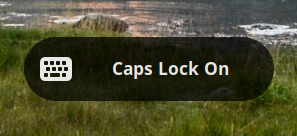
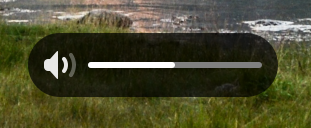
## Install:
There's a new LibInput watcher binary shipped with SwayOSD (`swayosd-libinput-backend`)
which can automatically detect key presses, so no need for binding key combos.
The supported keys are listed above in [Features](#features)
### Through Meson
```sh
# Please note that the command below might require `--prefix /usr` on some systems
meson setup build --buildtype release
meson compile -C build
meson install -C build
```
### Fedora
The package is available on COPR:
```sh
dnf copr enable erikreider/swayosd
dnf install swayosd
```
### Fedora Silverblue (and other rpm-ostree variants)
The package can be layered over the base image after adding the Copr repo as an ostree repo:
```sh
sudo curl -sL -o /etc/yum.repos.d/_copr:copr.fedorainfracloud.org:erikreider:swayosd.repo https://copr.fedorainfracloud.org/coprs/erikreider/swayosd/repo/fedora-$(rpm -E %fedora)/erikreider-swayosd-fedora-$(rpm -E %fedora).repo
rpm-ostree install swayosd
```
### Arch Linux
- extra: [swayosd](https://archlinux.org/packages/extra/x86_64/swayosd/)
- AUR: [swayosd-git](https://aur.archlinux.org/packages/swayosd-git) (thanks to @jgmdev! Don't report AUR packaging issues here)
### Debian / Ubuntu
Starting with Debian trixie and Ubuntu Plucky swayosd is available via apt.
- [swayosd](https://tracker.debian.org/swayosd)
## Usage:
### SwayOSD Frontend
`swayosd-server` must be running in the background.
Use `swayosd-client` to send commands and display the OSD.
### SwayOSD LibInput Backend (Optional)
Used for notifying when caps-lock, scroll-lock, and num-lock is changed.
Using Systemd: `sudo systemctl enable --now swayosd-libinput-backend.service`
Other users can run: `pkexec swayosd-libinput-backend`
### Sway examples
#### Start Server
```sh
# OSD server
exec swayosd-server
```
#### Add Client bindings
```ini
# Sink volume raise optionally with --device
bindsym XF86AudioRaiseVolume exec swayosd-client --output-volume raise
# Sink volume lower optionally with --device
bindsym XF86AudioLowerVolume exec swayosd-client --output-volume lower --device alsa_output.pci-0000_11_00.4.analog-stereo.monitor
# Sink volume toggle mute
bindsym XF86AudioMute exec swayosd-client --output-volume mute-toggle
# Source volume toggle mute
bindsym XF86AudioMicMute exec swayosd-client --input-volume mute-toggle
# Volume raise with custom value
bindsym XF86AudioRaiseVolume exec swayosd-client --output-volume 15
# Volume lower with custom value
bindsym XF86AudioLowerVolume exec swayosd-client --output-volume -15
# Volume raise with max value
bindsym XF86AudioRaiseVolume exec swayosd-client --output-volume raise --max-volume 120
# Volume lower with max value
bindsym XF86AudioLowerVolume exec swayosd-client --output-volume lower --max-volume 120
# Sink volume raise with custom value optionally with --device
bindsym XF86AudioRaiseVolume exec swayosd-client --output-volume +10 --device alsa_output.pci-0000_11_00.4.analog-stereo.monitor
# Sink volume lower with custom value optionally with --device
bindsym XF86AudioLowerVolume exec swayosd-client --output-volume -10 --device alsa_output.pci-0000_11_00.4.analog-stereo.monitor
# Capslock (If you don't want to use the backend)
bindsym --release Caps_Lock exec swayosd-client --caps-lock
# Capslock but specific LED name (/sys/class/leds/)
bindsym --release Caps_Lock exec swayosd-client --caps-lock-led input19::capslock
# Brightness raise (optionally with --device, can be device name or wildcard)
bindsym XF86MonBrightnessUp exec swayosd-client --brightness raise --device intel_backlight
# Brightness lower (optionally with --device, can be device name or wildcard)
bindsym XF86MonBrightnessDown exec swayosd-client --brightness lower --device intel_backlight
# Brightness raise with custom value('+' sign needed)
bindsym XF86MonBrightnessUp exec swayosd-client --brightness +10
# Brightness lower with custom value('-' sign needed)
bindsym XF86MonBrightnessDown exec swayosd-client --brightness -10
# Play/Pause current player
bindsym XF86AudioPlay exec swayosd-client --playerctl play-pause
# Next song for current player
bindsym XF86AudioNext exec swayosd-client --playerctl next
```
### Notes on using `--device`:
- It is for audio and BrightnessCtl devices only.
- If it is omitted, the default audio / first BrightnessCtl device is used.
- It only changes the target device for the current action that changes the volume / brightness.
- You can list your input audio devices using `pactl list short sources`, for outputs replace `sources` with `sinks`.
- You can list your brightness devices using `brightnessctl -l`, for backlights, use `brightnessctl -l -c backlight`.
### Notes on using `--monitor`:
- By default, without using --monitor the osd will be shown on all monitors
- On setups with multiple monitors, if you only want to show the osd on the focused monitor, you can do so with the help of window manager specific commands:
```sh
# Sway
swayosd-client --monitor "$(swaymsg -t get_outputs | jq -r '.[] | select(.focused == true).name')" --output-volume raise
# Hyprland
swayosd-client --monitor "$(hyprctl monitors -j | jq -r '.[] | select(.focused == true).name')" --output-volume raise
```
## Theming
Since SwayOSD uses GTK, its appearance can be changed. Initially scss is used, which GTK does not support, so we need to use plain css.
The style conifg file is in `~/.config/swayosd/style.css` (it is not automatically generated). For reference you can check [this](https://github.com/ErikReider/SwayOSD/blob/main/data/style/style.scss) and [this](https://github.com/ErikReider/SwayOSD/issues/36).
## Brightness Control
Some devices may not have permission to write `/sys/class/backlight/*/brightness`.
So using the provided packaged `udev` rules + adding the user to `video` group
by running `sudo usermod -a -G video $USER`, everything should work as expected.
### Development
#### Setup and build
```sh
meson setup build
meson compile -C build
```
#### Set the environment
```sh
# Sets the correct environment variables
meson devenv -C build -w .
# Now you can start nvim, vscode, etc in the current shell to reduce duplicated builds
```
|
